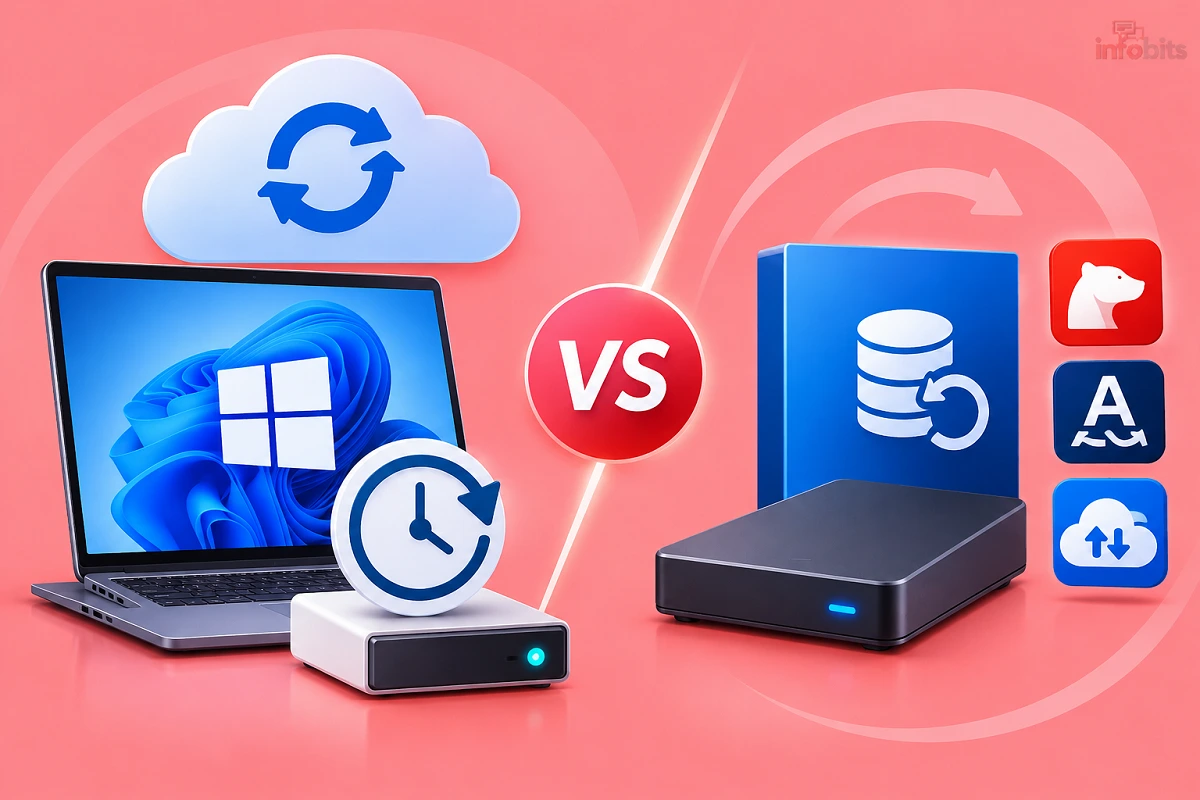
Windows Backup vs Third-Party Backup Software: Which Do You Need?
As you know, Windows Backup is enough to protect your files. It is not enough to rebuild your whole PC. For a full recovery, you need either the old built-in system image tool or a third-party program.
Most people only find this out after their drive fails. By then, it is too late.
This guide explains what Windows really backs up, where it falls short, and when third-party software is worth it. You will also get a simple setup for each type of user.
Quick Answer: Windows Backup vs Third-Party Software
| Built-in Windows tools | Third-party backup software | |
|---|---|---|
| Cost | Free | Free options exist; paid plans cost more |
| Backs up files | Yes | Yes |
| Full system image | Only through a deprecated legacy tool | Yes, usually with scheduling |
| Restore the whole PC | Possible, but limited | Yes, with bootable recovery media |
| Cloud backup | OneDrive (5GB free) | Depends on the product |
| Ransomware protection | Basic | Stronger in some paid tools |
| Ease of use | Very easy | Moderate |
| Best for | Documents, photos, settings | Complete recovery and fast restores |
Simple Rule: If losing your files would hurt, use Windows Backup. If losing your entire setup would hurt, add an image tool.
What Counts as “Windows Backup”?
Windows doesn’t have one backup tool. It has several, and each does a different job.
| Tool | What it protects | Where it saves | Main limit |
|---|---|---|---|
| Windows Backup app | Folders, settings, Wi-Fi details, installed-app list | OneDrive (cloud) | Not a full system image |
| File History | Earlier versions of your personal files | External drive or network | Legacy feature, files only |
| System Image (Backup and Restore Windows 7) | Windows, programs, settings and files | External drive or network | Deprecated, limited scheduling |
| System Restore | System files, drivers and settings | Local restore points | Does not protect your personal files |
| Recovery drive / Reset this PC | Reinstalls Windows | USB or local | You lose your apps and settings |
The names are confusing, so here is what matters.
Windows Backup is Microsoft’s modern tool. It saves your Desktop, Documents and Pictures folders, plus settings, to OneDrive. It is simple and automatic.
File History and the system image tool are older. Microsoft classifies them as legacy. They still work in Windows 11, but they get no new features.
What Windows Backup Does Well
- It is free and already installed. Nothing to buy or download.
- It is simple. Sign in with a Microsoft account, choose folders, and you are done.
- It makes moving to a new PC easier. Settings and your app list come back on a new device.
- It protects against common accidents such as deleted folders or a lost laptop.
For many home users, this covers 80% of what they care about.
Where Windows Backup Falls Short
1. The free space is tiny. A free Microsoft account gives only 5GB of OneDrive, shared with your email attachments. One phone photo folder can fill that. Paid plans add storage. Microsoft 365 Basic gives 100GB at roughly $20 a year, though prices change, so check the current rupee price on Microsoft’s India page.
2. It is not a full image. It restores your folders and a list of your apps. It doesn’t recreate your installed programs, licences, drivers and exact setup. If your SSD dies, you still need to reinstall Windows and every app.
3. Sync is not a backup. OneDrive mirrors changes. If ransomware encrypts your files, or you delete something by mistake, the change can sync across. Paid subscribers can roll back their OneDrive, but free users have much less protection.
4. The legacy tools are fading. Microsoft deprecated the system image tool years ago. It still works today, but it may be removed in a future Windows build.
5. Limited control. You get few choices for scheduling, encryption, compression, verification or backup rules.
What Third-Party Backup Software Adds
Third-party tools fill the gaps Windows leaves.
- Full disk imaging. They capture the whole drive: Windows, apps, settings and files.
- Bare-metal restore. You boot from a USB recovery stick and rebuild the PC onto a new drive, even if Windows won’t start.
- Scheduling and incremental backups. Only changes are saved after the first full backup, which saves time and space.
- Cloning. Move your whole system to a bigger SSD without reinstalling.
- Encryption and verification. Protect backups with a password and check that they are readable.
- Cloud and NAS options. Some tools send backups to cloud storage or a home network drive.
- Ransomware protection. Certain paid tools monitor for suspicious changes and protect backup files.
Third-Party Backup Software Compared (2026)
| Software | Best for | Cost | Main catch |
|---|---|---|---|
| Veeam Agent for Windows Free | Free full-system imaging | Free | Only one backup job, no direct cloud target |
| AOMEI Backupper Standard | Easy free backup for beginners | Free, paid Pro starts around $40 | Some features, like system clone and differential backup, are paid |
| Macrium Reflect X Home | Fast, reliable imaging and recovery | Paid subscription | No free edition anymore |
| Acronis True Image | Backup plus security in one subscription | Roughly $50 to $125 a year by tier | Cheapest tier is local-only |
| EaseUS Todo Backup | Beginners who want a simple interface | Free and paid versions | Key features are in the paid tier |
| Rescuezilla / Clonezilla | Occasional free image or cloning | Free | Less polished, not scheduled |
Note: Prices are approximate and change often, so check each vendor’s site before you buy.
Important: Many older articles still call Macrium Reflect Free the best free tool. It was discontinued, and its last free versions no longer get fixes. Do not download it from third-party sites.
Quick Picks
- Best free option: Veeam Agent for Windows Free. It builds a full system image, creates bootable recovery media and costs nothing.
- Easiest free option: AOMEI Backupper Standard. The interface is friendlier than Veeam’s.
- Best if you want backup plus security: Acronis True Image.
- Best if you want a recovery-focused paid tool: Macrium Reflect X Home.
Which Should You Use? Pick by User Type
| If you are a… | Recommended setup |
|---|---|
| Casual home user (photos, documents, browsing) | Windows Backup plus a copy on an external drive |
| Student | Windows Backup for notes and projects, plus a pen drive or external SSD copy before exams |
| Freelancer or work-from-home user | Windows Backup plus a scheduled image (Veeam or AOMEI) |
| Photographer or video editor | External drive plus a paid tool with versioning, plus a cloud copy of final work |
| Small business owner | Scheduled image backups plus an off-site cloud copy, and test restores |
| Gamer | Back up saves and configs, since game files can be re-downloaded |
| Developer | Use Git for code, plus a full image for your whole dev setup |
| Parent with a family PC | Windows Backup plus a monthly image to an external drive |
The 3-2-1 Rule (Keep This in Mind)
No tool matters if all your copies sit in one place. Follow the 3-2-1 rule:
- 3 copies of your data
- 2 different types of storage (for example, your PC and an external drive)
- 1 copy off-site (cloud or another location)
A practical Indian example for the above description is your laptop, an external SSD at home, and a cloud copy. A power cut, surge or theft can’t wipe out all three. If you need local cloud storage, our DigiBoxx guide covers an Indian option.
An external SSD or hard drive (see the options on Amazon) from brands like Samsung, WD, Seagate, or SanDisk is the cheapest way to add a second local copy, and it makes the whole setup far more reliable.
Power problems are a real risk for drives in India. Read our guide to surge protectors to protect your gear from spikes.
How to Set Up Each Option
Option 1: Turn on Windows Backup (Files and Settings)
- Open Settings, then Accounts, then Windows Backup.
- Sign in with your Microsoft account.
- Turn on Folder backup and choose Desktop, Documents and Pictures.
- Check your free storage. If 5GB isn’t enough, choose fewer folders or buy more space.
Option 2: Create a System Image with the Built-In Tool
This still works in Windows 11, but it is a legacy feature.
- Open Control Panel, then System and Security, then Backup and Restore (Windows 7).
- Click Create a system image.
- Choose an external drive formatted as NTFS.
- Follow the prompts, then create a system repair disc if asked.
You can restore it later from the recovery environment under Troubleshoot, then Advanced options, then System Image Recovery. For more detail, see our guide to configure backup and restore in Windows.
Option 3: Use a Free Third-Party Image Tool
The exact steps depend on the tool, but the flow is similar:
- Download the software only from the official website.
- Choose Entire computer or System image as the backup type.
- Select an external drive as the destination.
- Set a schedule, such as weekly.
- Create bootable recovery media on a USB stick. You will need it if Windows won’t start.
- Run the first full backup.
Keep a spare 32GB USB flash drive just for recovery media, and label it clearly so you can find it in an emergency.
Always Test Your Backup
A backup you haven’t tested is only a hope. At least twice a year:
- Restore a few random files and open them.
- Check that your recovery USB boots.
- Confirm the backup finished without errors.
This takes ten minutes, and it can save you days of stress.
Common Backup Mistakes
- Treating OneDrive as a full backup. It syncs files and does not protect your whole system.
- Keeping the backup on the same drive as your data. If the drive dies, both are gone.
- Leaving the backup drive plugged in all the time. Ransomware can encrypt it too. Unplug it after backing up, or use versioned backups.
- Never testing the restore.
- Ignoring the 5GB limit and assuming everything is protected.
- Skipping recovery media. An image is useless if you can’t boot to restore it.
- Relying on old advice that recommends discontinued tools.
- Forgetting phones. Your photos and chats need their own backup. See our guide to recovering deleted WhatsApp photos.
What About Ransomware and Malware?
Ransomware locks your files and demands payment. A good backup is your best defence, but only if the backup itself is safe.
- Keep at least one copy offline or off-site.
- Use versioned backups so you can go back to a clean point.
- Keep Windows and your security software updated.
- Learn how infections spread in our guide to computer viruses and their types.
Do You Need Third-Party Software? A Quick Guide
Stick with Windows tools if:
- Your main concern is documents and photos
- You are comfortable reinstalling Windows and apps
- You already keep an external drive copy
Add third-party software if:
- You want to restore your whole PC quickly
- Your PC is hard to set up again (work tools, licences, custom settings)
- You want scheduled, incremental backups
- You need encryption or ransomware protection
- You plan to move to a new SSD without a fresh install
Setting Up a New PC? Do This First
A backup plan is easiest to set up on a fresh machine. After installing Windows, follow our checklist of things to do after installing Windows 11.
If you need to reinstall, our guide on installing Windows from a USB drive helps. And if you reuse an old drive for backups, our disk format tool guide explains how to prepare it.
If you accidentally delete files before you have a backup, see our guide on recovering shift-deleted files.
Final Verdict
For most people, the best setup is both. Means that use Windows Backup for everyday file protection, and add a free image tool like Veeam Agent or AOMEI Backupper for full recovery. Keep one copy on an external drive and one off-site.
If you can only do one thing today, copy your important files to an external drive. Then turn on Windows Backup. Then, when you have time, create a full system image and test it.
Backups are boring until the day you need one. Set yours up before that day arrives.
Frequently Asked Questions
It is enough to protect your files and settings. It does not create a full system image, so you still need to reinstall Windows and apps after a drive failure.
It backs up chosen folders such as Desktop, Documents and Pictures to OneDrive, plus settings, Wi-Fi details and a list of your installed apps.
No. The modern Windows Backup app does not. The older Backup and Restore (Windows 7) tool can create a system image.
Yes. Microsoft deprecated it, but you can still use it from Control Panel to create a system image.
It is deprecated and may be removed in a future Windows build. Don’t rely on it as your only long-term option.
File History saves earlier versions of your files to an external drive. Windows Backup saves folders and settings to OneDrive. Both are file-focused, and File History is now a legacy tool.
It is mainly a sync service. If a file is deleted or encrypted, the change can sync to the cloud. Treat it as one layer of protection, not your only backup.
A free Microsoft account includes 5GB, which is shared with Outlook attachments. Paid plans add more.
Veeam Agent for Windows Free is widely recommended for full-system imaging. AOMEI Backupper Standard is a friendlier free alternative.
No. The free edition was discontinued, and its replacement, Reflect X, is a paid subscription.
It is a copy of your entire drive, including Windows, installed programs, settings and files, which you can restore to rebuild a PC exactly as it was.
It means restoring your whole system onto a new or empty drive using bootable recovery media, even if Windows won’t start.
Not always. If you only need to protect files, Windows tools may be enough. If you want to restore your whole PC quickly, a third-party image tool is worth adding.
Files you change daily should be backed up daily or continuously. A full system image is usually fine weekly or monthly.
Keep 3 copies of your data, on 2 different types of storage, with 1 copy off-site.
Use both if you can. An external drive restores quickly, and the cloud protects you from fire, theft and power surges.
Yes, if at least one copy is offline or versioned so it can’t be encrypted along with your files.
Restore a few files and open them, and check that your recovery USB boots. Do this at least twice a year.
You can for files and small backups. For a full system image, an external hard drive or SSD with enough space is better.
Yes. Without a bootable recovery USB, you may not be able to restore an image if Windows won’t start.
We hope you are interested in our articles and consider following our Facebook, Instagram, and Twitter pages for regular updates.
Also, share this article with your friends and relatives. Bookmark this page for future reference.
Subscribe to our free newsletter to get similar articles and regular updates directly in your Email Inbox.
Subscribe to be the first to learn about new information
Disclosure: If you follow our links to a retailer’s website and make a purchase, we will get an affiliate commission on some, but not all, of the items or services we promote. This will cause no price change for you.
You May Be Interested to Read:
- How to Enable TPM 2.0 in BIOS (Step-by-Step Guide for Windows 11 PCs)
- Best OS for Low-End PCs in 2026: Especially After Windows 10’s End
- How to Turn On Laptop Keyboard Light (Windows & Mac): Complete Guide
- No Internet, Secured Error in Windows 10 & 11: 15 Fixes
- “Windows Could Not Automatically Detect This Network’s Proxy Settings” – 14 Fixes