Dynamic Lock in Windows 11: Setup Guide, Fixes & Is It Worth Using?
Walk away from your desk for two minutes without locking your PC, and that’s all it takes. Dynamic Lock is Windows’ answer to that exact moment. A feature that locks your computer automatically the second your paired phone moves out of Bluetooth range.
It’s a genuinely useful idea. It’s also, honestly, a feature with a reputation for being flaky. A lot of people set it up once, watch it silently stop working a few weeks later, and give up on it. This guide covers how to set it up correctly, what actually causes it to fail, and whether it’s worth relying on at all in 2026.
Quick answer: Dynamic Lock uses your phone’s Bluetooth connection as a presence signal. When your paired phone disconnects (because you’ve walked away), Windows locks itself after a short delay. It’s genuinely useful as a safety net, but it isn’t a substitute for manually locking your PC (Win + L) since it depends entirely on a stable Bluetooth connection to work reliably.
What Is Dynamic Lock, Really?
Dynamic Lock is a Windows feature that automatically locks your PC when a Bluetooth-paired phone moves out of range, using the phone as a rough proximity signal for “you’ve stepped away.”
It’s built on top of Windows Hello for Business’s device-pairing framework, though you don’t need Windows Hello configured with biometrics to use it. A PIN or password sign-in works fine.
Here’s the detail most guides skip. It isn’t actually measuring distance. Windows doesn’t know how far your phone is from your PC in any physical sense. It’s simply watching whether the Bluetooth connection between the two devices is currently active or has dropped.
If your phone’s Bluetooth radio disconnects cleanly when you walk away, Windows notices and locks the machine after roughly 30 seconds to a couple of minutes, depending on your device and Windows build.
If the connection lingers, drops intermittently, or your phone’s battery-saving settings interfere with Bluetooth, Dynamic Lock can fail silently. No error message; it simply doesn’t lock.
It’s also worth being clear that Dynamic Lock currently only officially supports phones as the paired device class, despite Microsoft’s original 2017 announcement mentioning broader compatibility with things like fitness bands. Don’t expect a smartwatch or Bluetooth earbuds to reliably trigger it. A phone remains the only documented, supported option.
Dynamic Lock vs Windows Hello vs Screen Timeout
These three features get confused constantly because they all relate to PC security, but they solve different problems.
| Feature | What it actually does | When it acts |
|---|---|---|
| Dynamic Lock | Locks the PC when your paired phone’s Bluetooth connection drops | Reactive; triggers on departure, roughly 30 seconds to a few minutes after disconnect |
| Windows Hello | Authenticates you back in via PIN, fingerprint, or face recognition | Only handles unlocking, not locking. It’s the “come back” half of the equation |
| Screen/sign-in timeout | Locks the PC after a fixed period of inactivity | Reliable but slow. A 5-minute timeout means up to 5 minutes of exposure if you forget to lock manually |
The honest opinion: Dynamic Lock is faster to react than a timeout, but far less reliable because it depends on Bluetooth signal behaviour rather than a simple clock. Windows Hello doesn’t compete with either. It’s solving the opposite problem (getting back in quickly, not locking out promptly).
The strongest setup uses all three together: Dynamic Lock as a fast-reacting layer, a short screen timeout as a dependable backstop, and Windows Hello for quick, secure re-entry.
Related: How to Choose a Laptop in India: Complete Buying Guide
How to Set Up Dynamic Lock in Windows 11
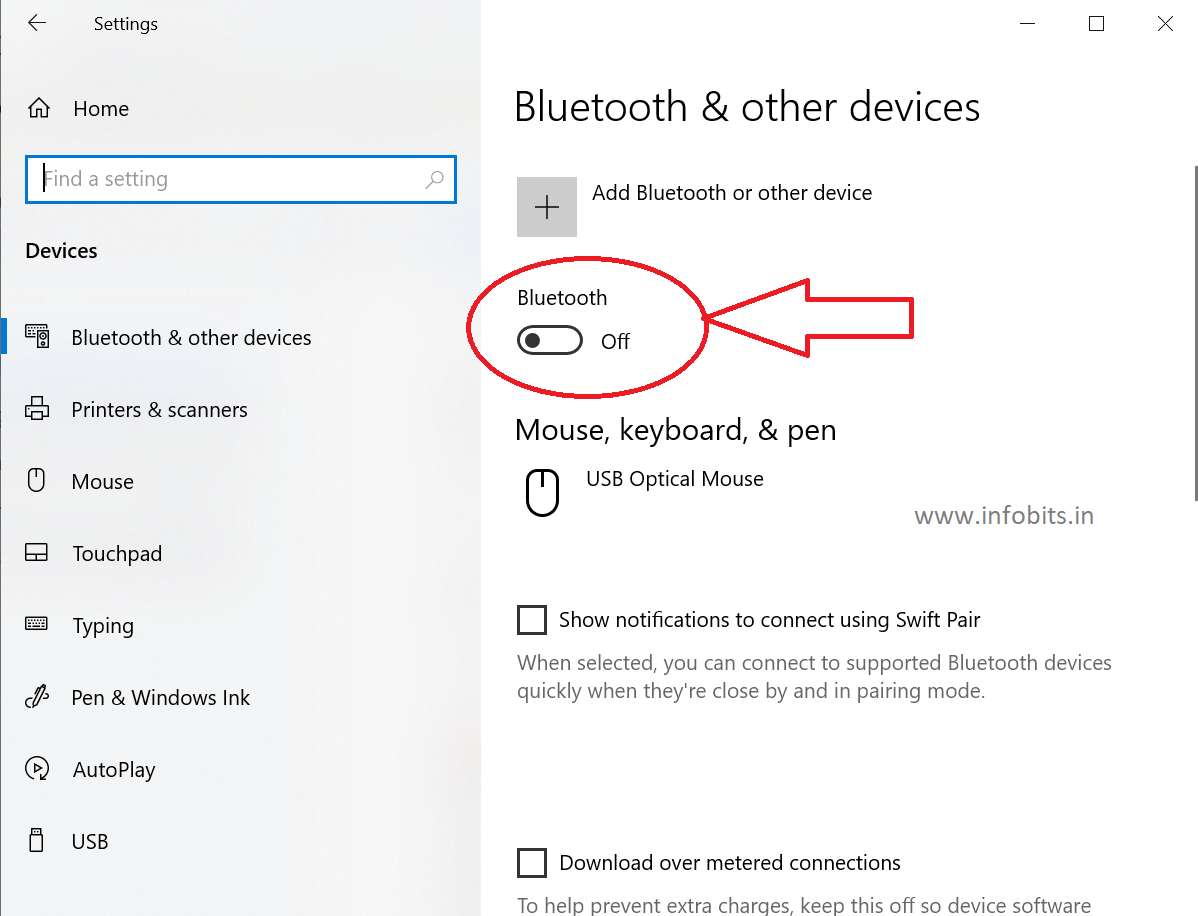
Step 1: Turn on Bluetooth on your PC
Go to Settings > Bluetooth & devices and confirm the Bluetooth toggle is switched on. If your desktop doesn’t have built-in Bluetooth, you’ll need a compatible USB Bluetooth adapter. Check it’s Windows 11-compatible and has current drivers installed before proceeding.
Step 2: Turn on Bluetooth on your phone
iOS: Go to Settings > Bluetooth and enable it, or swipe down for Control Centre and tap the Bluetooth icon.
Android: Swipe down for Quick Settings and toggle Bluetooth on if it isn’t already.
Step 3: Pair your phone with your PC
- On your PC, go to Settings > Bluetooth & devices > Add device.
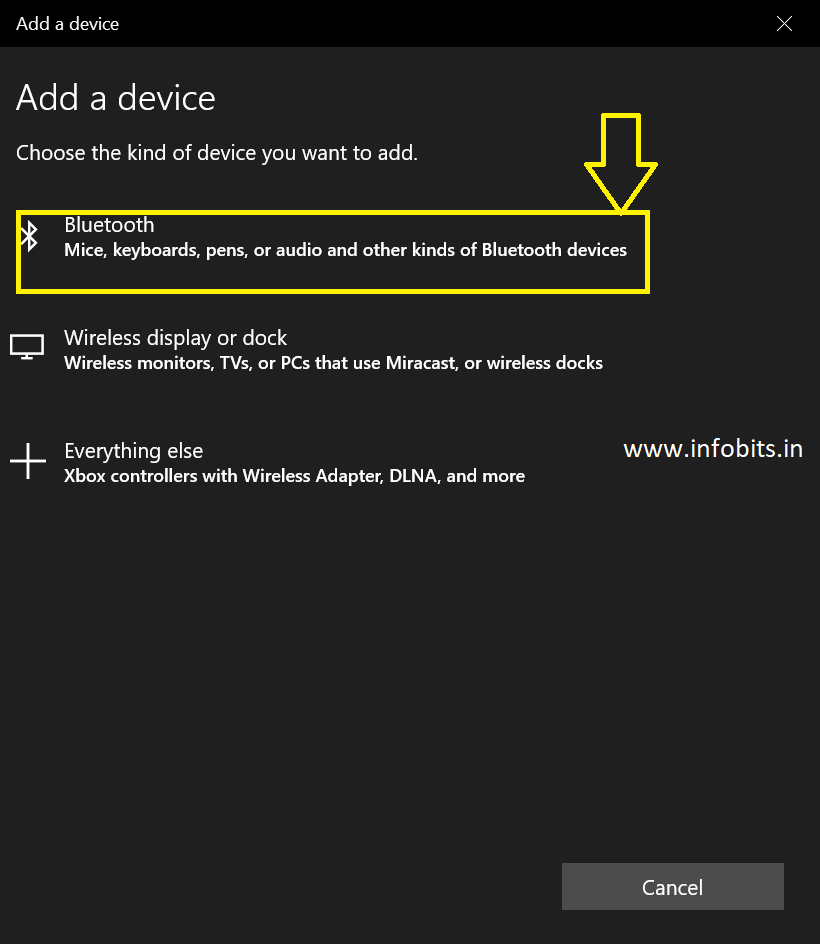
- Select Bluetooth from the list of connection types.
- Choose your phone from the list of nearby devices.
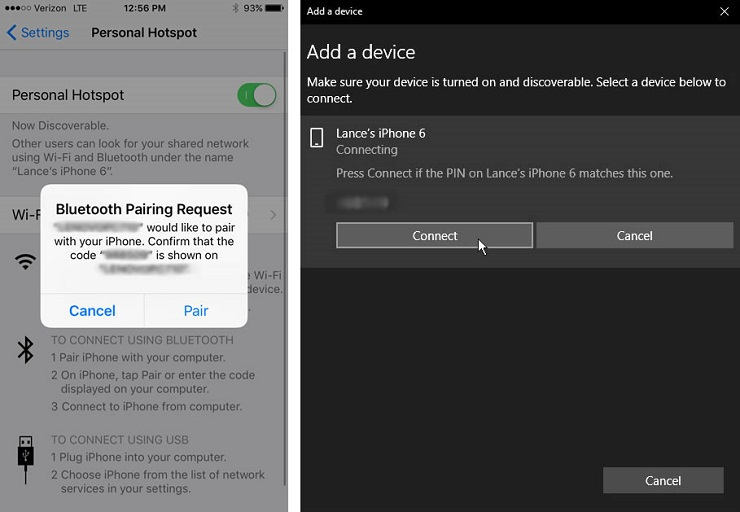
- Confirm the pairing PIN on both your phone and PC. Tap “Pair” or “OK” on your phone, and “Connect” on your PC.
- Once paired, your phone should show as Connected (not just Paired) under Bluetooth devices. This distinction matters, since Dynamic Lock needs an active connection, not just a stored pairing.
Step 4: Enable Dynamic Lock
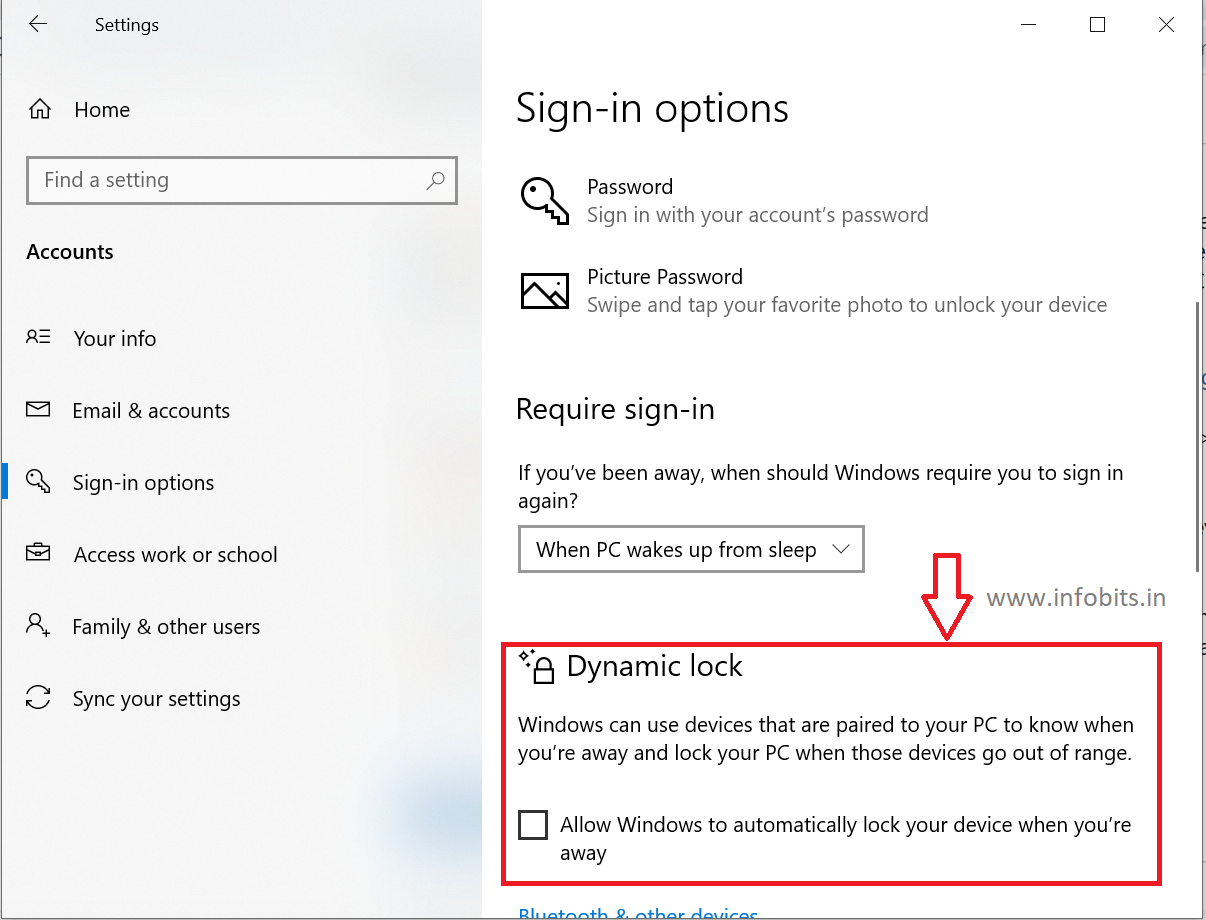
- Go to Settings > Accounts > Sign-in options.
- Scroll down to the Dynamic Lock section.
- Check Allow Windows to detect when you’re away and lock the device automatically.
- Confirm your phone appears as the connected device Windows will monitor.
Step 5: Test it properly
With your PC unlocked, walk far enough away with your phone that the Bluetooth connection actually drops. It is usually beyond about 10 metres, though this varies by hardware and any walls or interference in between.
Give it a minute or two, then check whether the PC has locked. If it hasn’t, don’t assume the feature is broken yet. Bluetooth range and reconnection behaviour vary a lot between devices, so it’s worth testing a couple of times before troubleshooting.
Related: Types of Computer Viruses and How to Avoid Them
Why Dynamic Lock Stops Working (and How to Fix It)
This is genuinely the most searched question about this feature, and it comes down to a handful of recurring causes.
Bluetooth connection instability. This is the single biggest cause of Dynamic Lock failing silently. Since Windows only checks whether the connection is active ( not actual distance), a phone that briefly drops and reconnects Bluetooth while in your pocket (common with aggressive battery optimisation on some Android phones) can confuse the feature entirely. Check that your phone shows as actively connected, not just paired, before relying on it.
Windows Hello misconfiguration. Dynamic Lock runs on Windows Hello’s underlying framework, so if Hello is stuck in a setup-required or error state, it can prevent the lock behaviour from triggering correctly, even though you don’t need biometrics enabled to use Dynamic Lock itself. Check Sign-in options to confirm Hello methods aren’t showing an error.
Group Policy or MDM restrictions. On a work-managed or school-managed PC, Dynamic Lock can be silently blocked by organisational policy even if pairing appears to work.
Check Settings > Accounts > Access work or school to see if your device is managed. If it is, this may be outside your control.
A Group Policy fix worth trying (Pro, Enterprise, Education editions):
- Press Win + R, type
gpedit.msc, and press Enter. - Navigate to Computer Configuration > Administrative Templates > Windows Components > Windows Hello for Business.
- Find Configure dynamic lock factors and double-click it.
- Set it to Enabled, click Apply, then OK.
- Restart your PC and re-test Dynamic Lock.
Note: Windows 11 Home doesn’t include Group Policy Editor by default. It can be manually enabled via Command Prompt, but this is a more advanced step best attempted only if you’re comfortable with it.
Fast User Switching interference. Dynamic Lock is tied to your specific active session. If another user remains signed in simultaneously, or you frequently switch between accounts, Windows may not lock as expected.
A recent update or app conflict. Some users have reported Dynamic Lock breaking after Windows updates or after installing apps like Phone Link, which also uses Bluetooth pairing with your phone.
If the issue started right after an update or install, a System Restore to a point before the change can sometimes resolve it – via Control Panel > Recovery > Open System Restore.
If none of this resolves it, running System File Checker (sfc /scannow in an elevated Command Prompt) and DISM can rule out corrupted system files as the cause.
Should You Actually Rely on Dynamic Lock?
The honest answer is to treat it as a convenience layer, not a security guarantee. It’s genuinely useful for catching the moments you simply forget to lock your PC – stepping away for a coffee, a quick conversation, a bathroom break – situations where a 5-10 minute screen timeout would leave your machine exposed the whole time.
But because it depends entirely on Bluetooth connection stability rather than a hard, predictable trigger, it can fail without any indication that it has.
If you’re handling genuinely sensitive work like financial data, confidential documents, anything where an unlocked screen for even a few minutes would be a real problem, don’t treat Dynamic Lock as your only line of defence.
Pair it with the habit of manually locking your PC (Win + L) every single time you step away, regardless of whether Dynamic Lock is configured.
Better Habits to Pair With Dynamic Lock
- Set a short screen timeout as backup. Go to Settings > System > Power & battery > Screen and sleep, and set your screen to lock after 1-5 minutes of inactivity. This covers you when Dynamic Lock’s Bluetooth detection fails silently.
- Build the Win + L reflex. It takes less than a second and doesn’t depend on any hardware working correctly.
- Check your phone shows “Connected,” not just “Paired.” This is the fastest way to spot why Dynamic Lock might be failing before you even open a troubleshooting guide.
- Use Windows Hello for fast re-entry. A face-recognition camera or fingerprint reader makes locking your PC frequently far less annoying, since getting back in takes a second rather than typing a full password each time.
Common Mistakes to Avoid
- Assuming pairing alone is enough. Your phone needs to show as actively connected under Bluetooth settings, not just paired in the device list. A stored pairing with a dropped connection won’t trigger Dynamic Lock correctly.
- Relying on it as your only lock method for sensitive work. Treat it as a convenience net, not a guarantee, given how dependent it is on Bluetooth stability.
- Trying to pair non-phone devices. Fitness bands, earbuds, and smartwatches aren’t officially supported device classes for this feature, whatever older Microsoft messaging may have implied.
- Ignoring aggressive battery optimisation settings on your phone. If your phone frequently disconnects Bluetooth to save power, Dynamic Lock’s reliability will suffer. Check your phone’s Bluetooth-related battery settings if you notice frequent misfires.
- Not testing after every major Windows update. Given how often users report Dynamic Lock breaking after updates, it’s worth a quick re-test whenever your PC installs a significant Windows update.
Conclusion
Dynamic Lock is a genuinely thoughtful idea undercut by an inherently unreliable trigger. Bluetooth connection status is a rough proxy for “you walked away,” not a precise one, and that gap is exactly where most of the frustration with this feature comes from.
Set it up as one layer of a broader habit, not your entire security plan: pair it with a short screen timeout as backup, keep the Win + L reflex, and check your phone’s Bluetooth connection status if it ever seems to stop working.
Used correctly, it catches exactly the moments it’s meant to. The quick coffee break you forgot to lock for, without you needing to think about it at all.
Related: First things to do after installing Windows 11
Frequently Asked Questions
Dynamic Lock is a Windows feature that automatically locks your PC when a Bluetooth-paired phone’s connection drops, acting as a safety net if you forget to lock the machine manually when stepping away.
No. Dynamic Lock only handles locking. To unlock, you’ll use your normal sign-in method (PIN, password, or Windows Hello) once you return, regardless of whether your phone has reconnected.
It’s not essential, but it’s a genuinely useful supplementary layer, especially in shared or public spaces like offices or co-working areas where you might forget to lock manually. It shouldn’t replace the habit of pressing Win + L, though, given its reliability depends on Bluetooth connection behaviour.
The most common cause is Bluetooth connection instability. Your phone’s Bluetooth briefly disconnecting and reconnecting (often due to battery optimisation settings) can confuse Windows’ detection, even though the device still shows as paired.
No. Despite early messaging suggesting broader device support, Dynamic Lock’s current, documented configuration only officially supports a paired phone as the trigger device.
There’s no fixed distance. Dynamic Lock reacts to the Bluetooth connection dropping, not a measured distance, so the effective range depends on your specific Bluetooth hardware, walls, and interference, typically somewhere around 10 metres under normal conditions.
Yes, the core feature works on Home edition. Some troubleshooting steps involving Group Policy Editor aren’t available by default on Home, though there are workarounds to enable it if needed.
No. Windows Hello handles authenticating you back in via PIN, fingerprint, or facial recognition, while Dynamic Lock is a separate feature that detects when to lock the PC in the first place. They work well together but solve different problems.
Some users report Dynamic Lock breaking after specific Windows updates or after installing apps like Phone Link that also use Bluetooth pairing. A System Restore to a point before the update, or re-pairing your phone from scratch, often resolves this.
No. Dynamic Lock relies on Windows Hello’s underlying framework, so disabling it entirely can make Dynamic Lock behave less reliably rather than more. Instead, check that your configured Hello sign-in methods aren’t stuck in an error state.
Has Dynamic Lock stopped working on you, or have you found a fix that isn’t listed here? Share it in the comments, and for getting instant updates of new posts from Infobits similar to this, consider following our Facebook and Twitter Pages.
Also, don’t forget to subscribe to our newsletter for more practical Windows guides so that you will get regular updates directly in your Email.
Subscribe to be the first to learn about new information
Disclosure: We may get an affiliate commission without affecting the price of your purchase if you follow some of the links in this article to go to a retailer’s website and make a purchase of some, but not all, of the products or services that we discuss.