How to Set Up an Old Router as a Wi-Fi Access Point (India Guide)
Your Wi-Fi is fine in the hall. But the bedroom? Dead. The terrace? Forget it.
Before you buy a Wi-Fi extender, check your cupboard. That old router you replaced two years ago can fix this problem for free. You just need to set it up as an access point, and it takes about 10 minutes.
Quick Answer:
To use an old router as a Wi-Fi access point:
- Reset the old router and log in to its admin page.
- Change its LAN IP to an unused address in your main router’s range.
- Turn off its DHCP server.
- Set the same Wi-Fi name and password as your main router.
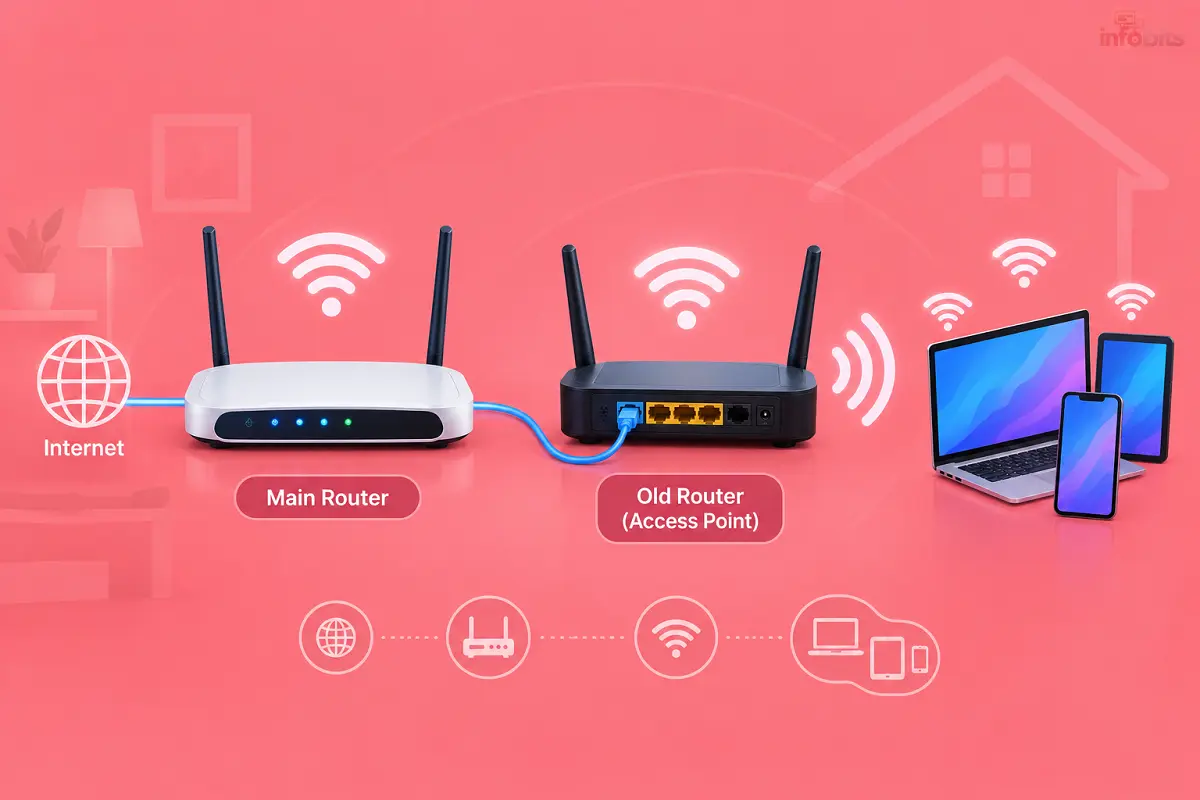
- Connect a LAN cable from a LAN port on your main router to a LAN port on the old router. Never use the WAN/Internet port.
That’s it. The main router keeps managing the internet and IP addresses. The old router just adds more Wi-Fi coverage.
What Is a Wi-Fi Access Point?
An access point (AP) is a device that turns a wired network connection into Wi-Fi. It does not give out IP addresses or manage the internet. It only broadcasts the signal.
A router does three jobs: routing, DHCP (handing out IP addresses) and Wi-Fi. When you turn off routing and DHCP on an old router, only the Wi-Fi part is left. That is exactly what an access point is.
Access Point vs Repeater vs Mesh: Which One Do You Need?
People mix these terms up all the time. Here is the simple difference.
| Option | How it connects | Speed | Best for |
|---|---|---|---|
| Access point (wired) | Ethernet cable to main router | Full speed, most stable | Homes where a cable can be run |
| Repeater/extender (wireless) | Wi-Fi to main router | Often drops to about half | Places where no cable is possible |
| WDS / wireless bridge | Wi-Fi link between routers | Variable, often unstable | Rare cases, only if both routers support it properly |
| Powerline adapters | Through home electrical wiring | Depends on wiring quality | Cable not possible, but wiring is decent |
| Mesh system | Wi-Fi or wired backhaul | Good, but costs more | Large homes, many floors |
A wired access point almost always beats a repeater. A repeater has to receive and resend the same data over the same radio. That is why speed falls sharply.
Is Your Old Router Worth Using? (Quick Checklist)
Not every old router deserves a second life. Check these first.
- It still powers on, and the Wi-Fi works.
- You can log in to its admin page.
- It has at least one free LAN port.
- It supports WPA2 (AES) security.
- It is dual-band (2.4 GHz and 5 GHz) if you want better speeds.
- The manufacturer is still releasing firmware, or you can install trusted firmware.
Warning signs to skip it: the router only supports WEP or open networks, overheats, restarts on its own, or has damaged ports. In these cases, a new router is safer.
What You Need Before You Start
Keep these ready. It saves a lot of back and forth.
- Your old router and its power adapter
- A short LAN cable to set it up on a laptop
- A longer LAN cable to run to your main router
- Your main router’s Wi-Fi name, password and IP address
- A laptop or phone
A Cat6 cable is a good choice for the long run. It handles gigabit speeds comfortably and costs very little. If you need to run a cable across rooms, a Cat6 Ethernet cable in 10 or 20 metre length (available on Amazon) is a safe buy.
Get one with proper moulded connectors, because cheap loose ones cause random disconnections.
Step-by-Step: Set Up the Old Router as an Access Point
Step 1: Reset the Old Router
Press and hold the reset button for about 10 seconds with the router powered on. This removes old settings from its previous life. You get a clean start.
Step 2: Connect the Old Router to Your Laptop
Use a LAN cable from your laptop to a LAN port on the old router. Do not plug anything into its WAN/Internet port yet.
Turn off your laptop’s Wi-Fi so it does not get confused. Wired is more reliable for setup.
Step 3: Note Down Your Main Router’s Details
You need the main router’s IP address. On most Indian ISP routers, it is one of these:
| Router | Common IP address |
|---|---|
| JioFiber | 192.168.29.1 |
| Airtel Xstream | 192.168.1.1 |
| BSNL ONT/router | 192.168.1.1 |
| TP-Link, D-Link, Tenda | 192.168.0.1 or 192.168.1.1 |
These defaults can differ by model or firmware. The sticker under your router usually confirms it. On Windows, you can also type ipconfig in Command Prompt and look at “Default Gateway”.
Step 4: Log in to the Old Router’s Admin Page
Open a browser and type the old router’s IP address, usually printed on its sticker. Enter the admin username and password. Default credentials are often “admin” for both, but check the sticker.
If the old router’s default IP is the same as your main router’s (for example, both 192.168.1.1), that’s fine for now. You are connected only to the old router at this stage.
Step 5: Change the Old Router’s LAN IP Address
This is the step most guides skip. It matters a lot.
Your old router needs a new IP in the same range as your main router, but outside the DHCP pool. Say your main router is 192.168.29.1. You can set the old router to 192.168.29.2 or 192.168.29.250.
Pick an address the main router will never hand out. If unsure, use a high number like .250. Two devices with the same IP cause conflicts and random drops.
Step 6: Turn Off the DHCP Server
Find the DHCP setting, usually under LAN or Network settings. Disable it.
If both routers hand out IP addresses, devices get confused. You will see “connected, no internet” errors. The main router should be the only one running DHCP.
Some routers have a built-in “Access Point mode” or “AP mode”. If yours does, use it. It handles most of these settings for you. You may still need to set the IP manually on some models.
Step 7: Set Up the Wi-Fi
You have two choices here.
Same name and password as the main router. This lets your phone move between both routers under one network name. Use the same security type, like WPA2-AES, as well.
A different name, such as “Home-Bedroom”. This helps if you want to choose manually which one a device uses. It is also useful for testing.
Whichever you choose, use WPA2-AES or WPA3 if available, and a strong password. Our guide on WPA2 vs WPA3 for home routers explains which to pick.
Step 8: Change the Wi-Fi Channel
On 2.4 GHz, use channel 1, 6 or 11. These do not overlap with each other. Set the old router to a different channel from your main router.
For 5 GHz, choose a different channel if you can. Auto mode usually works, but not always. A free Wi-Fi analyser app on your phone shows which channels are crowded.
In apartments, this single change can noticeably improve speeds.
Step 9: Save and Reboot
Save your settings and let the router restart. It may take a minute. After this, you will lose access to the old router at its old address because its IP has changed.
Use the new IP you set in Step 5 to log in later.
Step 10: Connect It to the Main Router
Now plug one end of the LAN cable into a LAN port on the main router. Plug the other end into a LAN port on the old router.
Do not use the WAN/Internet port on the old router. That makes it behave like a router again and creates a second network. This is the most common mistake we see.
Step 11: Test the Connection
Connect your phone to the old router’s Wi-Fi. Open a website and run a speed test. Infobits Speed Test tool works well for this.
Walk around the house and compare signal strength. If the internet works and speeds are good, you’re done.
Where Should You Place the Access Point?
Placement matters as much as setup. A good AP in a bad spot gives poor results.
- Put it in the middle of the dead zone, not at its far edge.
- Keep it high, on a shelf or wall mount, not on the floor.
- Stay away from microwaves, cordless phones and thick concrete walls.
- Keep it away from metal almirahs and mirrors.
- Point external antennas straight up for floor-level coverage.
If you want to hide or manage the cable neatly, cable clips and a slim cable raceway help. To run the LAN cable along the wall without drilling messy holes, self-adhesive cable clips or a small cable raceway keep things tidy and cost very little, and are available on Amazon.
What If You Can’t Run a LAN Cable?
Sometimes running a cable is not possible, such as in a rented flat. You still have options.
Powerline adapters send the network through your home’s electrical wiring. They work best when both sockets are on the same circuit. Old or poor wiring can reduce speeds.
If drilling is not an option, a powerline Ethernet adapter kit (view on Amazon) can carry the network through your wiring. Plug one into a socket near the main router and the other near your old router.
Wireless repeater mode is the last choice. Use it only when nothing else works, and expect lower speeds.
Will an Old Router Slow Down Your Fast Internet?
Possibly, yes. This is especially true for gigabit fibre plans from Jio, Airtel or BSNL.
Many older routers have Fast Ethernet ports (100 Mbps). Even if your plan gives 300 Mbps or 1 Gbps, the AP link caps at roughly 94 Mbps. Check your router’s ports. Gigabit ports are usually labelled “10/100/1000”.
Wi-Fi standards matter too. A Wi-Fi 4 (N300) router tops out at far lower real-world speeds than a modern Wi-Fi 6 router. For browsing, YouTube and video calls, that’s still fine. For 4K streaming and large downloads, it may feel slow.
Simple rule: if your old router has gigabit ports and dual-band Wi-Fi, use it. If it only has 100 Mbps ports and 2.4 GHz Wi-Fi, use it for light devices or consider upgrading.
If your old router is too slow for your plan, a dual-band gigabit Wi-Fi 6 router like the TP-Link Archer AX10, available on Amazon, makes a better access point. Look for one that has a dedicated AP mode in its settings.
Common Mistakes to Avoid
- Plugging the cable into the WAN port instead of LAN
- Leaving DHCP turned on
- Giving the AP the same IP as the main router
- Using different security types with the same Wi-Fi name
- Putting the AP too far from the main router (when using Wi-Fi) or too close to it
- Forgetting to change the default admin password
Myth vs Fact
Myth: An old router in AP mode will slow down my main router.
Fact: A wired AP does not slow the main router. Both just share the same internet connection.
Myth: A repeater and an access point are the same thing.
Fact: A repeater uses Wi-Fi to connect. An access point uses a cable, which is faster and more stable.
Myth: Using the same Wi-Fi name always gives seamless roaming.
Fact: Your device decides when to switch. Some phones cling to a weak signal for too long.
Myth: Any old router will work.
Fact: Routers that no longer get security updates can be risky, even as an AP.
Security: Don’t Skip This
An old router can become a weak point in your network. It matters more than people think.
- Change the default admin password.
- Use WPA2-AES at minimum. Avoid WEP and TKIP.
- Turn off WPS. It is a known weak spot.
- Turn off remote management.
- Update the firmware if the manufacturer still offers it.
- If your router is more than 8 to 10 years old and has no updates, think twice.
Troubleshooting Guide
Connected but no internet.
Check that you used the LAN port, not WAN. Also confirm DHCP is off on the old router.
Can’t open the old router’s admin page.
You changed its IP. Connect directly with a LAN cable and try the new address. If that fails, reset it and start again.
Slow speeds on the AP.
Check the cable and ports. A damaged cable or a 100 Mbps port is often the culprit. A basic LAN cable tester (view the options on Amazon) is a handy little tool here. It tells you in seconds whether a cable has a broken wire.
IP conflict or random disconnections.
Two devices may share the same IP. Change the AP’s IP to something unused, like .250.
Wi-Fi keeps dropping.
Change the channel. Move the AP away from interference.
Phone sticks to the weak router.
Switch off Wi-Fi and turn it back on near the AP. Or give the AP a different name for more control.
Network loop or whole network crashes.
You may have connected two LAN ports of the same router, or two routers in a circle. Remove the extra cable.
Which Setup Should You Choose? (Decision Guide)
- Can run a LAN cable? Use a wired access point. It is the best option.
- Renting, no cable possible? Try powerline adapters.
- Nothing else works? Use repeater mode and accept slower speeds.
- Big home with multiple floors and a budget? A mesh system may be a better long-term fix.
- Old router has 100 Mbps ports and a fast plan? Upgrade to a gigabit router.
A Note for Jio, Airtel and BSNL Users
Most Indian fibre users get an ISP-provided router or ONT. You don’t need to change anything on it for this setup. Just leave it as your main router and add the old one as an AP.
If you are using your own router with a BSNL ONT, see our guide on setting up your own router with a BSNL ONT. Then add the old router as an AP on top of it. You can also read how to configure a BSNL FTTH modem.
If you rely on wireless broadband, check AirFiber vs Fiber in India to understand what your connection can actually deliver. An AP can only spread the speed that your main connection provides.
Final Checklist
- Old router reset
- LAN IP changed to an unused address in the main router’s range
- DHCP turned off
- Wi-Fi name, password and security set
- Channel changed
- Cable connected LAN to LAN
- Admin password changed
- Speed tested in the dead zone
Conclusion
Turning an old router into an access point is one of the easiest ways to fix weak Wi-Fi. It costs almost nothing and takes minutes. The key points are simple: turn off DHCP, use a free IP address and connect using LAN ports only.
Give it a try this weekend. If you get stuck, tell us your router models in the comments, and we’ll help you sort it out.
Frequently Asked Questions
Most routers can, as long as you can log in to the admin page and turn off DHCP. Some have a built-in AP mode that makes it even easier.
No. Use a LAN port. The WAN port makes the router act like a router, not an AP.
Yes, in most setups. Only your main router should hand out IP addresses.
Choose an unused address in the main router’s range; for example, 192.168.29.250 if your main router is 192.168.29.1.
It can. Use the same name, password and security type for easier roaming. A different name gives you more control.
An access point connects by cable and gives full speed. A repeater connects by Wi-Fi and usually halves the speed.
Not if it’s a wired AP with gigabit ports. A router with 100 Mbps ports will cap speeds at around 94 Mbps.
Only if it supports repeater or WDS mode; speeds are lower, and stability varies.
Always a LAN port. Avoid WAN/Internet.
With a cable, the distance is limited by the cable, up to 100 metres for Ethernet. The right spot is the centre of your weak-signal area.
Yes, if the admin interface lets you turn off DHCP. Some ISP-locked routers hide these settings, so check first.
It’s safe only if it supports WPA2-AES and you secure it properly. Avoid routers with no updates and weak encryption.
No. A wired AP spreads the load across two radios, which often improves overall performance.
Its IP address changed. Use the new IP you set, or reset the router and try again.
Only if you have many wired devices. A small gigabit switch adds ports cheaply.
An old router AP is free and works well for one dead zone. A mesh system suits larger homes and gives smoother roaming.
Yes. Set up each one with its own unused IP, DHCP off, and a different Wi-Fi channel.
Yes, if the old router has gigabit LAN ports and fast Wi-Fi. Otherwise, the router becomes the bottleneck.
We hope you are interested in our articles and consider following our Facebook, Instagram, and Twitter pages for regular updates.
Also, share this article with your friends and relatives. Bookmark this page for future reference.
Subscribe to our free newsletter to get similar articles and regular updates directly in your Email Inbox.
Subscribe to be the first to learn about new information
Disclosure: If you follow our links to a retailer’s website and make a purchase, we will get an affiliate commission on some, but not all, of the items or services we promote. This will cause no price change for you.
You May Be Interested to Read:
- Jio AirFiber vs Airtel Xstream AirFiber: Full Comparison
- Double NAT Explained: How to Check and Fix It on Indian Broadband
- How to Boost Home Wi-Fi Speed: 15 Fixes That Really Work
- India’s Undersea Internet Cables: How They Work & Why They Matter
- Best OTT Subscription Bundle in India: Plans, Prices and Which One to Pick