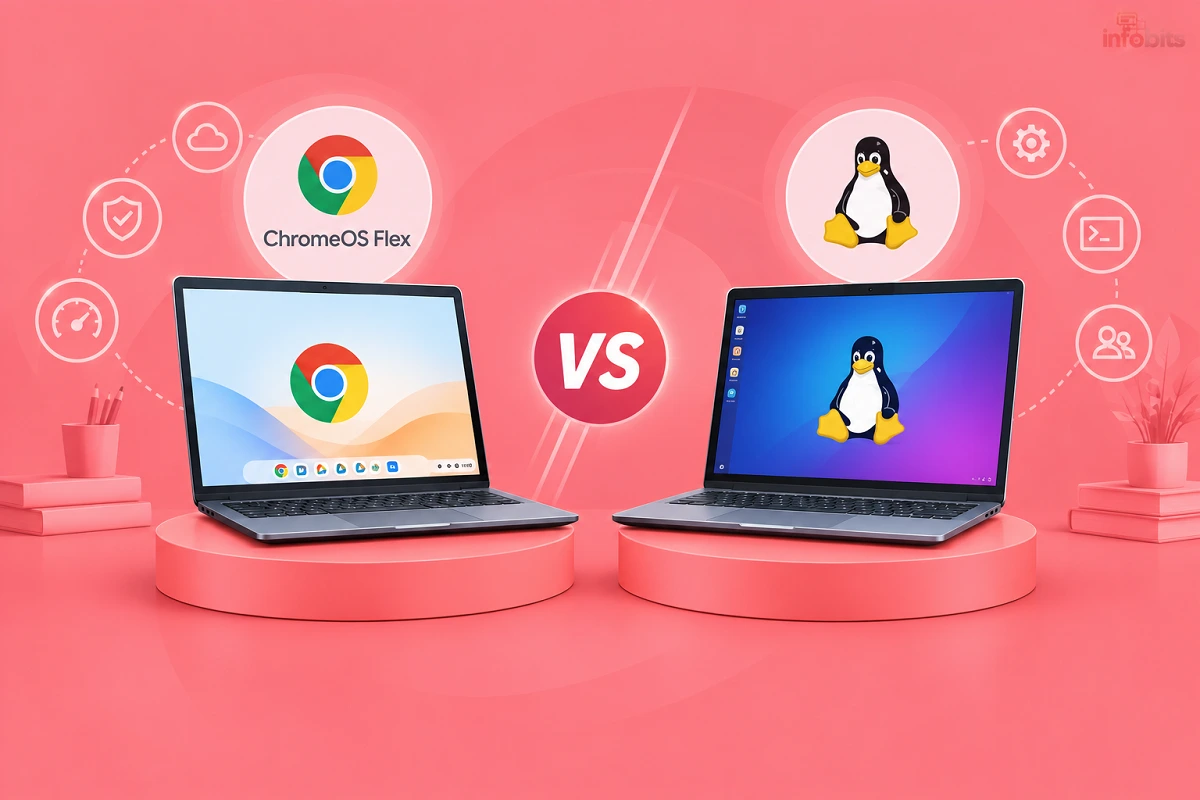
ChromeOS Flex vs Lightweight Linux: Which Should You Choose?
You have an old laptop that Windows has given up on. It takes five minutes to boot and hangs when you open a browser. Throwing it away feels wrong.
Two free options can bring it back to life: ChromeOS Flex (often searched as Chrome OS Flex) and a lightweight Linux distribution. Both are fast on old hardware, but they suit very different people.
This guide helps you pick the right one before you wipe anything.
Quick Answer:
Choose ChromeOS Flex if you mostly use the browser: Gmail, Google Docs, YouTube, online classes and banking. It is simple, automatically updated and ideal for family members or students who just want things to work.
Choose lightweight Linux if you want more control, offline apps, older or 32-bit hardware support, or a real desktop with LibreOffice, VLC, GIMP and more. It takes a little more learning but gives you more freedom.
Not sure? Try both from a USB drive first. Neither needs installation to test, and we show how below.
What Is ChromeOS Flex?
ChromeOS Flex is Google’s free version of ChromeOS for ordinary PCs and Macs. It turns an old computer into something close to a Chromebook. The whole system is built around the Chrome browser.
Google says it works on most Windows, Mac and Linux machines made in the last ten years or more. It needs an Intel or AMD 64-bit processor, at least 4 GB RAM and 16 GB storage. Google also keeps a list of “certified models” that it tests regularly, and it recommends using Flex on those.
What Flex is not: it is not a full Chromebook clone. It does not run Android apps or the Google Play Store. Its Linux environment is also not available on every model.
What About Googlebook OS?
Google launched Googlebook OS, an Android-based laptop platform, on 4 October 2026. It is a separate system, not a ChromeOS update. Google has said ChromeOS will keep getting security updates through 2034, and that ChromeOS Flex will continue to be supported.
What Google has not confirmed is whether Flex will ever move to Googlebook OS. Googlebook hardware targets premium laptops with much higher specs. For your old PC, Flex and Linux remain the practical choices today.
What Is a Lightweight Linux Distro?
Linux is a free operating system that comes in many “flavours” called distros. Lightweight distros use simple desktop environments like Xfce or LXQt. They use less RAM and run well on old CPUs.
Popular beginner-friendly choices include Linux Mint (Xfce edition), Lubuntu, Xubuntu, MX Linux and Linux Lite. Very old machines may suit antiX. We compare many of them in our guide to the best OS for low-end PCs.
A Linux distro is a full desktop. You get a file manager, office suite, media player and an app store, and everything works offline.
ChromeOS Flex vs Lightweight Linux: Side-by-Side Comparison
| Feature | ChromeOS Flex | Lightweight Linux |
|---|---|---|
| Cost | Free | Free |
| Best for | Browser-based work, students, elders | Offline work, tinkering, older hardware |
| Minimum RAM | 4 GB (Google’s stated minimum) | Often 2 GB works; 4 GB is comfortable |
| Minimum storage | 16 GB | Roughly 15–25 GB depending on distro |
| 32-bit PCs | Not supported | Some distros still offer 32-bit builds |
| Learning curve | Very low | Low to medium |
| Offline use | Limited | Full |
| Desktop apps | Web apps, Chrome extensions | LibreOffice, VLC, GIMP, Kdenlive and thousands more |
| Android apps | No | No (not natively) |
| Windows apps | No | Partly, through Wine; many won’t run |
| Updates | Automatic, managed by Google | Via your distro; usually simple |
| Hardware compatibility | Best on certified models | Wide, but Wi-Fi and printer quirks exist |
| Google account | Built around it | Not needed |
| Dual boot | Not supported officially | Easy |
Hardware Check: Will Your Old PC Even Run Them?
Before comparing anything else, check your hardware.
- 64-bit or 32-bit? ChromeOS Flex needs a 64-bit Intel or AMD processor. If your PC is a 32-bit Pentium 4 or early Atom netbook, Flex is out. Some Linux distros still support 32-bit, but fewer each year.
- RAM: If you have under 4 GB, Linux is the safer pick. Flex’s stated minimum is 4 GB.
- Storage: A hard disk (HDD) works with both, but feels slow. An SSD makes a huge difference.
- BIOS access: You need to be able to open the boot menu and change the boot order.
- Certified models: For Flex, search Google’s certified models list for your exact model name and number. Similar models may have unexpected problems.
For RAM upgrades, check whether your laptop uses DDR3 or DDR4 first. Our guide on the difference between DDR2, DDR3, DDR4 and DDR5 RAM explains how to tell.
If your old laptop has 2 GB or 4 GB, a compatible DDR3 or DDR3L RAM stick is the cheapest speed upgrade. Match the type, speed and laptop (SO-DIMM) format before you buy.
Performance: Which Feels Faster?
Both feel much quicker than a bloated old Windows install. But they speed things up differently.
ChromeOS Flex boots quickly and stays simple. The catch is that everything runs through Chrome. Many open tabs, Google Meet and heavy web apps can use up 4 GB of RAM fast.
Lightweight Linux uses very little memory for the desktop itself, so more RAM is left for your apps. On a 2 GB or 4 GB machine, this often makes the difference between smooth and sluggish. It also lets you run light apps like LibreOffice or VLC without a browser.
The truth: the browser is the heaviest thing on both systems. If you do most things in Chrome or Firefox, the gap shrinks. The biggest upgrade for either is replacing an HDD with an SSD. A 2.5-inch SATA SSD ( see the options on Amazon) can make a ten-year-old laptop feel new on either operating system. Check whether your laptop uses a SATA drive before buying.
Apps and Compatibility: The Real Deciding Factor
This is where most people should decide. Think about what you actually do on your computer.
What works well on ChromeOS Flex
- Gmail, Google Docs, Sheets, Slides and Drive
- Microsoft Office on the web
- YouTube, Netflix and other streaming sites
- Online classes, Google Meet and Zoom (web version)
- Most government and banking portals that work in Chrome
What works well on Linux
- LibreOffice, which opens Word, Excel and PowerPoint files offline
- VLC, GIMP, Audacity, OBS Studio and Kdenlive
- Firefox and Chrome
- Programming tools and servers
- Steam games, many of which run through Proton (compatibility varies)
What often doesn’t work on either
Many Indian users hit these walls, so read carefully.
- Digital Signature Certificate (DSC) tokens. Most USB token drivers are made for Windows. Neither Flex nor Linux supports them well, if at all. If you file returns or tenders with a DSC, keep a Windows machine.
- Tally and some accounting software. These are Windows-only. Wine may work for some versions, but it is not reliable for business use.
- College or exam software. Some proctored exam tools need Windows or Android. Check before you switch.
- Printers and scanners. HP and Epson usually work well on Linux. Some Canon and Brother models need extra effort. Flex handles modern network printers but struggles with old USB-only models.
If any of these is critical to you, keep your Windows install, or use this old PC only for everything else. Our Windows 10 end-of-support guide explains your Windows options.
Security and Updates
Both options are safer than an unpatched Windows 7 or Windows 10 machine.
ChromeOS Flex gets automatic updates from Google, sandboxes web content and supports verified boot on compatible machines. A limitation is that Flex may not use hardware security chips like a TPM on older PCs. It also does not update your BIOS or UEFI firmware for you.
Linux gets security updates through your distro, usually with one click. Pick a release with long-term support (LTS) and check its end date. Linux Mint 22, for example, is supported until 2029 at the time of writing, but always confirm on the official site.
Basic habits for both:
- Install updates when prompted
- Use a strong password
- Install apps only from official stores or trusted sources
- Back up important files before installing
Linux and ChromeOS are far less targeted by malware than Windows, but not immune. See our guide on computer viruses and their types for general safe habits.
Privacy and Control
ChromeOS Flex is designed around your Google account. Your settings, bookmarks and apps sync through it. That is convenient, but it also means more of your data lives with Google. A Guest mode exists for temporary use.
Linux needs no account at all. You control what is installed and what is sent. For privacy-minded users, this is a major advantage.
Ease of Use
If you have ever used Chrome, you already know ChromeOS Flex. There is little to learn. This makes it excellent for parents, grandparents and school kids.
Linux feels like Windows with a few differences. Linux Mint Xfce, for example, has a familiar taskbar and start-style menu. Most beginners adapt within a few days. You will occasionally use the terminal or search for a fix, though.
Which One Should You Choose? (Decision Guide)
| If you are… | Choose |
|---|---|
| A parent or grandparent who just needs browsing, video calls and YouTube | ChromeOS Flex |
| A school or college student using Google Workspace | ChromeOS Flex |
| Setting up a shared family or kids’ PC | ChromeOS Flex |
| Running an old PC with 2 GB RAM | Lightweight Linux |
| Running a 32-bit processor | Lightweight Linux |
| Wanting offline office work, editing or coding | Lightweight Linux |
| Wanting to dual boot with Windows | Lightweight Linux |
| Needing a DSC, Tally or other Windows-only tools | Keep Windows |
| Unsure | Test both on USB first |
Try Before You Install: Test from a USB Drive
You do not need to decide blindly. Both systems can run from a USB drive without touching your hard disk.
- For ChromeOS Flex: use Google’s Chromebook Recovery Utility to create an installer USB. You need a USB drive of 8 GB or more. Boot from it and choose to try it before installing.
- For Linux: download the ISO, write it to a USB with a tool like Ventoy or Rufus, and boot into the “live” session.
A reliable 16 GB or 32 GB USB 3.0 pen drive like SANDISK Ultra Flair 32GB is worth having and easily available on Amazon. You can use it for installers, and a good one lasts years. Avoid no-name drives, which often fail during installs.
If you just want a quick look at Linux desktops first, our guide to DistroTest lets you try many distros in your browser.
How to Install ChromeOS Flex (Quick Steps)
- Check your model on Google’s certified models list.
- Back up your files. Installing Flex erases the disk.
- Create the installer USB with the Chromebook Recovery Utility in Chrome.
- Boot from the USB. Common keys are F12, F2, Esc or F9, depending on the brand.
- Try Flex first, and check Wi-Fi, sound, trackpad and camera.
- Install it if everything works.
- Sign in with your Google account.
Remember that Flex replaces your existing OS, and dual-boot is not officially supported. If you want both Windows and another OS, read our dual boot vs virtual machine guide.
How to Install a Lightweight Linux Distro (Quick Steps)
- Pick a distro, such as Linux Mint Xfce, Lubuntu or MX Linux.
- Download the ISO from the official website only.
- Write it to a USB using Ventoy or Rufus.
- Boot from the USB and test the live session.
- Check Wi-Fi, sound and display.
- Install either alongside Windows or replacing it.
- Run updates and install your apps.
The process is similar to our guide to installing Windows from a USB drive. If you need to wipe or partition a drive first, see our disk format tool guide.
Some old laptops have Wi-Fi cards that Linux handles poorly, especially certain Broadcom chips. A USB Wi-Fi adapter like a TP-LINK Wi-Fi dongle available on Amazon, known to work with Linux, is a cheap fix. Check chipset compatibility before buying.
Common Mistakes to Avoid
- Installing without a backup
- Skipping the live USB test
- Using Flex on a 32-bit PC (it won’t work)
- Ignoring the certified models list for Flex
- Choosing a heavy Linux desktop for a very old PC
- Expecting Windows apps like Tally or DSC tools to run
- Downloading ISOs from random websites
- Keeping an HDD when an SSD is easy to fit
Myth vs Fact
Myth: ChromeOS Flex is the same as a Chromebook.
Fact: Flex lacks Android apps and Google Play, and some Chromebook features.
Myth: Linux is too hard for normal people.
Fact: Beginner-friendly distros like Linux Mint feel familiar and install easily.
Myth: Flex will stop working because Google launched Googlebook OS.
Fact: Google says ChromeOS will be supported through 2034, and that Flex continues to be supported.
Myth: Either one will run all my Windows software.
Fact: Neither runs Windows apps natively. Check your must-have software before switching.
Myth: Old hardware is always too slow to be useful.
Fact: A lightweight OS and an SSD can make a decade-old laptop useful for years.
Troubleshooting
The PC won’t boot from the USB.
Open the boot menu and select the USB drive. Disable Secure Boot only if the installer needs it, and re-enable it afterwards where possible.
Wi-Fi doesn’t work.
Try a wired connection first. On Linux, install the recommended drivers from the driver manager. On Flex, check the certified models list for notes on your model.
Flex says my device isn’t certified.
It may still work, but problems are possible. Test thoroughly before committing.
Trackpad, sound or camera not working.
This is a hardware support issue. Test another distro, or look up your exact model.
Very slow performance.
Close extra tabs, check RAM usage, and consider upgrading to an SSD or adding RAM.
Screen flickers or has wrong resolution.
Try a different Linux distro or kernel. On Flex, check the model’s notes in Google’s list.
Boot loop after installation.
Recreate the USB, re-download the image and reinstall. A bad USB or corrupted download is common.
Final Verdict
There is no single winner. ChromeOS Flex is the better choice for simple, browser-based computing with minimal fuss. Lightweight Linux is better for very old hardware, offline work and anyone who wants control.
For many Indian households, a good split is this: put Flex on the PC that your parents or kids use, and put Linux on the machine you like to tinker with. And always test from a USB drive first.
If you tell us your old laptop’s make, model and RAM in the comments, we’ll suggest which option fits best.
Frequently Asked Questions
Yes, ChromeOS Flex is free to download and install. You only need a compatible PC and a USB drive.
No. Flex runs on regular PCs and Macs, but lacks Android apps and some Chromebook features.
Google lists an Intel or AMD 64-bit processor, 4 GB RAM and 16 GB storage, plus BIOS access for installation.
No. It needs a 64-bit Intel or AMD processor.
Google has said Flex will continue to be supported, and ChromeOS will receive updates through 2034.
Google hasn’t confirmed this. Googlebook OS is a separate Android-based platform aimed at newer, high-spec laptops.
No. It does not support Android apps or the Google Play Store.
Both are fast. Linux often wins on 2 GB machines, while Flex is quick on 4 GB or more if you use only a few tabs.
Linux Mint Xfce, Lubuntu and MX Linux suit most people. For very old hardware, consider antiX.
Not directly. Linux can run some programs through Wine, but results vary.
Not officially. Flex is designed to replace the existing operating system.
Yes. Most Linux installers can set this up. Back up your files first.
Only to a limited extent. Linux works fully offline.
Yes, when you use an updated browser from official sources and follow normal security habits.
Usually not. Most DSC drivers are for Windows, so keep a Windows PC for DSC work.
Flex is built around a Google account, though Guest mode is available for temporary use.
Yes. Both can run from a USB drive without changing your hard disk.
An SSD usually gives the biggest improvement. Add RAM if you have 2 GB or 4 GB and plenty of tabs open.
We hope you are interested in our articles and consider following our Facebook, Instagram, and Twitter pages for regular updates.
Also, share this article with your friends and relatives. Bookmark this page for future reference.
Subscribe to our free newsletter to get similar articles and regular updates directly in your Email Inbox.
Subscribe to be the first to learn about new information
Disclosure: If you follow our links to a retailer’s website and make a purchase, we will get an affiliate commission on some, but not all, of the items or services we promote. This will cause no price change for you.