Mesh Wi-Fi Guide for India: What It Is, How It Works and Whether You Need It
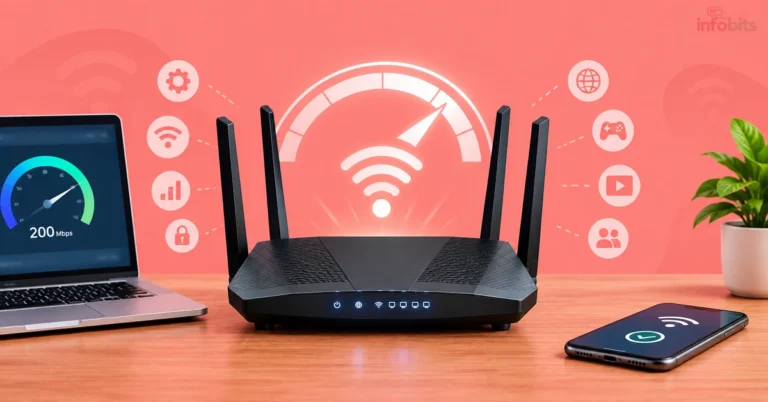
One router. Three floors. And a bedroom where the signal simply gives up. If that sounds familiar, someone has probably told you to “just get a mesh system.”
They’re right, sometimes. Mesh can fix dead zones in big Indian homes, but it can also be an expensive way to get disappointed. This guide explains how mesh really works, when you need it, how many units to buy and how to set it up with your ISP router.
Quick answer: Mesh Wi-Fi uses two or more units (nodes) that act as one network with one name and password. You need it if one router can’t cover your home, especially a multi-floor or thick-walled one. Choose a Wi-Fi 6 system with Gigabit ports, connect the nodes with Ethernet cable if you can, and run the system in access-point (AP) mode behind your ISP router. Skip mesh if a small flat only needs better router placement.
What Is Mesh Wi-Fi? (Simple Definition)
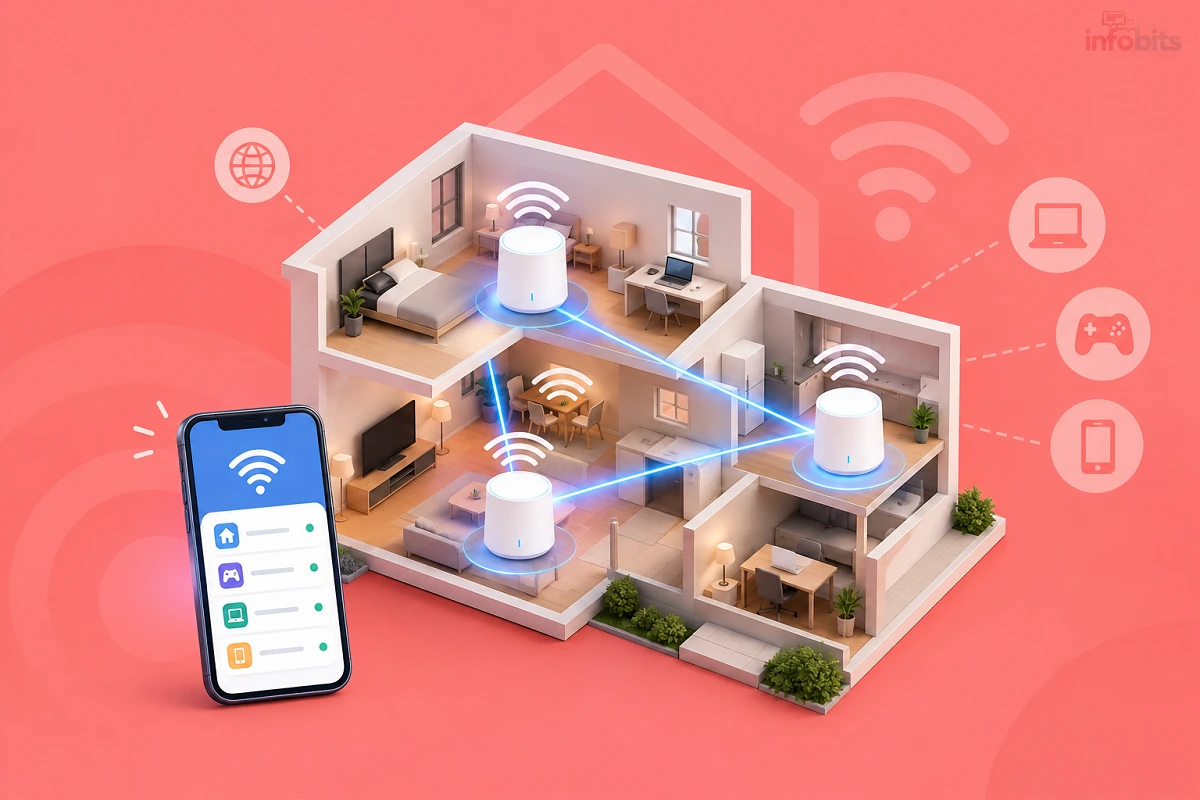
Mesh Wi-Fi is a home network built from two or more units that work together as one Wi-Fi network. These units are called nodes (some brands say satellites or pods). One node connects to your internet line, and the others spread the signal through the rest of the home.
You get one Wi-Fi name and one password everywhere. Your phone moves from node to node as you walk around, so you don’t have to switch networks by hand.
Think of it like lighting a house. One powerful lamp in a corner leaves dark rooms. Several smaller lamps placed around the house light everything evenly.
Mesh terms:
| Term | What it means |
|---|---|
| Node/satellite/pod | One mesh unit |
| Main node | The node connected to your modem, ONT or ISP router |
| Backhaul | The link between nodes (by cable or wireless) |
| Roaming | Your device switching to the nearest node as you move |
| AP mode | The mesh only provides Wi-Fi; your ISP router does the routing |
How Mesh Wi-Fi Works
Each node is a small router with a special job. It talks to the other nodes over the backhaul and serves your devices over Wi-Fi. Together they decide the best path for your data.
The system also helps devices move smoothly between nodes. Standards called 802.11k, 802.11v and 802.11r help a device find the best node and switch quickly. Most current Wi-Fi hardware supports them.
Mesh is also “self-healing”. If one node goes offline, the others can route traffic around it. You manage all of it from a phone app.
Mesh vs Router vs Extender vs Access Point vs Powerline
These five options solve the “weak signal” problem in different ways.
| Option | How it works | One Wi-Fi name? | Speed loss | Best for |
|---|---|---|---|---|
| Single router | One device covers the home | Yes | None | Small flats with good placement |
| Range extender | Repeats the router’s signal | Often no (or awkward) | Often significant | A single weak spot, on a tight budget |
| Mesh (wireless backhaul) | Nodes link by Wi-Fi | Yes | Some, depending on backhaul | Homes where cables can’t be run |
| Mesh (wired backhaul) | Nodes link by Ethernet | Yes | Minimal | Multi-floor or large homes |
| Wired access point | Extra Wi-Fi point fed by cable | Yes (if set up well) | Minimal | Homes with cabling already laid |
| Powerline adapter | Uses electrical wiring for the link | Depends | Varies by wiring | Rooms where cable isn’t possible |
Mesh’s real advantage over an extender is coordination. The nodes work as one system, share one name and manage roaming for you. An extender is just a repeater that your device must be steered towards.
Do You Need Mesh Wi-Fi?
You probably need mesh if:
- Your home has two or more floors, or you have a duplex or villa
- Thick RCC walls and slabs block the signal between rooms
- One router leaves dead spots even after you move it
- You’ve tried extenders, and they slowed things down
- You have many devices (phones, TVs, cameras, smart plugs) spread around the house
You probably don’t need mesh if:
- You live in a 1 BHK or small 2 BHK flat
- The signal is fine near the router, but you haven’t tried better placement
- Your slowness shows up on a wired test too, which means the problem is your ISP
- Your budget is small, and a single good Wi-Fi 6 router would do
Fix the basics first. Our guide on how to boost your home Wi-Fi speed covers placement, bands and channels, and it costs nothing.
A quick guide by home type:
| Home type | What usually works |
|---|---|
| 1 BHK | One good router; mesh is usually overkill |
| 2 BHK | One strong Wi-Fi 6 router; a 2-node mesh if walls are thick |
| 3 BHK | A strong single router or 2-node mesh |
| Duplex / two-storey house | 2-node mesh, ideally with a cable between floors |
| Three floors or a large villa | 3-node mesh, ideally wired |
| Home plus terrace room or outbuilding | A wired node or access point in the outbuilding |
Backhaul: The One Thing That Decides Mesh Performance
Backhaul is the connection between your nodes. It matters more than most spec-sheet numbers. A weak backhaul makes a “fast” mesh feel slow.
| Backhaul type | How it works | Performance |
|---|---|---|
| Wired (Ethernet) | A LAN cable links the nodes | Best: stable, full speed, low delay |
| Dedicated wireless | A separate radio band (tri-band systems) links nodes | Good, especially with many devices |
| Shared wireless | The same band serves your devices and links nodes | Weakest; speed drops with distance and load |
Wireless links always lose strength with distance and obstacles, which is why wired backhaul is generally the best approach. Tri-band systems reduce the problem by giving the nodes their own band. That band carries only node traffic, so the other bands can focus on your devices.
Dedicated backhaul helps mainly when many devices are busy at once. You may not see a big jump in a simple speed test. It also doesn’t rescue poor placement.
What this means for Indian homes: RCC slabs and thick walls are hard on wireless links between floors. In many multi-floor homes, adding a cable between nodes gives a bigger real-world gain than upgrading to a pricier mesh system. If you can run one LAN cable upstairs, do it. Our CCTV installation guide shows cable-routing ideas that apply here too.
A flat Cat6 Ethernet cable from brands like UGREEN (available on Amazon) is thin enough to run along the skirting, and a pack of self-adhesive cable clips or a small cable raceway (find on Amazon) hides it neatly.
A warning about hops. Each extra wireless hop (router → node → node) loses more speed. In a wireless mesh, keep the chain short, ideally one hop from the main node.
Which Wi-Fi Generation Should You Choose?
| Generation | Typical mesh | Verdict for India in 2026 |
|---|---|---|
| Wi-Fi 5 (AC) | Older, budget systems | Only if your budget is very tight |
| Wi-Fi 6 (AX) | Mainstream mesh | Best value for most homes |
| Wi-Fi 6E | Adds the 6 GHz band | Useful in crowded apartments, if your devices support it |
| Wi-Fi 7 (BE) | Latest, with MLO and wide channels | Worth it for fast plans and future-proofing |
A Wi-Fi 7 catch to know. Wi-Fi 7 does not automatically mean 6 GHz. Some Wi-Fi 7 mesh systems are dual-band and skip 6 GHz entirely, such as the Deco BE25. Only tri-band models add the 6 GHz band, so check the spec sheet before you pay extra.
The 6 GHz update for India. In January 2026, India’s Department of Telecommunications de-licensed the lower part of the 6 GHz band for Wi-Fi. This covers 5925–6425 MHz, while the upper part stays reserved for mobile services. Wi-Fi 6E and tri-band Wi-Fi 7 mesh systems can now use 6 GHz in India. It’s a clean lane, but its range is shorter, and your devices must support it.
My advice: for a 100–500 Mbps plan, choose Wi-Fi 6. Choose Wi-Fi 7 only if you have a 500 Mbps+ plan, Wi-Fi 7 devices, or want the system to last many years.
How Many Mesh Nodes Do You Need?
More nodes are not always better. Each unit adds cost and, in a wireless setup, more hops.
| Home | Nodes | Notes |
|---|---|---|
| 2 BHK, thick walls | 2 | One near the router, one in the far half |
| 3 BHK | 2 (sometimes 3) | Add a third only if a room stays weak |
| Two-storey house | 2 | One per floor |
| Three-storey house/villa | 3 | One per floor; wire them if possible |
A simple rule: one node per floor in a multi-storey home, and one node per “zone” in a large single-floor home. Start with a 2-pack and add more later, since most systems are expandable.
Where to Place the Nodes
Placement decides whether mesh works.
- Put a node about 40–60% of the way from the main router to the dead zone, not in the dead zone itself. A weak backhaul feeds weak Wi-Fi.
- Avoid cabinets, the floor, the back of a TV and spots near appliances
- Mount or place nodes high, on a shelf or wall
- Keep clear of metal, mirrors and big water containers
- Check the backhaul signal in the app after placing each node, and move it closer if the signal is poor
Many people put a satellite at the very edge of coverage. That is the weakest place for it to hear the main node.
What to Check Before You Buy a Mesh System
- Ethernet ports on every node. You need at least Gigabit ports, so you can connect wired devices and use wired backhaul.
- Wired backhaul support. Confirm the system lets nodes link by cable.
- AP mode or bridge mode. Essential if you’ll run it behind your ISP router.
- Tri-band (dedicated backhaul) if you can’t run cables and have many devices.
- App quality and login. Check whether it needs a cloud account and how good the app is.
- Subscriptions. Some brands lock advanced features such as parental controls or security behind paid plans.
- Expandability. Can you add nodes later, or mix models?
- Warranty and service. Buy from an authorised seller with local service.
- Power adapter. Note the voltage and current, because you may want a UPS (see below).
A note on mixing brands. Wi-Fi EasyMesh is an industry certification meant to let certified access points from different vendors work together as one mesh. In practice, most people stay within one brand, such as TP-Link Deco, ASUS AiMesh or Netgear Orbi. Don’t assume any two brands will mix.
Mesh Options in India: DIY Systems vs ISP Mesh
You have two routes.
| DIY mesh (you buy it) | ISP mesh (e.g. Airtel Coverage+) | |
|---|---|---|
| Cost | One-time purchase | Usually a service or rental with the ISP |
| Installation | You set it up (or hire someone) | ISP technicians place the pods |
| Control | Full control over settings | Managed by the ISP |
| Works with other ISPs | Yes | Typically only with that ISP’s connection |
| Best for | Most people who want flexibility | People who want a hands-off setup |
Airtel’s mesh service, Coverage+, places Wi-Fi pods in your home’s weak spots and pairs them with the main router. Airtel says it can cover up to about 4,000 sq ft and support 60+ devices. Those are the ISP’s own claims, so treat them as best-case numbers.
Popular DIY brands. TP-Link Deco is the most widely sold family in India, and ASUS AiMesh and Tenda Nova are also around. Availability and warranty differ by model, so check the Amazon listing before you buy.
For a 2–3 BHK home on a tight budget, a Wi-Fi 5 mesh like the TP-Link Deco M4 two-pack (view on Amazon) is one of the cheapest ways to cover two floors, though Wi-Fi 6 is the better long-term pick.
For most homes, a Wi-Fi 6 mesh like the TP-Link Deco X55 (or the Deco X50 we’ve covered before) gives even coverage and enough ports per node to use wired backhaul. Both are available on Amazon.
If you already own a compatible ASUS router, you may be able to add a second AiMesh-compatible model, such as the ASUS RT-AX1800S (available on Amazon), as a node instead of buying a whole new kit. Check compatibility on ASUS’s AiMesh list first.
For a fast plan and a large home, look for Wi-Fi 7 mesh systems like the TP-Link Deco BE25 (dual-band) or BE63 (tri-band), which are listed on Amazon.
Approximate Price Guide
Prices change with sales and stock. These are rough bands for September 2026, so check current listings.
| Type | Typical 2-pack price | Good for |
|---|---|---|
| Wi-Fi 5 mesh | ~₹4,500–8,000 | Tight budgets, 100–200 Mbps plans |
| Wi-Fi 6 mesh | ~₹8,000–16,000 | Most homes |
| Wi-Fi 7 mesh | ~₹18,000 and above | Fast plans, future-proofing |
Using Mesh with Your ISP Router
Most Indian homes get an ISP box that combines the ONT and router. You can add mesh in three ways.
| Setup | How | Pros | Cons |
|---|---|---|---|
| A. Mesh in AP mode behind the ISP router | ISP router keeps routing; mesh only provides Wi-Fi | Simple, avoids double NAT | You use the ISP router’s settings |
| B. Mesh as the main router (ISP box in bridge mode) | ISP box acts only as ONT | Cleanest, all features on mesh | Bridge mode can be hard to get from some ISPs |
| C. Mesh in router mode behind the ISP router | Two routers in a row | Works quickly | “Double NAT” can hurt gaming and port forwarding |
My recommendation: for most people, choose Setup A. Connect the main node’s WAN port to a LAN port on the ISP router, then switch the node to AP mode in the app. Turn off the ISP router’s Wi-Fi so the two networks don’t compete. Users report doing exactly this with Deco systems behind Airtel connections.
Bridge mode (Setup B) is tidier, but it isn’t always available. On some ISP boxes, it has to be enabled from the ISP’s end. If you want to try it, ask your technician or support team first.
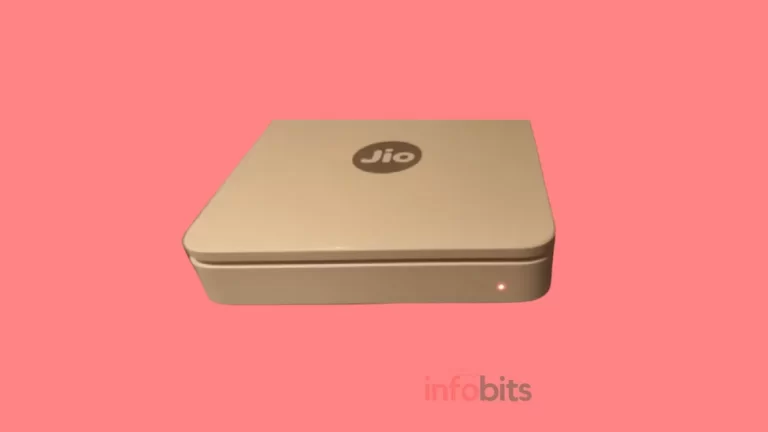
For BSNL, our FTTH modem configuration guide shows the modem side. If you’re comparing providers, see BSNL, Jio Fiber, Asianet, Kerala Vision and KFON.
Step-by-Step: How to Set Up a Mesh Wi-Fi System
- Plan positions. Sketch your home and mark where the main node and each satellite will go, keeping them 40–60% of the way to the dead zones.
- Connect the main node. Plug it into your ISP router (LAN port to the node’s WAN port) or your ONT, and power it on.
- Install the app. Follow the brand’s app and create the network with a strong password.
- Choose the mode. Pick AP mode if you’re keeping the ISP router (Setup A above).
- Add the other nodes. Set them up near the main node first, then move them to their final spots.
- Use cables if you can. Connect nodes by Ethernet for wired backhaul.
- Check backhaul quality. Open the app and confirm each node has a strong link to the main node. Move it closer if not.
- Turn off the ISP router’s Wi-Fi so only the mesh broadcasts.
- Test each room. Run a speed test on our Infobits speed test in each area.
- Update the firmware and turn on automatic updates.
Tuning, Power Cuts and Security
Get the Best Performance
- Use one Wi-Fi name for the whole system, so devices roam freely. If a device struggles, split 2.4 and 5 GHz names.
- Put smart-home gadgets on 2.4 GHz or a guest network. See our guides to smart plugs and smart switches.
- Don’t stack nodes. Keep wireless chains short.
- Reboot occasionally if the network gets sluggish, and keep firmware updated.
Don’t Forget Power Cuts
This one is easy to miss. Every node needs power. During a power cut, a node in a far room goes dark even if your router has a UPS, so your mesh breaks.
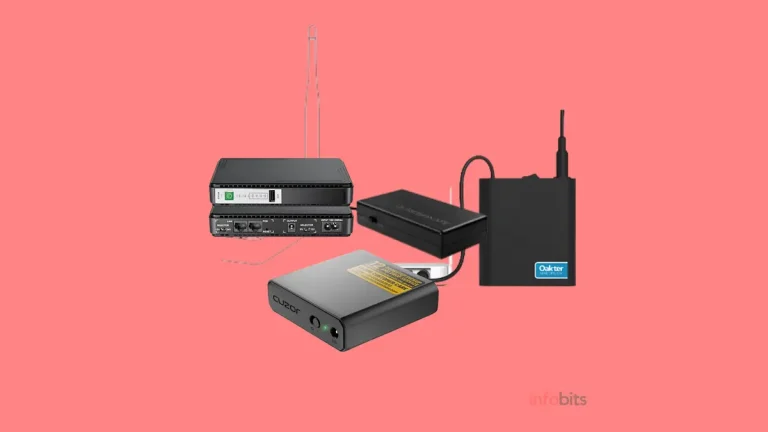
Put the main node, the router and any node you rely on for Wi-Fi on backup power. Check that the UPS output voltage and current match the node’s adapter. Our best UPS for Wi-Fi router guide covers this.
A mini UPS rated for your node’s adapter keeps the main node and router running through short cuts, so check the voltage and amp rating on both before you buy.
A surge-protected extension board like the Belkin 8-Socket Extension Board available on Amazon near your router and main node adds a layer of protection against voltage spikes, which matters during thunderstorms.
Security and Privacy Basics
- Use WPA3, or WPA2-AES at minimum, and a strong, unique password
- Keep firmware updated
- Use a guest network for visitors and smart gadgets
- Check what the app requires: cloud login, permissions and any paid features
Some mesh systems keep advanced features like parental controls or security behind a subscription, so read what’s free before you buy. For more on router risks, see our article on router malware.
When Cables Beat Mesh
If your home already has Ethernet cable laid in the walls, or you’re building or renovating, wired access points may beat mesh.
A ceiling access point fed by cable gets full-speed backhaul with no wireless hops, and every radio serves your devices. Mesh wins on convenience and is easier for existing homes. But if cabling is possible, it gives the most stable result.
Mesh Troubleshooting
| Problem | Likely cause | Fix |
|---|---|---|
| A node keeps going offline | Weak backhaul or power issue | Move it closer to the main node; check its power |
| Slower than the main router | Shared wireless backhaul or too many hops | Add a cable or use a tri-band system |
| Device sticks to a far node | Roaming lag | Restart Wi-Fi on the device; place nodes closer |
| Smart devices won’t connect | They only support 2.4 GHz | Use a 2.4 GHz or separate-band name |
| Game or port forwarding issues | Double NAT | Use AP mode or bridge mode |
| Two Wi-Fi networks in the house | ISP router Wi-Fi still on | Switch off the ISP router’s Wi-Fi |
| Random drops after power cuts | Nodes lost power or restarted out of order | Restart the main node first, then the others; add a UPS |
Common Mistakes
- Buying mesh before fixing router placement. Try free fixes first.
- Placing a node at the very edge of coverage. It needs a strong link back to the main node.
- Using too many wireless nodes in a chain. Each hop loses speed.
- Choosing Wi-Fi 7 without checking for 6 GHz. Dual-band Wi-Fi 7 skips it.
- Ignoring node power backup. One dead node breaks your mesh.
- Running two Wi-Fi networks. Turn off the ISP router’s Wi-Fi.
- Skipping the cable. One LAN cable often beats a pricier system.
Myth vs Fact
| Myth | Fact |
|---|---|
| More nodes always mean better Wi-Fi | Too many wireless hops can hurt speed |
| Mesh makes your internet faster | It improves coverage and consistency, not your ISP speed |
| Mesh and extenders are the same | Mesh nodes work as one system; extenders just repeat a signal |
| Wi-Fi 7 mesh always includes 6 GHz | Dual-band Wi-Fi 7 systems don’t |
| Any two brands can form a mesh | Most work only within one brand or ecosystem |
| Mesh is only for huge homes | It helps any home where one router can’t reach every room |
Final Buying Checklist
- [1] Tried router placement and settings first
- [2] Confirmed one router can’t cover your home
- [3] Chose Wi-Fi 6 (or Wi-Fi 7 for fast plans)
- [4] Checked Gigabit ports on every node
- [5] Confirmed wired backhaul and AP mode support
- [6] Planned one node per floor (or per zone)
- [7] Checked warranty, service and any subscriptions
- [8] Planned power backup for the router and key nodes
Conclusion
Mesh is a good fix for the right home. It shines in multi-floor houses and thick-walled homes where one router can’t do the job. It’s not the answer for small flats or for problems that sit with your ISP.
If I had to sum it up in one line: fix placement first, buy Wi-Fi 6 mesh if you still need it, and run a cable between nodes wherever you can. For the router side of the decision, see our Wi-Fi router buying guide.
Frequently Asked Questions
Mesh Wi-Fi is a home network made of two or more units (nodes) that work together as one network. You get one Wi-Fi name and password, and your devices move between nodes as you walk around.
One node connects to your internet line. The other nodes link to it and to each other, then serve your devices. Roaming standards help your phone switch to the best node, and the system can route around a failed node.
Only when one router can’t cover your home. In a small flat, a well-placed router is enough and cheaper. In a big or multi-floor home, mesh gives more even coverage.
An extender repeats your router’s signal and often cuts speed. Mesh nodes work together as one system with a single name and manage roaming for you. Mesh usually costs more but performs better.
Not always. A good Wi-Fi 6 router in a central spot often covers a 2 BHK. Consider mesh if thick walls or a second floor leave dead spots.
Most homes need two. Use one node per floor in a multi-storey house, and a third only for a large villa or a stubborn dead zone. More nodes add cost and can add wireless hops.
It can, especially with shared wireless backhaul. Wired backhaul avoids most of the loss. Mesh doesn’t raise your ISP speed; it improves coverage and consistency.
It means connecting mesh nodes with a LAN cable instead of Wi-Fi. It gives the most stable, full-speed link between nodes and is usually the best setup if you can run a cable.
Yes, if you can’t use cables and have many devices. The third band is often dedicated to node-to-node traffic, which helps under load. With wired backhaul, dual-band is usually enough.
Yes. Connect the main node to a LAN port on your ISP router and set it to AP mode, then turn off the ISP router’s Wi-Fi. Some ISPs also allow bridge mode, but you may need to request it.
In AP mode, your mesh only provides Wi-Fi while your ISP router keeps doing the routing. It avoids double NAT and is the simplest setup for most Indian homes.
Most homes don’t. Wi-Fi 6 mesh is the best value. Choose Wi-Fi 7 for a 500 Mbps+ plan or long-term use, and check whether it’s tri-band if you want 6 GHz.
Yes, partly. In January 2026, the lower 6 GHz band (5925–6425 MHz) was de-licensed for indoor and low-power use. Wi-Fi 6E and tri-band Wi-Fi 7 systems can use it.
Usually not. Most systems work within one brand, such as Deco, AiMesh or Orbi. Wi-Fi EasyMesh aims to allow mixing, but support varies, so check compatibility first.
Some brands allow it. ASUS AiMesh works with compatible ASUS routers, and TP-Link has similar features on selected models. Check the brand’s compatibility list before buying.
Place them roughly 40–60% of the way from the main router to the dead zone, high up, in the open. Avoid cabinets, floors and spots behind appliances, and check backhaul strength in the app.
No, but cables make the network faster and more stable. If you can run even one LAN cable between floors, use it for wired backhaul.
Only if every node has power. The router and the nodes you rely on need backup power, or the mesh breaks. Match the UPS output to each adapter’s rating.
It can be, especially with wired backhaul, since roaming keeps calls steady as you move. For gaming, a wired connection to your device is still best.
Airtel Coverage+ is an ISP-provided mesh service that places Wi-Fi pods around your home. Airtel claims coverage up to about 4,000 sq ft and 60+ devices. It suits people who want a hands-off setup.
As a rough guide, Wi-Fi 5 two-packs start around ₹4,500–8,000, Wi-Fi 6 around ₹8,000–16,000, and Wi-Fi 7 from about ₹18,000. Prices change, so check current listings.
We hope you are interested in our articles and consider following our Facebook, Instagram, and Twitter pages for regular updates.
Also, share this article with your friends and relatives. Bookmark this page for future reference.
Subscribe to our free newsletter to get similar articles and regular updates directly in your Email Inbox.
Subscribe to be the first to learn about new information
Disclosure: If you follow our links to a retailer’s website and make a purchase, we will get an affiliate commission on some, but not all, of the items or services we promote. This will cause no price change for you.
You May Be Interested to Read:
- TP-Link AC750 (RE200) Review: Does It Really Fix WiFi Dead Zones?
- India’s Undersea Internet Cables: How They Work & Why They Matter
- Why Your Business Needs a Website(Even If You’re on Instagram)
- How to Change Your BSNL FTTH or Broadband Plan Online?
- How to Increase BSNL Internet Speed: Broadband, FTTH & Mobile Data Fixes