How to Fix WiFi Dead Zones Without Buying a New Router (10 Ways)
You walk into the bedroom, and the WiFi bars vanish. The video call freezes. The reel stops loading. And the router is only eight metres away.
That is a WiFi dead zone. In most Indian flats, concrete causes it, not a faulty router. So the fix is rarely a new router.
This guide shows ten ways to fix dead zones using what you already own. That means your current router, an old router lying in a drawer, and the electrical wiring behind your walls. I have ordered the fixes from free to cheap, so you spend money only when you must.
Quick answer: To fix a WiFi dead zone without a new router, first move the router closer to the problem and put far-room devices on 2.4 GHz. If that fails, send a second signal into the dead room. The best way is a LAN cable to an old router set up as an access point. If you cannot run a cable, use powerline adapters. Keep wireless extenders as the last option, and place them halfway between the router and the dead zone.
What Is a WiFi Dead Zone?
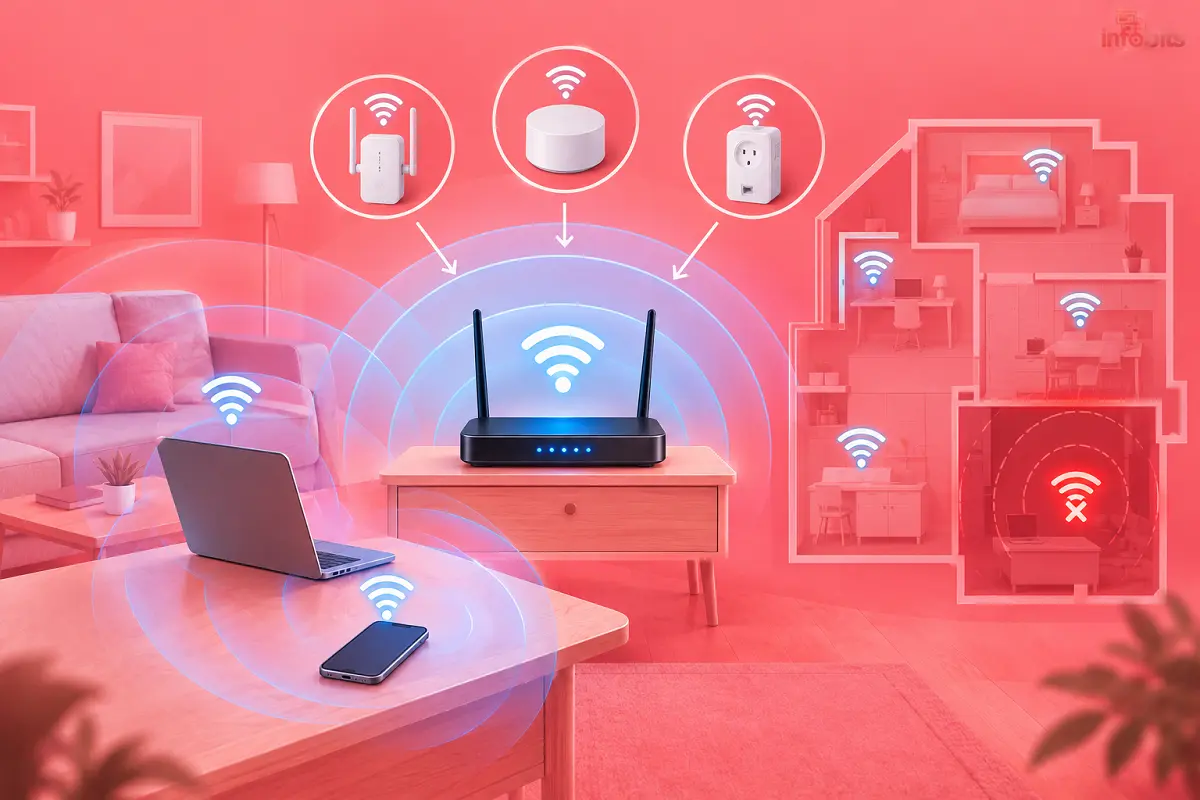
A WiFi dead zone is a spot in your home where the signal is too weak to hold a stable connection. Your phone may show one bar, show full bars with no internet, or keep dropping off.
Do not confuse it with a slow zone. A dead zone has almost no usable signal. A slow zone has a signal but poor speed, and that needs a different fix. If your WiFi is slow everywhere, read our guide on how to boost home WiFi speed instead.
Here is a simple way to read signal strength. These numbers are rules of thumb, and phones differ a little.
| Signal (dBm) | What it means | What you will notice |
|---|---|---|
| -30 to -55 | Excellent | Full speed, no issues |
| -55 to -67 | Good | Streaming and video calls work fine |
| -67 to -75 | Weak | Buffering, stuttering calls |
| -75 to -85 | Very weak | Frequent drops |
| Below -85 | Dead | Effectively no connection |
Why Dead Zones Happen in Indian Homes
Indian homes are tough on WiFi. Most flats use RCC slabs, brick walls and plaster. These block radio waves far more than drywall does.
Here are the usual culprits:
- RCC walls, pillars and floor slabs. They absorb the signal, and 5 GHz suffers the most.
- Steel almirahs, fridges and metal doors. They block and reflect WiFi.
- Mirrors, glass partitions and fish tanks. Water and glass soak up or bounce the signal.
- A router in the wrong corner. ISP technicians fix the box where the fibre enters, not where you need WiFi.
- Relying on 5 GHz only. It is fast but short-ranged. A far room often needs 2.4 GHz.
- An old or single-band router. Older gear has weaker range and fewer tricks.
Your router may be fine. It may simply be in the wrong place, on the wrong band, or one access point short.
First Step: Map Your Dead Zones
Do not buy or change anything yet. First, find out how big the problem is. A ten-minute walk can save you thousands of rupees.
- Install a WiFi analyser app on your Android phone. Apps such as WiFi Analyzer, Fing or NetSpot work well. iPhones do not allow full scans in normal apps, so use your router’s app or a laptop.
- Stand next to the router and note the signal in dBm.
- Walk room by room. Stay about 10 seconds in each spot and note the number.
- Mark every spot below about -70 dBm on a rough sketch of your home.
- Repeat on both 2.4 GHz and 5 GHz. Often 5 GHz dies in a room where 2.4 GHz still survives.
For spots that look weak, run our speed test there too. Now you know whether you are fixing one corner or half the house.
Which fix suits your home?
| Your situation | Best fix | Rough cost | Effort |
|---|---|---|---|
| One room, one or two walls from the router | Fixes 1 to 3 | ₹0 | Low |
| You have an old router at home | Fixes 4 and 5 | Cost of a cable | Medium |
| Cable is impossible; rooms share one wiring circuit | Fix 7 | Low to medium | Low |
| Small flat, one dead corner, nothing else worked | Fix 8 | About ₹1,500 to ₹3,000 | Low |
| Jio or Airtel fibre user who wants an easy fix | Fix 9 | ISP price | Low |
| Your router supports mesh add-ons | Fix 10 | Medium | Low |
Fix 1: Move the Router Toward the Problem
Placement is still the best free fix. But skip the usual advice to “put it in the centre” if your flat is long and narrow. Move it a few metres toward the dead zone, and out of cupboards and TV units.
Keep it in the open, one to 1.5 metres above the floor. Stay away from steel almirahs, mirrors, fish tanks and microwave ovens. A simple router wall-mount bracket or stand (see the available options on Amazon) keeps it high and tidy.
If the ISP’s fibre box (the ONT) and your router are separate, run a LAN cable from the ONT to a better spot. Our guide on setting up your own router with a BSNL ONT shows how. If they are one box, you cannot move it easily, so jump to Fix 5.
Safety tip: Never pull or sharply bend the fibre cable. Ask your ISP technician to shift the ONT if needed.
Fix 2: Use the Right Band for the Far Room
2.4 GHz passes through walls better than 5 GHz. 5 GHz is faster, but concrete eats it quickly. So a room that is dead on 5 GHz may work fine on 2.4 GHz.
Do this:
- Give each band its own name, such as Home-2G and Home-5G.
- Connect far-room phones, TVs and cameras to Home-2G.
- On 2.4 GHz, use channel 1, 6 or 11 with 20 MHz width.
- If a phone clings to a weak 5 GHz signal, forget the network and rejoin the 2.4 GHz one.
You have to compromise some speed for reach. For calls and streaming in a far room, that decition for the better Wi-Fi reach is usually worth it. Many smart devices only support 2.4 GHz anyway, so see our guides to smart plugs and home security cameras.
Fix 3: Squeeze More From the Router You Already Have
A few settings can add range for free:
- Update the firmware. Old firmware can hurt range and stability.
- Set transmit power to High. Some routers hide this under advanced wireless settings. Important thing to note that your phone transmits with far less power than the router. So more router power adds bars, but it may not improve real speed in a far room.
- Tilt the antennas. Start with them straight up. If the dead zone is on another floor, tilt one antenna sideways.
- Turn off band steering or Smart Connect. This helps if devices keep hanging on to a weak 5 GHz link.
- Pick a clean channel. Crowded channels make weak signal worse. Our WiFi speed guide explains how.
Many ISP routers hide these options. If yours does, do not fight it. Move on to Fix 5.
Fix 4: Run a LAN Cable to the Dead Zone
A cable is the foundation of the best fixes. It carries full speed and does not care about walls. Once a cable reaches the dead room, you can feed an access point with it (Fix 5).
Cat6 or Cat5e works well. A copper Ethernet cable can run up to 100 metres, which covers any flat. Run it along skirting boards, ceiling edges or behind a false ceiling. Spare conduits from old TV, CCTV or AC points can also help.
A flat Cat6 cable, like the BlueRigger (available on Amazon) one we mentioned in our WiFi speed guide, can be hidden neatly along the skirting or the wall. Adhesive cable clips or a slim cable raceway (get a suitable otion for you from Amazon) keep the run tidy without drilling.
Safety tip: Never run LAN cable through the same conduit as mains wiring. Switch off the MCB before working near electrical points, and call a licensed electrician for anything inside walls.
Fix 5: Turn an Old Router Into an Access Point
This is my favourite no-new-router fix. An old router can become a second WiFi source in the dead room. It only needs power and a cable from your main router.
It also works behind any ISP router, even a locked one. You never touch the ISP’s settings. You only add a device on a LAN port.
How to set it up:
- Factory-reset the old router with its reset pinhole. Do this only on the old router, never on your main one.
- Connect a laptop to it by cable and open its admin page.
- Look for “Access Point mode.” If your model has it, choose it and skip to step 6.
- If not, change its LAN IP to a free address in your main router’s range. For example, if the main router is 192.168.1.1, use 192.168.1.2 or another address outside the DHCP range.
- Turn off the DHCP server on the old router. Two routers handing out addresses will cause conflicts.
- Set the WiFi name and password. Use the same name and password as the main router for easy joining, or a different name if you want to choose manually. Use WPA2 or WPA3.
- Pick different channels from the main router. On 2.4 GHz, choose from 1, 6 or 11.
- Plug one end of the cable into a LAN port on the main router. Plug the other end into a LAN port on the old router, not the WAN or Internet port.
- Place the old router in or near the dead room and test.
Common trap: using the WAN port creates a second network inside your home, called double NAT. It breaks things like gaming and CCTV remote access. Our guide to double NAT on Indian broadband explains it.
An old Wi-Fi 4 router will not match a new Wi-Fi 6 one for speed. But it turns “no signal” into a solid connection, and that is the real goal. Before you reuse it, update its firmware and set a new admin password. Old routers can be security risks, as our report on router malware shows.
If you use the same WiFi name on both routers, phones will still switch between them, but not as smoothly as true mesh. A phone may hold on to the weaker router for a while. Turning WiFi off and on usually fixes it. If power cuts are common in your area, put the ONT, main router and access point on a mini UPS. Our best UPS for WiFi router guide covers it.
Fix 6: Use the Old Router as a Wireless Repeater (No Cable)
If you cannot run a cable, some routers offer Repeater, Client or WDS mode. The old router then picks up your main WiFi and rebroadcasts it.
It works like a regular extender, so expect the same speed loss. Place it halfway to the dead zone, where the main signal is still good (around -60 dBm or better).
Menu names differ between brands, so check the manual. Skip this fix if your router has no repeater option, and do not flash custom firmware just for this unless you know what you are doing.
Fix 7: Try Powerline Adapters (No New Cable)
Powerline adapters send your network through the electrical wiring in your walls. You plug one adapter near the router and connect it with a LAN cable. You plug the second into a socket in the dead room.
The second adapter gives you a LAN port. Connect your old router to it as an access point (Fix 5), or buy a kit with built-in WiFi. A kit like the TRENDnet TPL-406E2K (available on Amazon) is an easy starting point if you will pair it with your old router.
Rules that decide success:
- Both adapters must be on the same electrical circuit. Different MCBs, distribution boards or phases can cut speed badly or break the link.
- Plug directly into the wall socket. Extension boards and surge protectors filter out the signal.
- Avoid sockets shared with heavy motors or chargers. Electrical noise can reduce speed.
- Treat the printed rating (like AV1000) as a theoretical maximum. Real speeds are lower.
Results vary from home to home. Buy from a seller that accepts returns, and test the pair in the real rooms within that window.
Fix 8: Use a Wireless Extender the Right Way
A WiFi extender picks up your signal and repeats it. It is the easiest fix and the one people get wrong most often.
The golden rule is that place it halfway, not in the dead zone. An extender needs a good signal to repeat. Put it where your phone still shows about -60 to -65 dBm. If you plug it into the dead room, it just repeats a weak signal.
More rules to follow:
- Choose a dual-band model, ideally with an Ethernet port.
- Expect lower speed. Many extenders lose a big share because they receive and resend on the same radio.
- An extender cannot fix a wall that your router’s signal cannot cross in the first place.
- One extender per dead zone is fine. Two or three in a chain usually create a mess.
I have reviewed the TP-Link AC750 (RE200) in detail. It suits one small dead zone in a 1 or 2 BHK flat, and its LED helps you find the right socket. Read our full TP-Link AC750 review before you buy. For a larger flat or more devices, the TP-Link RE305 (view on Amazon) gives you more headroom for a little more money.
Fix 9: Use Your ISP’s Own Extender (Jio and Airtel)
Some ISPs sell extenders built for their own routers. These pair easily and keep one WiFi name for the whole home.
- JioFiber: Jio sells a mesh extender (model JCM0112) that works only with JioFiber. It uses the EasyMesh standard, and listings have shown it at around ₹2,499. A colour LED helps you pick the spot.
- Airtel Xstream Fiber: Airtel offers Coverage+ at ₹99 a month with a ₹1,000 refundable deposit, as per the latest information I found. Airtel’s team handles the setup.
- BSNL, Asianet, KFON and Kerala Vision: These ISPs rarely sell official extenders. Use Fix 5 or Fix 7 instead.
Prices and terms change, so confirm them on the ISP’s site before ordering. Some users report that third-party wireless extenders do not work well with JioFiber. A cable-fed access point (Fix 5) avoids that problem completely.
For ISP-specific help, see our guides on JioFiber, Asianet, Kerala Vision and KFON.
Fix 10: Add a Mesh Node to a Compatible Router
Mesh does not always mean buying a new router. Some routers accept add-on nodes. TP-Link calls it OneMesh, ASUS calls it AiMesh, and EasyMesh is a common standard.
If your router is on the brand’s compatibility list, you can add a compatible extender or node. You then get one WiFi name and smoother handover between units. Check the list on the brand’s website first. Not every model qualifies, and ISP routers usually do not.
Our mesh WiFi guide explains how mesh works and who needs it.
Common Mistakes to Avoid
- Plugging the extender into the dead zone. It needs a good signal to repeat.
- Using the WAN port on the second router. This causes double NAT.
- Leaving DHCP on at the access point. Two DHCP servers fight each other.
- Using the same channel on both routers. They interfere with each other.
- Plugging powerline adapters into extension boards. The filters kill the signal.
- Running LAN cable beside mains wiring. It is unsafe and can add noise.
- Chaining several extenders. Each hop cuts speed further.
Myth vs Fact
| Myth | Fact |
|---|---|
| More WiFi bars mean a better connection | Bars show signal strength, not internet quality or speed |
| A WiFi booster app can extend my range | Apps cannot add radio power. Analyser apps only measure signal |
| An extender always doubles my coverage | It extends coverage, but often cuts speed and needs a good signal at its own spot |
| Only a new router can fix dead zones | An old router as an access point often does the job |
| Powerline adapters work in every home | They depend on wiring quality and circuits, so test with a return option |
Is It Really a Dead Zone? Warning Signs It Is Not
Sometimes the problem is elsewhere. Check these first:
- Wired speed is also slow. The issue is your ISP line, not WiFi. Our BSNL speed test guide can help you build a complaint.
- Every room slows down at night. This points to congestion, not a dead zone.
- Only one device struggles. Update its WiFi driver or check its age. For an old laptop, a USB Wi-Fi 6 adapter like the TP-Link Archer TX20U Plus (see on Amazon) can help without replacing the machine.
- Signal is strong but there is no internet. Check the router, the ONT and your plan.
Troubleshooting Quick Reference
| Problem | Likely cause | What to try |
|---|---|---|
| Access point has WiFi but no internet | DHCP still on, or cable in the WAN port | Turn off DHCP and move the cable to a LAN port |
| Extender LED stays red | Placed too far from the router | Move it to the halfway point |
| Powerline adapters will not pair | Different circuits or an extension board | Use wall sockets on the same circuit and re-pair |
| Phone clings to the weaker router | Same name on both, no smart handover | Toggle WiFi, or use different names |
| 5 GHz drops in the far room | Walls absorb 5 GHz | Use 2.4 GHz there |
| Slow after adding a second router | Double NAT or channel clash | Use a LAN port and change channels |
When You Really Do Need a New Router
Be honest with yourself. Sometimes the router is the problem. Consider replacing it if:
- It is 5 or more years old, or only supports Wi-Fi 4.
- It is 2.4 GHz-only.
- It has 100 Mbps LAN ports on a fast plan.
- Your home is large or multi-storey and cabling is not possible.
- The ISP router is locked and keeps dropping devices.
In that case, a two-pack mesh system like the TP-Link Deco X50 available on Amazon covers a big home without a hunt for the perfect spot. Our WiFi router buying guide and Wi-Fi 6 vs Wi-Fi 7 comparison will help you choose.
Dead-Zone Fix Checklist
- Mapped signal strength in every room with an analyser app
- Moved the router out of cupboards and corners
- Put far-room devices on 2.4 GHz
- Updated router firmware
- Ran a LAN cable, or tested powerline adapters
- Set up an old router as an access point (DHCP off, LAN port used)
- Chose different channels for both routers
- Placed any extender halfway, not in the dead zone
- Put the ONT, router and access point on a mini UPS if power cuts are common
- Re-tested every spot on your sketch
Conclusion
WiFi dead zones feel like a hardware problem. Most of the time, they are a placement and coverage problem.
If I could give only one piece of advice, it would be this. Run a cable to the dead room and add an old router as an access point. It costs almost nothing, and it works behind any ISP router.
Start free, move to cable, and keep extenders as the last choice. Only then think about a new router.
Frequently Asked Questions
Start by moving the router and using 2.4 GHz in the far room. Then add a second signal source: an old router as a wired access point, powerline adapters, or a properly placed extender. These cost far less than a new router.
Mostly RCC walls and slabs, steel furniture, mirrors and a router placed in a corner. Using only 5 GHz makes it worse, because that band struggles with concrete.
Yes. You can use it as a wired access point, which is the best option, or on some models in repeater mode. A wired setup keeps full speed.
Reset it, turn off its DHCP server, give it a free IP in your main router’s range, set the WiFi name and password, and pick a different channel. Then connect a LAN port on the main router to a LAN port on the old one.
Poorly. An extender needs a good signal at its own spot, and thick concrete can kill that signal. Place it halfway, before the heavy wall, or use a cable-fed access point.
Halfway between the router and the dead zone, where your phone still gets about -60 to -65 dBm. Never plug it in the dead zone itself.
They can be, if both adapters share the same circuit and you plug them directly into wall sockets. Results vary with the wiring, so buy from a seller that accepts returns.
Usually, yes. A cable gives the access point full speed, while a wireless extender often loses a big share of it.
Use a WiFi analyser app on Android, such as WiFi Analyzer, Fing or NetSpot, and walk room by room. On an iPhone, use your router’s app or a laptop.
Roughly -67 dBm or better is good for streaming and calls. Below about -75 dBm, expect drops. Below -85 dBm, the connection is effectively dead.
Walls, floors and metal absorb the signal on the way, and 5 GHz suffers most. Try 2.4 GHz in that room, move the router closer, or add an access point.
2.4 GHz. It is slower, but it passes through walls and covers more distance than 5 GHz.
Rarely. A better channel reduces interference, but it cannot push a signal through concrete. Treat it as a small tweak, not the main fix.
Reports are mixed. Some users say Jio support told them third-party extenders are not supported. Jio sells its own extender, and a cable-fed access point also works.
Yes. Airtel Xstream Fiber users can get Coverage+. At the last check, it was ₹99 a month with a ₹1,000 refundable deposit. Confirm the current terms with Airtel.
It can. Many single-radio extenders cut speed because they use the same radio to receive and resend. Dual-band extenders and wired access points lose less.
For big or multi-floor homes, yes. Mesh gives one network name and smoother handover. For one small dead corner, a good extender or an old-router access point is cheaper.
No. Apps cannot add radio power to your router. Analyser apps are useful for measuring signal, but a “booster” promise is a red flag.
We hope you are interested in our articles and consider following our Facebook, Instagram, and Twitter pages for regular updates.
Also, share this article with your friends and relatives. Bookmark this page for future reference.
Subscribe to our free newsletter to get similar articles and regular updates directly in your Email Inbox.
Subscribe to be the first to learn about new information
Disclosure: If you follow our links to a retailer’s website and make a purchase, we will get an affiliate commission on some, but not all, of the items or services we promote. This will cause no price change for you.
You May Be Interested to Read:
- WPA2 vs WPA3 for Home Routers in India: Which Should You Use?
- Best Wi-Fi Routers in India: Tested Picks for Every Budget
- VoIP vs WiFi Calling: What’s the Real Difference?
- AirFiber vs Fiber in India: Which One Should You Actually Buy?
- BSNL Quantum 5G FWA: Plans, Price, Speed, Availability and Is It Worth It?