BSNL IFTV(IPTV) With Your Own Router: What Works and What Doesn’t
Quick Answer: Yes, you can use your own router with BSNL IPTV or IFTV, but TV can stop working if your router sits between the ONT and the TV. BSNL sends TV on a separate path from your internet, and most home routers don’t pass that path along. The safest setup is to keep the BSNL ONT as the main router, use your own router as an access point, and plug the TV into the ONT with a LAN cable. Double NAT and bridge mode can work, but they usually need extra planning.
You bought a better router. The Wi-Fi is faster. Then BSNL Live TV shows a black screen.
It’s one of the most common surprises on Bharat Fiber. The internet works fine, but the TV doesn’t. There’s a clear reason, and in most homes it’s fixable.
This guide explains why it happens. It shows which setups work, which don’t, and what to check when live channels won’t play. It covers both BSNL IPTV (the partner-run service) and IFTV (the free BSNL Live TV service).
A fair warning: As of November 2026, we couldn’t find an official BSNL guide for using third-party routers with IPTV or IFTV. So this article combines how the technology works with what Indian users report on forums. Treat every setting below as an example, because circles and ONT models differ.
Why Your Own Router Can Break BSNL TV
BSNL doesn’t deliver TV through your normal internet connection. It sends TV on a separate path inside the same fibre. Your ONT keeps the two paths apart.
Think of one road with two lanes. Lane one carries your internet, which your router connects to via PPPoE. Lane two carries TV, and most third-party routers don’t know it exists.
That’s why the symptoms look odd. The internet works, and the app may even open. But the video never starts, or it stops after a few minutes.
Three terms worth knowing
- VLAN: A tagged lane on the fibre. BSNL uses separate VLANs for internet and TV.
- Multicast: One live stream shared by many viewers, instead of a separate copy for each home.
- IGMP: The message your TV sends to say, “I want this channel.” If a router drops it, the channel never arrives.
BSNL IPTV vs IFTV in One Minute
BSNL runs two TV services. IPTV is the older, paid service, delivered through local partners such as Skypro, Cinesoft, and E2 Info Solutions. IFTV is the newer, free one, built around the BSNL Live TV app.
Our BSNL IPTV vs IFTV guide covers the full differences. Our BSNL IPTV plans and registration guide show how to sign up.
Both need an active BSNL FTTH connection and a TV that can run the app. IFTV needs Android TV 10 or later. If your TV is older, an Android TV box running Android 10 or above is the cheapest fix, and it saves you from replacing the whole television.
Not sure which device suits you? See our list of streaming devices that turn any TV into a smart TV.
What BSNL Sets Up on Your ONT for TV
Here’s a typical IFTV setup on the ONT, based on a configuration guide tested in Tamil Nadu. Values can differ by circle and ONT brand.
| Settings on the ONT | Typical value | What it does |
|---|---|---|
| TV connection | Routed, NAT on, VLAN 1900 | Creates the TV lane |
| Static route | 138.138.138.0/24 via 11.0.0.9 | Points TV traffic to BSNL’s TV network |
| IGMP snooping and IGMP proxy | On | Let’s channel requests reach BSNL |
| MLD snooping | On | The IPv6 version of multicast control |
| Multicast VLAN | 1900 | Tells the ONT where channels arrive |
Please don’t copy these numbers blindly. Another circle may use different values. In most cases, BSNL or your local franchise sets this up after you register.
Skypro-based IPTV shows a different error: “Unable to play the channel. Please connect to Skypro network.” One community fix adds a static route and turns on IGMP. The message means the TV can’t reach BSNL’s private TV network. A router in the middle is a common reason.
The key point is simple. Your own router has none of this configuration. Unless it sits in the right place, it can’t carry the TV lane.
Which Setups Work and Which Don’t
Here’s the short version. These verdicts come from how the technology works, plus long-running forum reports from Indian users. Your ONT brand and circle can change the result.
| Your setup | Live TV result | Why |
|---|---|---|
| Own router as access point, TV wired to ONT | Works (best) | The ONT still holds the TV lane |
| Own router as access point, TV on router’s LAN port | Usually works | Multicast must pass through your router’s switch |
| Own router as access point, TV on Wi-Fi | Hit or miss | Multicast over Wi-Fi stutters; some ONTs bind TV to a port |
| Own router behind ONT (double NAT), TV on your router | Often fails | Routers often drop IGMP and multicast |
| Bridge mode, TV on your router | Usually fails | The TV lane stays on the ONT |
| Bridge mode, TV on a free ONT LAN port | Can work | Only if the TV connection and port stay untouched |
| Mesh in router mode | Often fails | Creates double NAT |
| Wi-Fi extender or repeater | Avoid | Adds a wireless hop |
| Replacing the ONT with your own device | Needs BSNL’s help | TV settings sit on BSNL’s side too |
1. Router as an Access Point, TV Wired to the ONT (Best)
Keep the BSNL ONT as the main router. Turn your own router into an access point, with DHCP off, and use it only for Wi-Fi. Plug the TV straight into a LAN port on the ONT.
This is the only setup I’d call dependable. The ONT still holds the TV lane, so nothing is lost. A BSNL IPTV user on a tech forum also described the same trick. Means switch off the router’s WAN role, use only its LAN ports, and IPTV worked.
For the TV cable, a flat Cat6 LAN cable (available on Amazon) is easy to run along skirting and under doors, and a good cable rules out cable faults as a cause of buffering.
Steps are in our access point guide.
2. Router as an Access Point, TV on the Router’s LAN Port
Same idea, but the TV plugs into your router instead of the ONT. Multicast now has to pass through your router’s switch. Many routers handle this. Some don’t.
If channels start and then stop after a few minutes, turn IGMP snooping off on the router. If it keeps failing, move the TV to the ONT.
Need to split one long cable between a TV and a console? A basic unmanaged gigabit switch, such as the 5-port TP-Link TL-SG105 available on Amazon, typically passes multicast without any settings. Avoid managed switches with snooping unless you know how to set an IGMP querier.
3. Router as an Access Point, TV on Wi-Fi
This is hit or miss. Live multicast over Wi-Fi is sent at low speeds, so streams can stutter or drop. Some IFTV users also report Live TV working only on the wired port.
If you must use Wi-Fi, choose 5 GHz and keep the TV close to the access point. Switch on multicast-to-unicast if your router has it. Also read “The One Cable Problem” below.
4. Router Behind the ONT (Double NAT)
Here your router sits behind the ONT, and the TV connects to your router. The ONT can still reach BSNL’s TV network. But your router now sits in between, and it often drops multicast.
The same TechEnclave user suspected his router was dropping IGMP packets when it sat in the path. If you want this setup, pick a router with IGMP proxy and turn it on. Our double NAT guide explains the trade-offs.
5. Bridge Mode
Bridge mode moves the PPPoE login to your router. It usually binds one ONT LAN port to that bridge. The TV lane stays on the ONT, and your router never sees it.
So a TV on your router won’t get BSNL channels. A TV on a free, unbound ONT port can. When you create the bridge, never delete the TV connection. Our bridge mode guide shows how to do it safely.
The trade-off is that the TV must be cabled to the ONT.
6. Mesh Wi-Fi
Mesh systems act as routers by default. Set the main unit to access point mode, or you’ll get double NAT. Use wired backhaul where you can.
Wi-Fi 6 and Wi-Fi 7 don’t change any of this. They improve speed and range, not how TV is delivered. Our mesh Wi-Fi guide and Wi-Fi 6 vs Wi-Fi 7 comparison help you choose.
7. Extenders and Repeaters
Skip them for TV. They add a wireless hop, and old forum users doubted they would carry IPTV properly. A wired access point is the better fix for weak Wi-Fi.
8. Replacing the ONT
Some people swap the BSNL combo ONT for their own XPON or GPON device. BSNL has to register it, and GPON links may need the serial number of the original unit. TV settings sit on BSNL’s side too. If you rely on IPTV or IFTV, don’t try this without BSNL’s help.
The One Cable Problem
Here’s a pattern Tamil Nadu users reported on forums. The Android TV works on the LAN cable for Live TV, but YouTube won’t load. On Wi-Fi, YouTube works, but Live TV doesn’t.
It usually means the ONT’s TV connection is bound to one port, and the internet runs on another path. Don’t count on using both at once. Android TV normally prefers the wired link when both are connected.
You have two practical options:
- Ask BSNL or your franchise to bind TV and internet to the same port. Users call this the VLAN binding method. It depends on the ONT firmware, so it isn’t possible on every unit.
- Let the TV live on the ONT’s network. Keep the ONT’s Wi-Fi on for the TV only, and use your own router for everything else in the house. It’s not elegant, but it works.
If the TV is far from the ONT and you can’t run a cable, a powerline adapter kit (see on Amazon) is worth trying. Multicast doesn’t always survive powerline links, so buy from a seller with an easy return policy and test channels for at least 15 minutes.
Router Settings That Matter
These apply only when the TV sits behind your router.
| Setting | What to do |
|---|---|
| IGMP proxy | Turn it on for routed setups, such as double NAT |
| IGMP snooping | Try it on. If channels stop after a few minutes, turn it off |
| Multicast-to-unicast | Turn it on for Wi-Fi TVs, if available |
| IPTV or VLAN mode | Leave it alone unless BSNL gives you VLAN details |
| Firmware | Update it before testing |
| TV connection | Wire it. Use 5 GHz only if wiring is impossible |
Buying a router now? Check the spec page for IGMP proxy or an IPTV setting. Many TP-Link Archer models list these under their advanced network settings, so a dual-band Wi-Fi 6 model such as the TP-Link Archer AX23 available on Amazon gives you better coverage and multicast controls. Always confirm the exact model’s features first.
Our best Wi-Fi routers in India guide lists more options by budget.
How to Add Your Router Without Breaking TV
Change one thing at a time. That’s the whole trick.
- Test first. Play a live channel for ten minutes before touching anything.
- Save the ONT settings. Take screenshots of the WAN list, static routes, IGMP page, multicast VLAN and port binding.
- Start with access point mode. Turn DHCP off on your router and connect it LAN-to-LAN with the ONT.
- Keep the TV on the ONT. Plug it into an ONT LAN port and test live TV.
- Move the TV to your router’s LAN port. Test for at least 15 minutes, because many failures show up late.
- Try Wi-Fi last. Use 5 GHz and watch for stutter.
- Go back one step if it fails. Don’t change three things at once.
- Only then consider bridge or double NAT. And only if you need them for gaming, VPNs or port forwarding.
What to Ask BSNL
Your ONT may be managed by your local franchise, not BSNL directly. A clear request gets faster results. Ask these questions:
- Which ONT LAN port carries the TV connection?
- Is multicast enabled for IPTV or IFTV on my ONT?
- Can TV and internet be bound to the same port?
- Could remote updates overwrite my changes?
- Has IFTV or IPTV been activated on my account, with my registered mobile number?
Some provider tools reach your ONT remotely, so a setting you fix today could change later. Keep screenshots handy.
Troubleshooting
| Problem | Likely cause | What to try |
|---|---|---|
| App opens, channel list loads, no video | Multicast or IGMP blocked | Connect the TV to the ONT. In a routed setup, turn on IGMP proxy |
| Video plays for a few minutes, then stops | IGMP snooping without a querier | Turn snooping off on your router or switch |
| “Please connect to Skypro network” | TV can’t reach BSNL’s private TV network | Use an ONT port with the TV connection. Ask BSNL to check the route and IGMP |
| Live TV works on cable, not Wi-Fi | TV connection bound to a port, or Wi-Fi multicast issue | See the one cable problem above |
| Pixelation on Wi-Fi only | Multicast sent at low Wi-Fi speeds | Use LAN, 5 GHz, or multicast-to-unicast |
| Login or OTP fails | Mobile number doesn’t match the FTTH account, or service not active | Check registration with BSNL |
| TV dead after bridge mode | TV connection removed, or port bound to the bridge | Move the TV to an unbound ONT port |
| Everything dead after ONT changes | Settings deleted or reset | Restore from screenshots or ask BSNL |
Slow or dropping connections can also be a fibre issue. See our guide on why BSNL fibre keeps disconnecting, and test your line with our BSNL speed test guide.
Warning Signs You’ve Hit a BSNL-Side Limit
Stop tweaking and call BSNL if you see any of these:
- The ONT’s admin page is locked, and you can’t see multicast or IGMP settings.
- BSNL says IFTV isn’t live in your circle yet.
- The PON light is red.
- Live TV fails even with the TV plugged directly into the stock ONT.
- Support asks you to restore the original setup before they investigate.
Common Mistakes to Avoid
- Changing the router before testing TV. You lose your baseline.
- Plugging the TV into your router in bridge mode. The TV lane isn’t there.
- Deleting the TV connection on the ONT. It’s hard to recreate without BSNL’s details.
- Leaving two DHCP servers running. Turn DHCP off on the access point.
- Using Wi-Fi first. Always prove the wired path before blaming the router.
- Resetting the ONT in frustration. A factory reset wipes TV, voice and internet settings.
Myth vs Fact
| Myth | Fact |
|---|---|
| A faster router gives better IPTV | TV uses BSNL’s separate path. Router speed doesn’t change delivery |
| Bridge mode always works with IPTV | The TV lane stays on the ONT, so the TV must connect to the ONT |
| IFTV eats my data, so my router decides everything | IFTV runs on BSNL’s intranet, which is why it’s designed not to use your plan data |
| Wi-Fi 7 fixes buffering on live TV | Wi-Fi 7 helps speed. Multicast handling still depends on settings |
| BSNL blocks all third-party routers | The internet login is standard PPPoE. The TV path is what needs care |
Which Setup Should You Choose?
- You want better Wi-Fi and working TV: Use access point mode, with the TV wired to the ONT.
- You game or use VPNs and want TV too: Use bridge mode. Keep the TV connection and wire the TV to a free ONT port.
- The TV is far from the ONT: Run a cable if possible. Otherwise, try powerline, or leave the TV on the ONT’s own Wi-Fi.
- You have a big home and need mesh: Run mesh in access point mode with wired backhaul.
- You rely on IPTV for the family: Keep the stock setup and add Wi-Fi coverage only.
Expert Tips
- Prove the wired path first. It removes half the guesswork.
- Wait 15 minutes before you call a setup “working.” Many multicast faults appear late.
- Change the ONT’s default admin password, and write it down.
- Label your LAN cables at the ONT. It saves hours later.
- Don’t mix settings from different circles. A VLAN that works in Tamil Nadu may not work in Kerala.
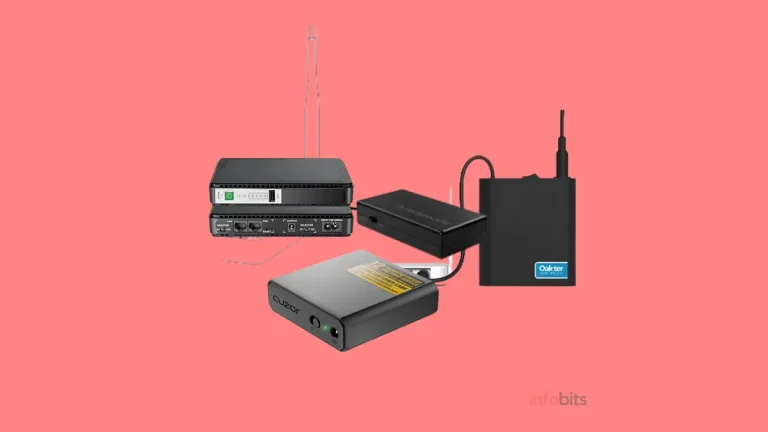
Power cuts matter more than people expect. Your ONT and router both need power for TV. A small DC mini UPS can keep both running for hours, and our UPS for WiFi router guide shows what to look for.
Setup Checklist
- Played a live channel before changing anything
- Saved screenshots of all ONT pages
- Noted which ONT LAN port the TV uses
- Chose access point mode first
- Turned DHCP off on the access point
- Tested the wired path for 15 minutes
- Tried Wi-Fi last
- Kept the TV connection untouched in bridge mode
- Kept voice and management connections untouched
- Asked BSNL about port binding if needed
Final Thoughts
Your own router and BSNL TV can work together. They just need to be arranged the right way. Keep the ONT in charge of the TV lane, and let your router handle Wi-Fi.
If live channels fail, don’t panic and don’t reset anything. Go back one step, test again, and ask BSNL the right questions. For the wider picture, see our BSNL FTTH plans guide and the guide on IPTV vs DTH.
Frequently Asked Questions
Yes, but TV may stop working if the router sits between the ONT and the TV. The safest setup is to keep the ONT as the main router, use your router as an access point, and wire the TV to the ONT.
It can, but it isn’t guaranteed. IFTV uses a separate TV path on the ONT, so your router must either stay out of that path or pass multicast (IGMP) traffic correctly.
Not on a TV connected to your router. The TV settings stay on the ONT, so the TV needs a free LAN port on the ONT that isn’t bound to the bridge.
Often yes, but it’s less reliable than a LAN cable. Live multicast streams can stutter on Wi-Fi, and some IFTV users report Live TV working only on the wired port.
IGMP is how your TV asks the network for a live channel. IPTV uses multicast, so if a router drops IGMP messages, the channel never reaches the TV.
Use IGMP proxy if your router sits between the ONT and the TV. Try IGMP snooping on the LAN side, but turn it off if channels stop after a few minutes.
The ONT’s TV connection may be bound to a specific port, so internet and TV end up on different paths. Ask your franchise about VLAN binding for one port, or keep the TV on the ONT’s own network.
It means the TV can’t reach the private network used by Skypro-run BSNL IPTV. Connect the TV to an ONT port with the TV connection enabled, and ask BSNL to check the route and IGMP settings.
It can, if the main mesh unit runs in access point mode and the TV is wired. Mesh in router mode creates double NAT and often breaks live channels.
It isn’t recommended. An extender adds a wireless hop, and multicast video handles that poorly. A wired access point is a better choice.
It often breaks live channels because your router may drop multicast traffic. Turn on IGMP proxy on your router, or connect the TV to the ONT.
Only with BSNL’s help. The device must be registered, and TV settings are configured on BSNL’s side as well. Without that, IPTV or IFTV may not work.
IFTV is designed to run on BSNL’s intranet and not count against your plan. If the TV reaches it through the ONT’s TV connection, usage should stay off your quota. Compare your usage details after a few days of viewing to be sure.
Look for a PPPoE-capable WAN port, IGMP proxy, IGMP snooping, access point mode and an IPTV setting. Wi-Fi 6 helps coverage, but it doesn’t change how TV is delivered.
Ask which ONT LAN port carries the TV connection and whether multicast is enabled. Also ask if TV and internet can share one port, and whether remote updates could overwrite your changes.
Put the old setup back first and confirm the TV works. Then change one thing at a time, starting with access point mode. If the ONT’s TV settings were deleted, ask BSNL or your franchise to restore them.
We hope you are interested in our articles and consider following our Facebook, Instagram, and Twitter pages for regular updates.
Also, share this article with your friends and relatives. Bookmark this page for future reference.
Subscribe to our free newsletter to get similar articles and regular updates directly in your Email Inbox.
Subscribe to be the first to learn about new information
Disclosure: If you follow our links to a retailer’s website and make a purchase, we will get an affiliate commission on some, but not all, of the items or services we promote. This will cause no price change for you.
You May Be Interested to Read:
- IPTV vs Cable TV in India: Which Should You Actually Choose?
- Is BSNL Fibre Good Enough for 4K Streaming? What Speed You Really Need
- Optical vs HDMI ARC for Soundbars: Which Is Better for Your TV?
- Vega OS vs Fire OS: What Changes for Indian Users in 2026?
- Double NAT Explained: How to Check and Fix It on Indian Broadband