First 10 Things to Do After Installing Windows 10
You may read this article either because of your academic interest in knowing what to do after installing Windows 10, or because you are in the process of migrating from old Windows versions, or because you have just made a fresh Windows 10 installation.
What to do after installing Windows 10?
Infobits will teach you some simple steps to make your system simpler and more efficient with a new Windows 10 installation.
Related: How to Install Windows 10 From a USB Drive
It takes a bit of time to do these things, but it sets you on the track for a better time with Windows.
After getting through the boring and long Windows 10 installation steps, you still have to do some extra work to set up the machine as you want.
Of course, it’s not mandatory, but you can optimise your system from the start to make it safer and more effective in the manner you like.
One can easily use their PC from the next point of installation without doing these tweaks, too.
Now, let’s look at the first things to do with your PC after installing Windows 10.
What to Do After Installing Windows 10
We will list some common things for you on this topic. Now let’s look at them one by one.
1. Perform Windows 10 Update
Most of us do not like the Windows update process because it can be annoying sometimes, and even some unreliable updates will make your machine unusable.
However, downloading an update after a new Windows 10 install is vitally necessary because it will come with the latest bug fixes and security updates to protect your PC from exploits and attacks.
Windows Update is configured and runs automatically by default.
So, it is better to go for this update process.
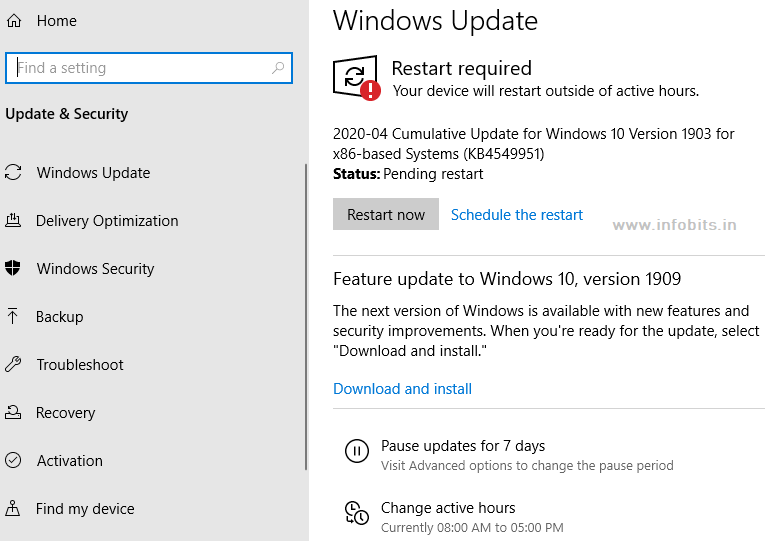
Step 1: Under the Start menu, go to Settings.
Step 2: Search for updates and choose Update & Security to access the Windows Update section.
Step 3: After downloading and preparing the required updates, press Reboot now to install the updates.
2. Update and Install the Required Drivers
Installation and updating of the required drivers are also included in the important things to do after installing Windows 10 on your PC.
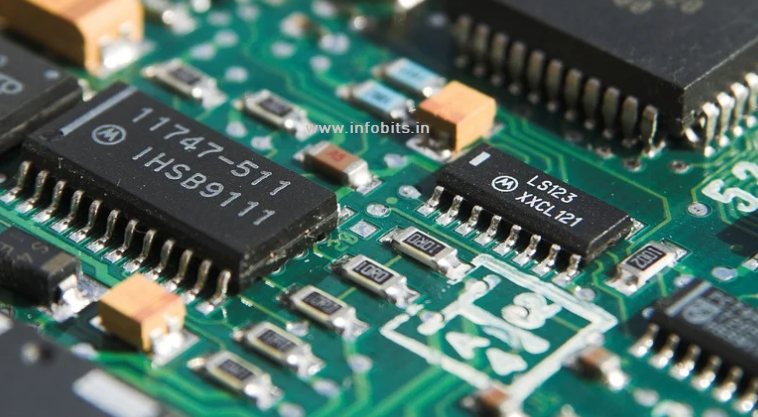
A device driver allows the hardware to communicate with the Windows OS. It can be said that the device driver is a piece of software that facilitates communication between the respective device and the operating system.
Normally, System drivers are provided by respective hardware manufacturers and need to be updated when there is an update from the hardware vendor.
Upon a fresh update of Windows 10, it is important to keep drivers up to date and compatible with the new version of the OS.
Simply right-click the Start menu and pick the Device Manager from the drop-down list to update device drivers.
It is necessary to keep drivers updated to ensure that your hardware is running at optimal performance.
3. Install Important Software You Want for Your Daily Use
Though the computer comes with a lot of applications, some basic software still needs to be installed for everyday use.
The following are some of them.
Antivirus Software
Computers are still at risk for viruses, malware, and other malicious attacks, so install antivirus software on your PC.
Windows 10 already has an inbuilt antivirus program, Windows Defender. You should enable and configure Windows Defender for the basic protection of your system.
If you are looking for more advanced security features, you can install an antivirus program from third parties, such as Norton Security, Kaspersky Internet Security, Bitdefender, Malwarebytes, etc.
A free version of these antivirus programs is enough for a normal user. But if you are doing some financial transactions such as Internet banking, better to go for the premium versions of these.
Internet Browser
Windows 10 is coming with its default internet browser, Microsoft Edge. If you are not satisfied with Microsoft Edge, there is a wide variety of choices like Google Chrome, Firefox, Opera, and the Brave browser.
Audio-Video Players.
As in the cases of other software, media player software is also coming with Windows 10. Alternatively, you can check out the best free video player and audio player available online if you want to listen to music and watch videos on your PC.
Related: Is Windows Media Player For Windows 10 Available?
Productivity Softwares
Furthermore, some productivity applications can be installed, like the Office suite, email suite, cloud storage, etc.
4. Configure for Default Windows Apps
After installing your favourite software, all settings need to be configured in Windows settings for its default use. It is easy to execute your required application quickly.
In Windows 10, go through the following steps to configure the default preset applications.
Go to Settings>Apps>Default. Apps
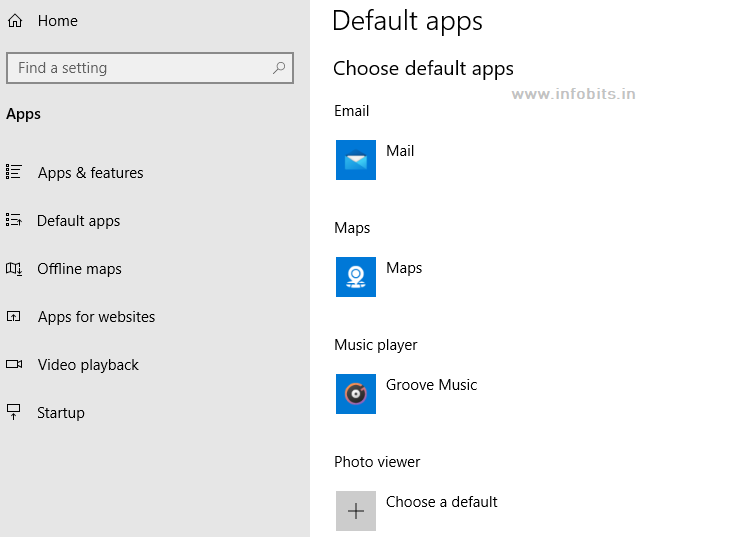
Select the preferred apps from the list for Web browser, Music player, Email, Video Player, etc.
There is also another option to choose Default Apps by file type for different file types, such as XLS, DOCS, PDF, TXT, etc.
5. Change Privacy Settings as You Want
One of the things to do after installing Windows 10 is to change the privacy settings because Microsoft gathers all types of details on how you are using the operating system.
It is a breach of privacy.
You can disable all of these features by following the steps below.
Step 1: Go to privacy settings. Start > Settings > Privacy.
Step 2: In the Privacy Settings General tab, you can toggle the switching button from on to off.
Related: Secure Your PC With Dynamic Lock in Windows 10
6. Enable Necessary Programs During Startup
Most applications run at startup, which is a waste of total system resources and makes your system take a lot longer to boot. You can make sure that only permitted apps run at boot.
Follow the steps below to disable unwanted programs during startup by configuring them in Task Manager.
Press Ctrl+Shift+Esc to open Task Manager.
Go to More details in the section if you are not able to see the complete tasks.
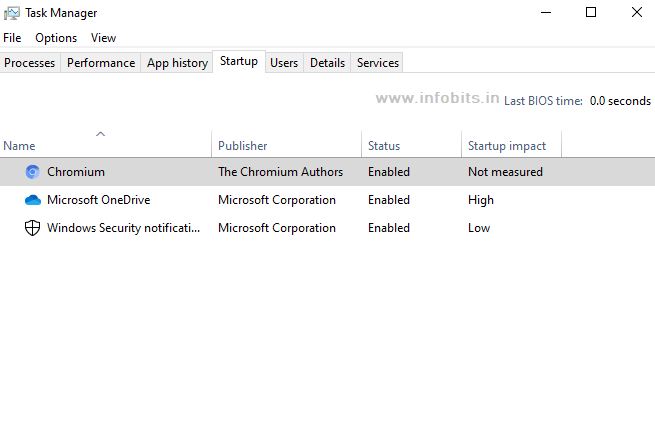
Click the Startup tab to see the programs enabled on Windows startup.
Right-click on the required app you want to disable on startup and select Disable
7. Configure System Backup in Windows 10
System breakdown is always happening spontaneously without any warning. This may be in the form of failing the system to boot, or the inaccessibility of your data, etc.
Mostly, this might be the aftereffect of the corruption of any system file or malware infection.
So it is always a good practice to generate and back up a system image file. This will help you restore the whole system to a normal state as it was at the time of backup.
One disadvantage of this system image file backup is that we can not restore it on another PC. This can be overridden by setting up the backup instance for files and file history.
This will enable us to restore our completely backed-up files, other than OS files, even in a different system.
Related: How to configure backup and restore in Windows 10?
8. Configure Power Plan for Optimum Settings
The Power Plan settings in Windows 10 allow you to configure different power options required for various scenarios. By using the different options in power plan settings, a Laptop user or Desktop user can configure their preference.
In these settings, you will be able to tweak settings to turn off the display or put the computer to sleep mode due to inactivity, etc.
It is easy to access the power plan settings through the steps mentioned below.
Select Settings> System > Power & sleep.
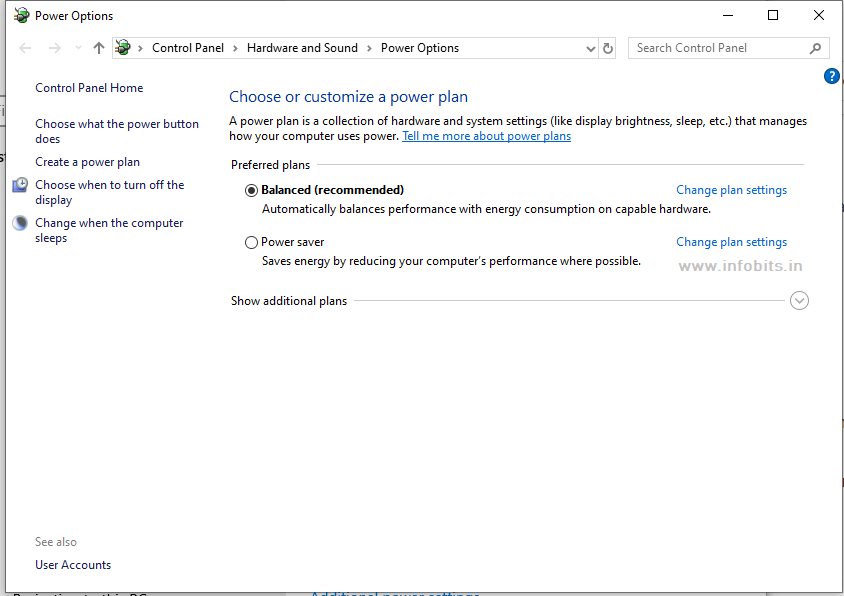
Here, you will get the power option time settings available for display and sleep mode.
You can move to additional power settings to access Power Options in the control panel. Here you will be able to access almost all power plan settings.
9. Optimise Appearance Settings
Thankfully, Windows 10’s appearance is looking good for the majority of users. The user interface is up-to-date, and visual transitions are satisfactory. Most users may be very satisfied with the default appearance of Windows 10.
But for those who want to apply their personal preference in Windows 10 appearance, you can easily set it in Appearance settings.
To optimise Windows 10 appearance settings for your system:
In the Start Menu, Go to Settings> Personalisation
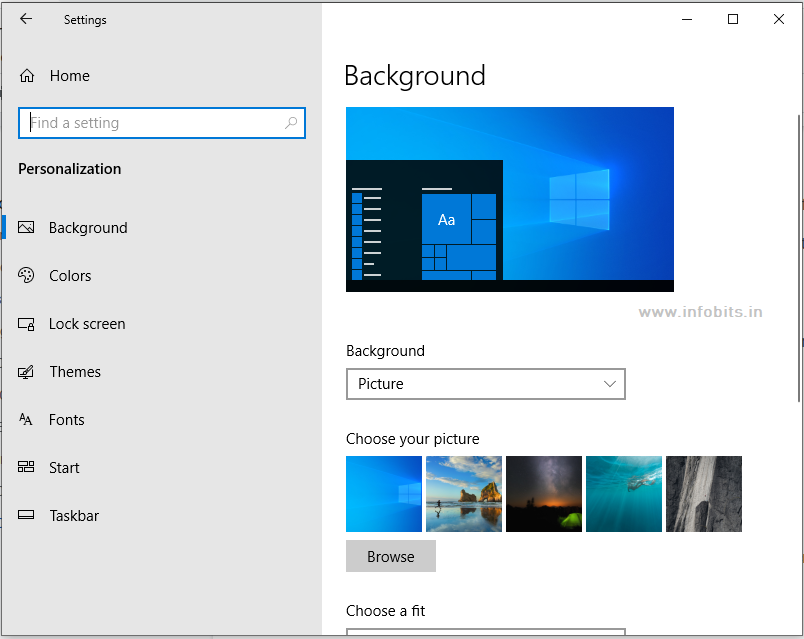
Here, you will tweak different settings for Background, Colours, Lock screen, Themes, Fonts, Start, and Taskbar
10. Create a Recovery Drive
Having a recovery drive is also a necessary thing to do after installing Windows 10. Hardware failure or system file corruption can lead to a complete malfunction of the operating system.
If you have a recovery disk, it’s very easy to reinstall Windows from it.
You can note that Windows’ reinstallation from a recovery drive is different from the process of restoring backup files to the system.
The recovery process helps to get only your operating system files back and not personal files and settings. Windows 10 is being updated regularly, and it is good practice to make a recovery drive every six months.
You may either use an external USB drive or a hard drive partition of your system to make a recovery disk.
Just perform the following steps to make a recovery drive:
Type “Create Recovery Drive” in the Windows search box.
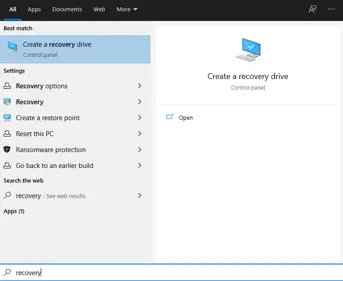
When the tool opens, just back up your system files to a location where you want.
Please note that all data on the drive that is converted to a recovery drive will be erased. The drive should have a minimum of 8 GB of storage space.
Furthermore, after installing Windows 10, there are several other things to do, such as protecting your account, making user account access settings, etc.
We are trying to update this page regularly by adding those things in the future.
FAQ on Things to Do After Windows 10 Installation
Soon after installing Windows 10, the important things to be accomplished are, to perform a Windows 10 update, update and install necessary drivers, install important security and productive software you want, configure Windows for default application usage, and change Windows privacy settings as you required, properly configure startup applications, create backup settings, set up optimum power plan, change appearance settings as you like and make a recovery drive.
After installing Windows 10, most of the basic drivers will automatically be installed. Usually, basic drivers are for Audio, Chipset, Graphics, Input devices, Networks, and storage devices.
But sometimes these drivers may not be enough to utilise the complete functionality of the devices attached. In this case, it is better to download the required drivers from the device manufacturer’s website.
Most of the drivers will be installed automatically, and in the majority of cases, it is enough for the normal functioning of the devices attached. But sometimes, to get the full functionality, you have to download the full driver software from the vendor’s website.
No doubt, it will be installed on your hard drive itself.
Yes, by updating the device drivers, you can expect better performance from them.
So don’t forget to follow us on Facebook and Twitter for instant updates.
Subscribe to our free newsletter so that you will get regular updates directly in your Email.
Also, consider helping by sharing this information with your relatives or friends who might be searching for this type of information.
Subscribe to be the first to learn about new information