15 Best Free Screen Recorders Without Watermark (2026)
Most “free screen recorder” lists have a catch buried somewhere: a watermark stamped in the corner, a 5-minute cap, or a “free trial” that’s really just a demo. We went through the current crop of free recorders and checked each one’s actual free-tier terms, not just the marketing page.
Quick answer: If you want zero watermark and zero time limit, your two safest bets are OBS Studio (Windows, Mac, Linux) and ShareX (Windows only). If you want something simpler with no install, Windows 11’s built-in Snipping Tool and Mac’s QuickTime Player both record clean, watermark-free clips out of the box.
Below is the full list, sorted by use case, with honest notes on the trade-offs each one makes.
Quick Picks: Best Free Screen Recorders at a Glance
| Tool | Best For | Watermark | Time Limit | Platform |
|---|---|---|---|---|
| OBS Studio | Best Overall / Power Users | None | None | Windows, Mac, Linux |
| ShareX | Best Free Utility (Windows) | None | None | Windows only |
| Windows 11 Snipping Tool + Game Bar | Best Built-In (No Install) | None | None | Windows 10/11 |
| QuickTime Player | Best Built-In for Mac | None | None | macOS/iOS |
| Clipchamp | Best All-in-One with Editing | None | None | Windows 11, Web |
| ScreenPal | Best for Beginners | None (since 2025) | 15 min/video | Windows, Mac, Web |
| ScreenRec | Best for Instant Cloud Sharing | None | None (with account) | Windows, Mac |
| Cap | Best for Privacy-Focused Local Recording | None | None (local) | Windows, Mac |
| Icecream Screen Recorder | Best for Quick Short Clips | None | 5 min/video | Windows, Mac, Android |
| ActivePresenter | Best for eLearning & Teachers | None | None | Windows, Mac |
| TinyTake | Best for Annotated Screenshots + Video | None | 120 min/video | Windows, Mac |
| EaseUS RecExperts | Best for Scheduled Recording | None | None | Windows |
| Debut Video Capture | Best for Format Flexibility | None | None | Windows, Mac |
| Free Cam | Best Lightweight Option | None | None | Windows only |
| Loom | Best for Async Team Messages | Branding on viewer page | 5 min / 25 videos total | Windows, Mac, Web |
How We Picked These Tools
We checked each recorder’s current free-tier pricing page directly (not old review screenshots), tested for watermarks on the actual exported file, and noted any time, resolution, or video-count limits that aren’t obvious until you hit them.
Tools that quietly changed their free-tier terms since our last update, like ScreenPal dropping its watermark in 2025, are flagged below.
Best Free Screen Recorders Without Watermark
1. OBS Studio: Best Overall
OBS Studio is the closest thing to a universal answer for this list. It’s open-source, funded by contributors and sponsors rather than a paid tier, so there’s no watermark, no time limit, and no feature locked behind a paywall, ever.
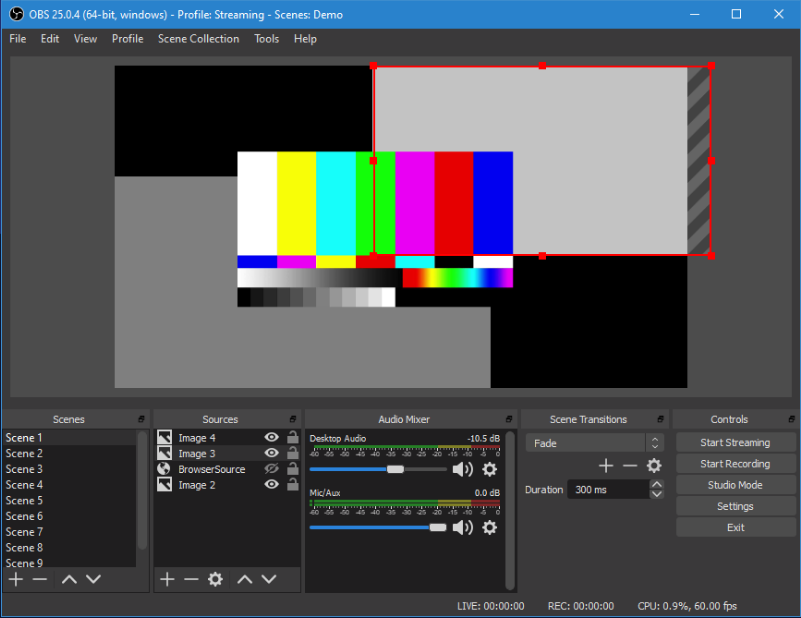
It can record your full screen, a specific window, or a custom region, and layer in webcam, multiple audio sources, and real-time filters like noise suppression and chroma key. Recent versions added AV1 hardware encoding support for newer GPUs, so you can get high-quality output at smaller file sizes if your hardware supports it.
The drawback is the learning curve. OBS exposes a lot of settings up front ( scenes, sources, encoders ), and it isn’t the tool to open five minutes before a call. Budget 20–30 minutes to set up your first scene properly (source, audio device, output folder), and after that it becomes genuinely fast to use.
Best for: Anyone who records regularly and wants a tool that will never ask them to pay or watch a watermark appear.
Skip if: You just need to grab a 30-second clip right now with zero setup. A built-in tool below will be faster.
Platform: Windows, Mac, Linux | Price: Free (open source) | Watermark: Never
2. ShareX: Best Free Utility (Windows)
ShareX is technically a screenshot tool first, but its recording feature is excellent and frequently overlooked. It captures any region, a full window, or the entire desktop, with or without audio. Its standout feature is one-click GIF recording, perfect for quick bug reports or Slack messages where a full video is overkill.
It also includes solid annotation tools and can auto-upload finished clips to more than 80 destinations, which makes it genuinely useful for developers and support teams who record dozens of short clips a day. There’s no paid tier at all; everything is free, permanently.
The interface is dense. ShareX shows every option it has rather than hiding advanced settings, so new users should expect to spend a little time in the settings menu before it feels intuitive.
Best for: Developers, QA testers, and anyone who takes frequent short clips or GIFs for documentation.
Skip if: You’re on a Mac. ShareX is Windows-only.
Platform: Windows only | Price: Free | Watermark: None
3. Windows 11 Snipping Tool + Xbox Game Bar: Best Built-In Option
You don’t need to install anything on a Windows PC to get a clean, watermark-free recording. Microsoft quietly turned the old screenshot-only Snipping Tool into a real recorder starting with Windows 11’s 22H2 update, and it’s picked up window-mode recording, GIF export, and full microphone plus system audio support in more recent releases.
For quick “record a specific region and send it” tasks, open the Snipping Tool, click the video camera icon, select your area, and hit Start.
For recording an entire app or a game, Xbox Game Bar (press Win + G) is the better fit. It can’t capture the desktop or File Explorer, but it handles app-level and gameplay recording smoothly, with a Win + Alt + R shortcut to start and stop instantly.


Best for: Quick one-off recordings where you don’t want to install anything. Skip if: You need to record your entire desktop across multiple windows. Use OBS or ShareX instead.
Platform: Windows 10/11 | Price: Free (built-in) | Watermark: None
4. QuickTime Player: Best Built-In Option for Mac
QuickTime Player is macOS’s answer to the Snipping Tool: it’s already installed, records clean, watermark-free video, and needs zero configuration.
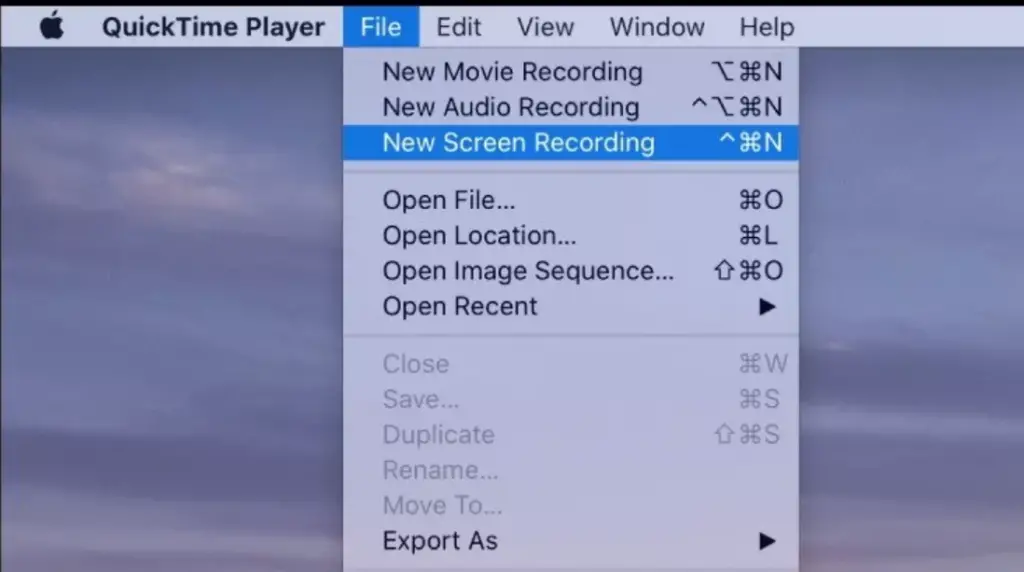
Open it, go to File → New Screen Recording, choose your area, and go.
It handles basic trimming after recording and can capture your microphone directly. Its one real limitation is that it can’t capture internal system audio on its own (you’ll need a separate audio-routing tool like BlackHole for that), so it’s better suited to voiceover-style tutorials than gameplay or app-audio capture.
Best for: Mac users who want a fast, no-install recorder for tutorials or quick demos.
Skip if: You need to capture your Mac’s internal audio (app sounds, music, game audio) alongside your screen.
Platform: macOS, iOS | Price: Free (built-in) | Watermark: None
5. Clipchamp: Best All-in-One with Built-In Editing
Clipchamp comes pre-installed on Windows 11 and is Microsoft’s answer to “record and edit in one app without downloading anything extra.” You can record your screen, then immediately trim it, add text, transitions, or background music, all inside the same tool.
The free tier exports at 1080p with no watermark, which puts it ahead of several hosted competitors on this list. It’s browser-based as well, so Mac and Linux users can access a version of it through Microsoft’s website, though the deepest integration is on Windows 11.
Best for: Anyone who wants to skip a separate video editor entirely and finish a polished clip in one sitting.
Skip if: You need advanced multi-track editing — Clipchamp’s editor is solid but not a replacement for a dedicated NLE.
Platform: Windows 11 (built-in), Web | Price: Free | Watermark: None
6. ScreenPal (formerly Screencast-O-Matic): Best for Beginners
ScreenPal has been around since 2006 under its older name, Screencast-O-Matic, and it’s one of the most beginner-friendly recorders around: pick your recording area, toggle mic and webcam, and click record. Editing tools for adding text, captions, and simple cuts are included in the same app.
Here’s the update worth knowing.ScreenPal carried a watermark on its free tier for years, but the company removed it in 2025, confirmed directly on their pricing page. What’s still limited on the free plan is a 15-minute cap per recording and 720p playback quality, so it’s better suited to short tutorials than long-form screen capture.
Best for: First-time users who want the simplest possible interface with built-in light editing.
Skip if: You regularly record sessions longer than 15 minutes.
Platform: Windows, Mac, Web | Price: Free (Solo Deluxe from ~$4/month) | Watermark: None (since 2025)
7. ScreenRec: Best for Instant Cloud Sharing
ScreenRec skips the export step entirely. While you’re recording, your video uploads to ScreenRec’s cloud in real time, so the moment you stop, you have a shareable link; no waiting for a file to render or upload afterwards.
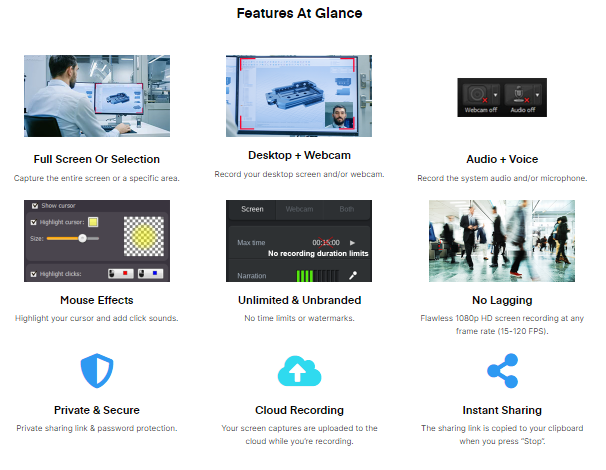
It comes with 2GB of free cloud storage and includes basic annotation tools for marking up your screen live during recording. Free-account users get unlimited recording time; without creating an account, recordings are capped at 5 minutes.
Best for: Support teams and remote workers who need to send a link fast rather than a downloadable file.
Skip if: You’d rather keep your recordings stored locally instead of on a third-party server.
Platform: Windows, Mac | Price: Free (with free account) | Watermark: None
8. Cap: Best for Privacy-Focused Local Recording
Cap is one of the newer entrants on this list, built specifically around the idea that your screen recordings shouldn’t have to touch someone else’s server. Local recordings on the free tier are unlimited in length and completely watermark-free, and everything stays on your device unless you explicitly choose to share it.
If you do want to generate a shareable link, the free tier currently caps you at a limited number of link shares per month and licenses free use for personal projects; local recording and export, though, has no such limit.
Best for: Anyone recording sensitive internal work ( client demos, proprietary software, financial data) who doesn’t want footage passing through a third-party cloud.
Skip if: You specifically need frequent shareable links rather than local export.
Platform: Windows, Mac | Price: Free (local) | Watermark: None
9. Icecream Screen Recorder: Best for Quick Short Clips
Icecream is a straightforward recorder for Windows, Mac, and Android that keeps things simple: pick your area, hit record, and you’re done. It supports adding voiceover through an external mic and includes basic annotation for marking up your capture afterwards.
The free tier’s biggest constraint is a 5-minute recording cap per video, which makes it a tool best suited for short demonstrations, quick bug reports, or how-to snippets rather than full tutorials.
Best for: Fast, short-form recordings where you don’t need more than a few minutes at a time.
Skip if: You need to record anything longer than 5 minutes without interruption.
Platform: Windows, Mac, Android | Price: Free | Watermark: None
10. ActivePresenter: Best for eLearning and Teachers
ActivePresenter is built with educators and course creators in mind, and it shows: alongside standard screen recording, it supports interactive e-learning elements, quiz overlays, and detailed annotation tools that go well beyond a basic recorder.
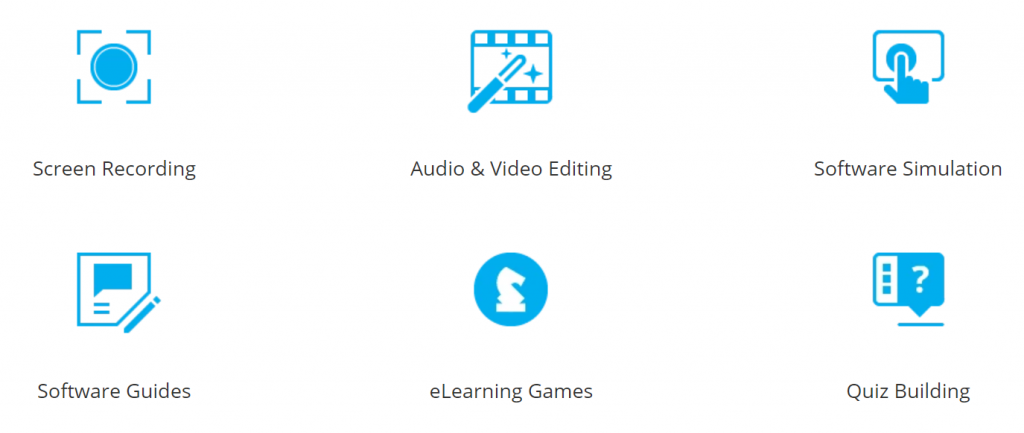
The free version genuinely covers the vast majority of what most users need ( recording, basic editing, and export ) with a smaller set of advanced effects reserved for the paid tier. It’s a secure, intuitive tool once you’re past the initial setup.
Best for: Teachers, trainers, and anyone building structured tutorial or course content.
Skip if: You just want a quick one-off recording. The feature set here is more than casual use needs.
Platform: Windows, Mac | Price: Free (Pro tier available) | Watermark: None
11. TinyTake: Best for Annotated Screenshots + Video
TinyTake pairs screen recording with a strong screenshot-and-annotation toolset, letting you highlight, comment, and mark up both images and video before sharing directly to social platforms or messaging apps.
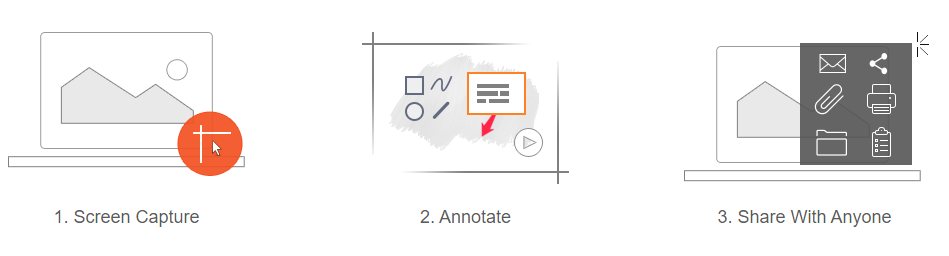
The free tier allows recordings up to 120 minutes, which is generous compared to most hosted tools on this list, along with support for an external webcam during continuous recording.
Best for: Users who need to combine annotated screenshots and video in one workflow, like support documentation or client walkthroughs.
Skip if: You only need pure video recording without the annotation extras.
Platform: Windows, Mac | Price: Free | Watermark: None
12. EaseUS RecExperts: Best for Scheduled Recording
EaseUS RecExperts stands out for one specific feature most free recorders skip: scheduled recording. You can set it to automatically start and stop capturing your screen and webcam at a specific time, useful for recording webinars or streams you can’t personally sit through.
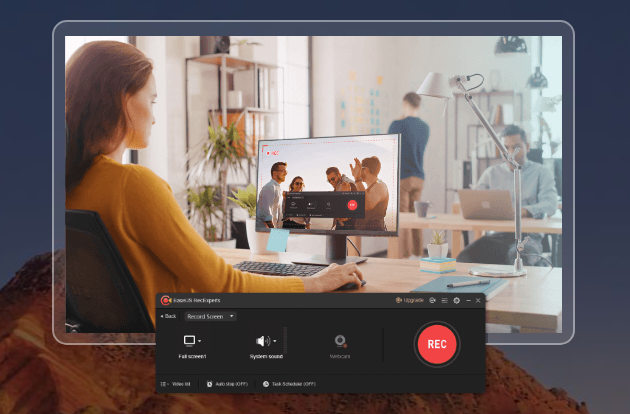
It captures your full screen or a selected window, saves output in more than 10 formats including MP4, AVI, and MOV, and includes basic post-processing like background noise removal to clean up audio quality.
Best for: Recording scheduled events like webinars or livestreams without needing to be at your desk when they start.
Skip if: You don’t need the scheduling feature. Simpler tools above will feel less bulky.
Platform: Windows | Price: Free | Watermark: None
13. Debut Video Capture: Best for Format Flexibility
Debut, from NCH Software, records your screen, an external video source, or your webcam, and supports an unusually wide range of output formats: AVI, WMV, FLV, MPG, MP4, and MOV. It also supports time-lapse recording, which most recorders on this list don’t offer.
Output quality is solid without being the sharpest on this list. It is fine for internal documentation or personal reference, less ideal if you need broadcast-quality final output.
Best for: Users who need a specific, less-common output format for downstream editing software.
Skip if: You need the cleanest possible video quality. OBS or Clipchamp will outperform it.
Platform: Windows, Mac | Price: Free | Watermark: None
14. Free Cam: Best Lightweight Option
Free Cam does exactly what its name says, with no frills. It records any part of your screen at up to 760p, highlights your mouse cursor and clicks to make tutorials easier to follow, and includes basic trimming after recording.
It’s genuinely lightweight on system resources, which matters if you’re recording on an older laptop where OBS or ActivePresenter might struggle.
Best for: Older or lower-spec Windows machines where a heavier recorder would slow things down.
Skip if: You need resolution above 760p. This isn’t the tool for polished, high-res output.
Platform: Windows only | Price: Free (Pro upgrade available) | Watermark: None
15. Loom: Best for Async Team Communication
Loom deserves a place on this list because it solves a real problem well. Record your screen and webcam together, and get an instantly shareable link without manually exporting or uploading anything. For quick team updates, code reviews, or customer follow-ups, it’s genuinely fast.

Here’s the honest catch, since this article is specifically about watermark-free recording. Loom’s free plan caps you at 25 videos total, 5 minutes each, and displays Loom branding on the video’s viewer page.
It’s not a burned-in watermark on the video file itself, but it is visible branding every viewer sees. It is worth knowing if “watermark-free” is a hard requirement for your use case.
Best for: Quick internal team messages where speed of sharing matters more than a completely unbranded viewing page.
Skip if: You need a fully unbranded, embeddable, or downloadable file. Use ScreenRec or Cap instead.
Platform: Windows, Mac, Web | Price: Free (Business from ~$15/month) | Watermark: Branding on viewer page, not burned into export
Comparison: Local Recording vs. Cloud-Hosted Recording
| Local Recorders (OBS, ShareX, QuickTime, Cap, Free Cam) | Cloud-Hosted Recorders (Loom, ScreenRec, ScreenPal) | |
|---|---|---|
| Where your footage lives | Your device only | Third-party servers |
| Sharing speed | Manual upload/export needed | Instant shareable link |
| Privacy for sensitive content | Best option | Depends on provider’s data policy |
| Typical free-tier limits | Rare (mostly none) | Common (time caps, video counts) |
| Setup effort | Slightly higher for advanced tools | Usually lowest |
Buying Guide: How to Choose the Right Free Screen Recorder
If you record occasionally and just need something built-in: Use the Snipping Tool (Windows) or QuickTime Player (Mac). You already have them, and neither adds a watermark or time limit.
If you record regularly and want the most powerful free option: Learn OBS Studio once. The setup investment pays off the first time you need multi-source recording, streaming, or precise control over quality.
If you need to share a link instantly without exporting files: ScreenRec or Cap are the strongest watermark-free choices; avoid Loom’s free tier if a fully unbranded viewer page matters to you.
If you’re recording sensitive or confidential content: Prioritise local-only tools (OBS, ShareX, Cap, Free Cam) over cloud-hosted ones, since cloud recorders process your footage on external servers.
If you’re building structured course or training content: ActivePresenter’s interactive elements and quiz overlays go further than a basic recorder.
Common Mistakes to Avoid
- Assuming “free” automatically means watermark-free. Several popular tools, Loom included, only remove watermarks or branding on paid tiers. Always check the current pricing page, not an old review.
- Not checking the time limit before a long recording session. Icecream Screen Recorder’s 5-minute cap or ScreenPal’s 15-minute cap can cut off a recording midway if you’re not aware of it going in.
- Recording system audio on Mac with QuickTime and expecting it to work. QuickTime only captures your microphone by default. You need a separate audio routing tool for internal app sound.
- Skipping the OBS setup step. A common complaint is that OBS “records nothing” or “records a black screen”.This is almost always a missing or misconfigured audio/video source in Settings, not a bug.
Expert Tips for Better Free Screen Recordings
- Close unnecessary background apps before recording with resource-heavy tools like OBS or ActivePresenter, especially on older hardware.
- Record at 1080p rather than a lower resolution even if your final upload will be smaller. You can always downscale, but you can’t add back detail.
- Do a 10-second test recording before anything important. It takes a minute and catches the most common issue: no audio being captured.
- If you’re recording a tutorial, script your key talking points beforehand. It cuts editing time dramatically, since you won’t need to trim as many pauses or restarts.
Final Thoughts
If you only remember one thing from this list. Check the actual pricing page before you commit to a tool, not an old review (including this one, months from now).
Watermark policies and time limits change more often in this category than most people expect. ScreenPal’s 2025 watermark removal is a good example of how quickly the landscape shifts.
For most people, OBS Studio or your device’s built-in recorder (Snipping Tool on Windows, QuickTime on Mac) will cover everything you need without a single catch.
Quick Picks Summary
| Product | Category |
|---|---|
| OBS Studio | Best Overall |
| ShareX | Best Free Utility (Windows) |
| Windows 11 Snipping Tool + Game Bar | Best Built-In / No Install |
| QuickTime Player | Best Built-In for Mac |
| Clipchamp | Best All-in-One with Editing |
| ScreenPal | Best for Beginners |
| ScreenRec | Best for Instant Cloud Sharing |
| Cap | Best for Privacy-Focused Local Recording |
| Icecream Screen Recorder | Best for Quick Short Clips |
| ActivePresenter | Best for eLearning & Teachers |
| TinyTake | Best for Annotated Screenshots + Video |
| EaseUS RecExperts | Best for Scheduled Recording |
| Debut Video Capture | Best for Format Flexibility |
| Free Cam | Best Lightweight Option |
| Loom | Best for Async Team Communication |
Frequently Asked Questions
OBS Studio is the strongest overall pick. It’s open source, has no watermark, no time limit, and works on Windows, Mac, and Linux.
Yes. Windows 11’s Snipping Tool now includes video recording with microphone and system audio support, and Xbox Game Bar (Win + G) handles app and game recording. Both are watermark-free and pre-installed.
Loom’s free plan doesn’t burn a watermark into the video file itself, but it does display Loom branding on the page viewers use to watch your recording, and caps you at 25 videos of 5 minutes each.
No. ScreenPal (formerly Screencast-O-Matic) removed its free-tier watermark in 2025. The free plan still caps recordings at 15 minutes and 720p playback.
Yes. OBS Studio, ShareX, QuickTime Player, the Windows 11 Snipping Tool, and Cap (for local recordings) all allow unlimited recording length on their free tiers.
On Windows, OBS Studio, ShareX, and the Windows 11 Snipping Tool (24H2 and later) all capture mic and system audio together. On Mac, QuickTime only captures the mic by default; use OBS if you need internal app audio too.
Local recorders (like OBS or QuickTime) save the file directly to your device with nothing uploaded. Cloud-hosted recorders (like Loom or ScreenRec) upload your recording to their servers automatically and give you a shareable link.
There’s a real learning curve compared to simpler tools. Expect to spend 20–30 minutes on your first setup, mainly configuring your audio and video sources. After that, it’s fast to use.
OBS Studio or Xbox Game Bar are the strongest free options for gameplay. Game Bar is faster to set up; OBS offers more control over quality, scenes, and multiple audio sources.
Chromebooks include a built-in Screen Recorder tool (in Quick Settings), which records without a watermark or time limit, though it has fewer editing features than desktop tools.
Yes. OBS Studio, ShareX, QuickTime Player, the Windows 11 Snipping Tool, and Free Cam all work without any sign-up. ScreenRec requires a free account to unlock unlimited recording time.
Some do. ScreenPal’s free plan caps playback at 720p, and Free Cam records up to 760p. OBS, ShareX, QuickTime, and Clipchamp all support full 1080p (and higher, in OBS’s case) on the free tier.
Yes. Clipchamp, ScreenPal, ActivePresenter, and EaseUS RecExperts all include basic free editing tools (trimming, text, transitions) alongside recording.
QuickTime Player for quick, no-install recordings, or OBS Studio if you need system audio capture and more advanced controls.
It depends on the provider’s data handling policy, but as a rule, avoid cloud-hosted tools for confidential or proprietary content and use a local-only recorder like OBS, ShareX, or Cap instead.
We hope you are interested in this article, and please share it with your friends and relatives.
Also, consider following our Facebook and Twitter pages for regular updates.
Subscribe to our free newsletter so that you will get similar articles and regular updates directly in your Email.
Subscribe to be the first to learn about new information
Disclosure: If you follow our links to a retailer’s website and make a purchase, we will get an affiliate commission on some, but not all, of the items or services we promote. This will cause no price change for you.