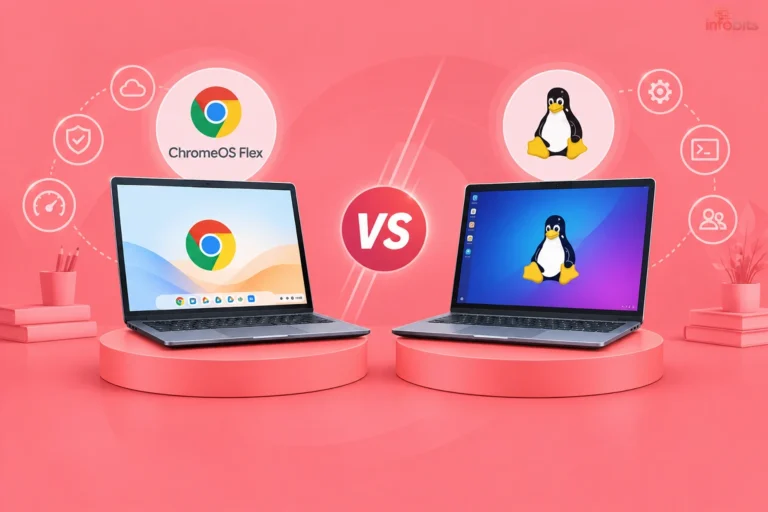
Dual Boot vs Virtual Machine vs WSL2: Which Should You Use in 2026?
Wanting to run two operating systems on one PC used to mean exactly one real choice: dual boot or a virtual machine. That’s no longer true. If Linux-on-Windows is your goal specifically, there’s now a third option: WSL2. That’s quietly become the default choice for a huge chunk of people who’d have dual-booted five years ago.
This guide walks through all three, what’s genuinely changed with Windows 11’s Secure Boot and BitLocker behaviour, and which setup actually fits your situation.
Quick Answer: Which One Should You Use?
- Want full native performance for gaming, video editing, or GPU-heavy work on a second OS? → Dual boot
- Need to test an OS, run isolated environments, or use software that requires a different OS occasionally? → Virtual machine
- Just want Linux command-line tools, dev environments, or Linux GUI apps alongside Windows, with zero rebooting? → WSL2 (Windows 11 users specifically)
If you’re not sure yet, keep reading. The right answer really does depend on what you’re using the second OS for, not just your hardware.
Related read: Significance of Virtualisation Skills in IT Infrastructure
What Is Dual Boot?
Dual boot means installing two (or more) operating systems on separate partitions of the same drive, and choosing which one to load each time you start your PC.
Only one OS runs at a time. There’s no switching between them without a restart, and neither OS can access the other’s files or resources while it’s running.
The upside: whichever OS you’re in gets full, unshared access to your CPU, RAM, and GPU. Nothing is virtualised or emulated, so performance is identical to running that OS as the only one on the machine.
What Is a Virtual Machine?
A virtual machine (VM) runs an entire guest operating system as a program inside your existing OS, using software like Oracle VirtualBox, VMware Workstation, or Windows’ built-in Hyper-V.
The VM software emulates the hardware the guest OS needs ( virtual CPU cores, RAM, storage, and networking ) carved out of your real hardware’s resources.
This means you can run your host OS and one or more guest OSes simultaneously, switching between them like any other window, without restarting anything.
The limitation is that your physical hardware now has to support multiple operating systems running at once, which takes a real toll on lower-spec machines.
Related read: Significance of the Virtualisation Skills in IT Infrastructure
What Is WSL2?
If your specific goal is “I want to use Linux tools or apps while staying in Windows,” there’s a purpose-built option that didn’t exist when dual-boot-vs-VM became the standard framing of this question: Windows Subsystem for Linux 2 (WSL2).
WSL2 runs an actual Linux kernel ( shipped and maintained by Microsoft, updated through Windows Update) inside a lightweight, purpose-built virtual machine that boots in about a second and integrates directly into Windows.
You get a real apt, real Linux binaries, and even Linux GUI apps running in their own windows on your Windows desktop, all without a traditional VM’s setup overhead or a dual boot’s reboot cycle.
Why it’s not just “a smaller VM”: WSL2 shares your Windows file system directly, launches almost instantly, and uses resources far more efficiently than a general-purpose VM, because it’s purpose-built for exactly one job: running Linux alongside Windows, not emulating a full separate PC.
Where it falls short: WSL2 doesn’t give you bare-metal GPU performance or firmware-level access, so it’s not a fit for Linux gaming, Linux-only hardware drivers, or scenarios where you need the Linux install to behave like a genuinely separate machine (Kali Linux pentesting setups, for instance, still lean toward dual boot or a proper VM).
It’s also Windows-to-Linux only. If you need Windows running inside Linux, or Linux running inside macOS, WSL2 isn’t the tool.
Things to Consider When Choosing
1. Setup Complexity
Dual booting is still the most involved of the three: partitioning a drive, creating bootable installation media, and getting the bootloader to correctly recognise both operating systems. It’s very doable, but there’s more room for a misstep.
A virtual machine just needs VM software and an OS image (ISO file). Genuinely a few clicks to get running.
WSL2 is the simplest of all for its specific use case: on Windows 11, it’s often a single command (wsl --install) and a restart.
Related read: How to Install Windows 11 From a USB Drive
2. Hardware Requirements
Running a VM means your machine is supporting two full operating systems’ worth of CPU and RAM demand at once. On an underpowered or older PC, this becomes genuinely unworkable. Performance suffers across both systems.
Dual boot sidesteps this entirely, since only one OS runs at a time and gets full access to your hardware. It remains the better fit for lower-spec machines, and for GPU/CPU-intensive work like video editing, 3D rendering, or gaming that doesn’t perform well virtualised even on strong hardware.
WSL2 sits in between. Its overhead is much lower than a full VM’s, but it still shares your Windows machine’s resources in real time rather than getting dedicated, guaranteed hardware like a genuinely separate OS install would.
3. SSD or HDD?
An SSD makes dual booting noticeably more pleasant, since fast reboots mean switching operating systems only costs you a minute or so. On an HDD, restarting can eat 5–10 minutes, which makes frequent switching between OSes a real friction point.
If your drive is an HDD but your machine otherwise has decent specs, a virtual machine (or WSL2, if applicable) avoids that reboot penalty entirely.
4. How Long Do You Use the Secondary OS For?
If you’re spending extended, focused time in a second OS ( using Linux as your primary dev environment for hours at a stretch, for example ), dual boot gives you full performance for that whole session, at the cost of a reboot to get there.
If you’re hopping back and forth constantly, or only need the second OS briefly and occasionally, a VM or WSL2 avoids the reboot tax entirely, since you can switch with a click (or, for WSL2, just open a terminal).
5. Do You Only Need One Specific App From the Other OS?
This is the clearest case for a VM or WSL2 over dual boot. If you’re a Mac user who occasionally needs a Windows-only app, or a Windows user who wants Linux command-line tools without leaving your desktop, dual booting for that alone is genuinely overkill. You’ll spend more time rebooting than using the app.
Related read: How to Test a Linux Distribution Online Without Installing
6. Security and Isolation
A VM runs in a sandboxed environment, so testing unfamiliar software or an unfamiliar OS carries far less risk to your main system. If something goes wrong, you delete the VM and start over, with your host OS untouched.
Dual boot doesn’t offer this isolation. Malware or a bad install on one partition can, in some scenarios, affect the shared drive or bootloader, and recovering from a serious issue is more involved than deleting a VM.
WSL2 sits closer to the VM end of this spectrum. It’s isolated from your main Windows install by design, though it’s not intended as a hard security boundary for genuinely hostile or untrusted code the way a fully separate VM is.
7. File Sharing and Snapshots
VMs make it easy to share files between host and guest OS, and most VM software lets you save a snapshot ( a saved state of the entire guest OS), so you can roll back after a bad update or experiment, or move that exact environment to another machine.
WSL2 goes a step further for its specific case. Your Windows and Linux file systems are directly accessible to each other by default, no shared-folder configuration needed.
Dual boot offers neither of these conveniences by default. File sharing between the two OSes typically requires a separate shared partition or network transfer.
Related read: Types of Computer Virus And How Can Avoid Them?
What’s Changed With Windows 11: Secure Boot and BitLocker
If you’re dual-booting Linux alongside Windows 11 specifically, there’s a real, current complication that didn’t exist in the Windows 10 era, and it’s worth knowing before you start partitioning anything.
Windows 11 requires Secure Boot-capable UEFI firmware and TPM 2.0, and on many modern PCs, BitLocker device encryption is on by default even if you never explicitly turned it on. This is common on Windows 11 Home installs tied to a Microsoft account.
The problem is that certain routine Linux operations, including something as simple as a kernel or bootloader update, can be read by Windows as a change to the trusted boot chain and trigger BitLocker recovery mode, locking you out until you enter a 48-digit recovery key.
What this means practically:
- Back up your BitLocker recovery key before you touch partitions at all. It’s usually saved to your Microsoft account, but confirm you can access it first.
- Suspend BitLocker (not necessarily fully disable it) before installing Linux alongside Windows 11, and re-enable it once your dual-boot setup is stable.
- Most mainstream Linux distributions (Ubuntu, Linux Mint, Fedora) support Secure Boot properly and don’t require disabling it. But niche distros, custom kernels, or proprietary drivers (particularly older NVIDIA setups) sometimes still need it temporarily turned off to complete installation.
- Windows updates have, on at least one occasion, broken working dual-boot Linux setups by tightening Secure Boot bootloader checks. It’s worth knowing this is a real, recurring category of issue, not a one-off.
None of this makes dual-booting with Windows 11 impractical. It’s still a well-supported, common setup, but it’s a meaningfully different (and more careful) process than it was a few years ago, and it’s the biggest reason a VM or WSL2 appeals to people who’d rather not touch their boot chain at all.
Common Mistakes to Avoid
- Skipping the BitLocker backup before partitioning. If BitLocker triggers recovery mode mid-installation and you don’t have the key handy, you can genuinely lock yourself out of Windows.
- Assuming you need to disable Secure Boot by default. Most mainstream distros support it natively now. Only disable it if your specific installer or driver genuinely requires it.
- Choosing a VM for GPU-intensive work. Video editing, 3D rendering, and gaming all take a real performance hit under virtualisation, even on capable hardware. This is still squarely dual boot’s territory.
- Reaching for a full VM when WSL2 would do the job. If your actual goal is Linux tools or a dev environment on a Windows machine, WSL2 is faster to set up, lighter on resources, and integrates more smoothly than spinning up a full Linux VM.
- Not checking your available disk space before partitioning for dual boot. Running out of space mid-installation is one of the more common ways a dual boot setup goes wrong.
Myth vs. Fact
Myth: “Dual boot is the only way to get full performance from a second OS.” Fact: True for GPU/CPU-intensive work, but WSL2 comes remarkably close for everyday development and command-line tasks, without any of the reboot overhead.
Myth: “Disabling Secure Boot is a normal, required step for dual booting Linux.” Fact: Most modern Linux distributions support Secure Boot out of the box. Disabling it is a fallback for specific compatibility issues, not a default requirement.
Myth: “WSL2 is basically just a lightweight VM, so it’s interchangeable with VirtualBox or VMware.” Fact: WSL2 uses virtualisation under the hood, but it’s purpose-built for Windows-to-Linux integration, specifically direct file system access, near-instant startup, and GUI app support. Not a general-purpose virtualisation tool for arbitrary guest OSes.
Dual Boot vs Virtual Machine vs WSL2: Summary Table
| Factor | Dual Boot | Virtual Machine | WSL2 |
|---|---|---|---|
| Setup complexity | Higher; partitioning, bootable media | Low ; install software + ISO | Lowest; one command on Windows 11 |
| Performance | Full native performance | Shared/reduced, depends on host specs | Near-native for CLI/dev work |
| Runs simultaneously? | No; one OS at a time | Yes | Yes |
| Best for | Gaming, video editing, GPU work, long sessions in one OS | Testing OSes, isolated sandboxing, occasional cross-platform apps | Linux dev tools/CLI alongside Windows, no reboot |
| Hardware needs | Works fine on lower-spec machines | Needs decent CPU/RAM for both OSes | Lower overhead than a full VM |
| File sharing | Manual (shared partition, network) | Built-in shared folders | Native, direct file system access |
| Security isolation | Low; shared drive/bootloader | High ; sandboxed | Moderate; isolated but not a hard security boundary |
| Windows 11 complications | Secure Boot/BitLocker care needed | None specific | None ; designed for Windows 11 |
Conclusion
The dual-boot-vs-VM framing isn’t wrong, but it’s incomplete in 2026. If your actual need is running Linux tools alongside Windows, WSL2 is worth trying first before you commit to either of the more involved options.
That said, dual boot remains the right call when you genuinely need full, unshared hardware performance, gaming, video editing, or extended focused sessions in a second OS. A virtual machine is still the best fit for testing, isolation, and occasional cross-platform app use.
And if you do go the dual boot route on a Windows 11 machine, budget a little extra time for the Secure Boot and BitLocker prep. It’s a real step now, not an optional one.
Frequently Asked Questions
Yes, it’s a well-established and stable setup. The main risk isn’t the concept itself but the installation process. Partition mistakes or, on Windows 11, BitLocker recovery triggers if you haven’t backed up your key first.
Yes. You’re splitting one drive’s storage between two operating systems, so each OS effectively has less space than if it were the only one installed.
Not directly, but tools exist to convert a physical Linux partition into a VM image (a “P2V” conversion) if you decide you’d rather virtualise an existing dual-boot install.
It’s most popular with developers, but anyone wanting Linux command-line tools or specific Linux-only software on a Windows machine can use it. You don’t need to be writing code to benefit.
Usually not. Most mainstream distributions (Ubuntu, Linux Mint, Fedora) support Secure Boot natively. Only disable it if your specific installer or hardware drivers require it.
You’ll be prompted for a 48-digit recovery key, usually stored in your Microsoft account. This is why backing up that key before you start partitioning is essential, not optional.
Yes, modern WSL2 supports running Linux GUI applications directly on your Windows desktop, alongside native Windows apps, without needing a separate virtual machine.
Dual boot, by a clear margin. GPU-intensive work like gaming takes a real performance hit under virtualisation, even with a capable VM setup.
Generally no, not without advanced GPU passthrough configuration, which is complex to set up and not supported on all hardware. Standard VM setups use a much more limited virtual graphics adapter.
Yes. A VM is sandboxed, so you can delete and recreate it if something goes wrong, without any risk to your main operating system. Dual boot doesn’t offer that same isolation.
It’s happened before. A 2024 Windows security update tightened Secure Boot bootloader checks and broke some dual-boot systems until Microsoft issued a fix. It’s uncommon, but worth being aware it’s a real category of risk.
Yes, though running both simultaneously increases resource demand on your system. Check your available RAM and CPU headroom if you plan to do this regularly.
We hope this guide helped. Follow us on Facebook and Twitter for more practical PC guides.
Please share this article with your friends and relatives for their information.
Subscribe to our free newsletter so that you will get regular updates directly in your Email.
Subscribe to be the first to learn about new information
Disclosure: If you follow our links to a retailer’s website and make a purchase, we will get an affiliate commission on some, but not all, of the items or services we promote. This will cause no price change for you.