How to Migrate Files, Apps, and Settings to a New Windows 11 PC
Getting a new laptop is fun. Moving everything over is not. Files are scattered, apps need reinstalling, and nobody remembers where the licence keys went.
This guide shows you a clean way to move your stuff. It covers what Windows can do for free, where it falls short, and what to do about the gaps. It is written for Indian users, so Tally, DSC tokens, and banking apps get a mention too.
Quick Answer:
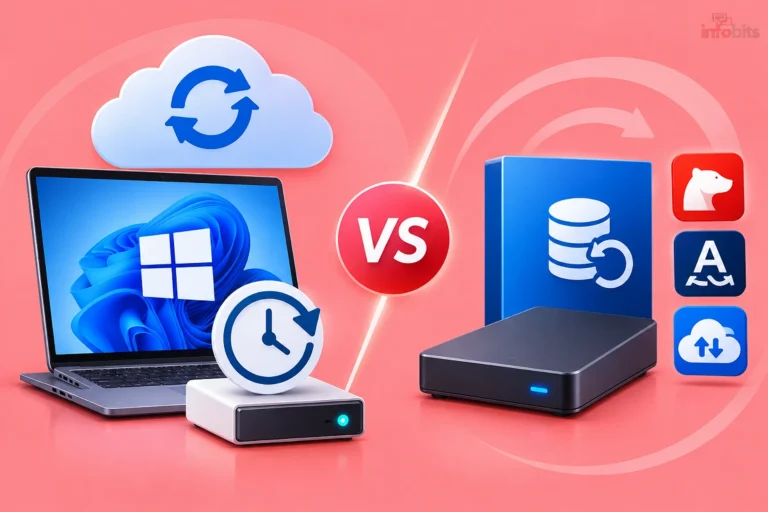
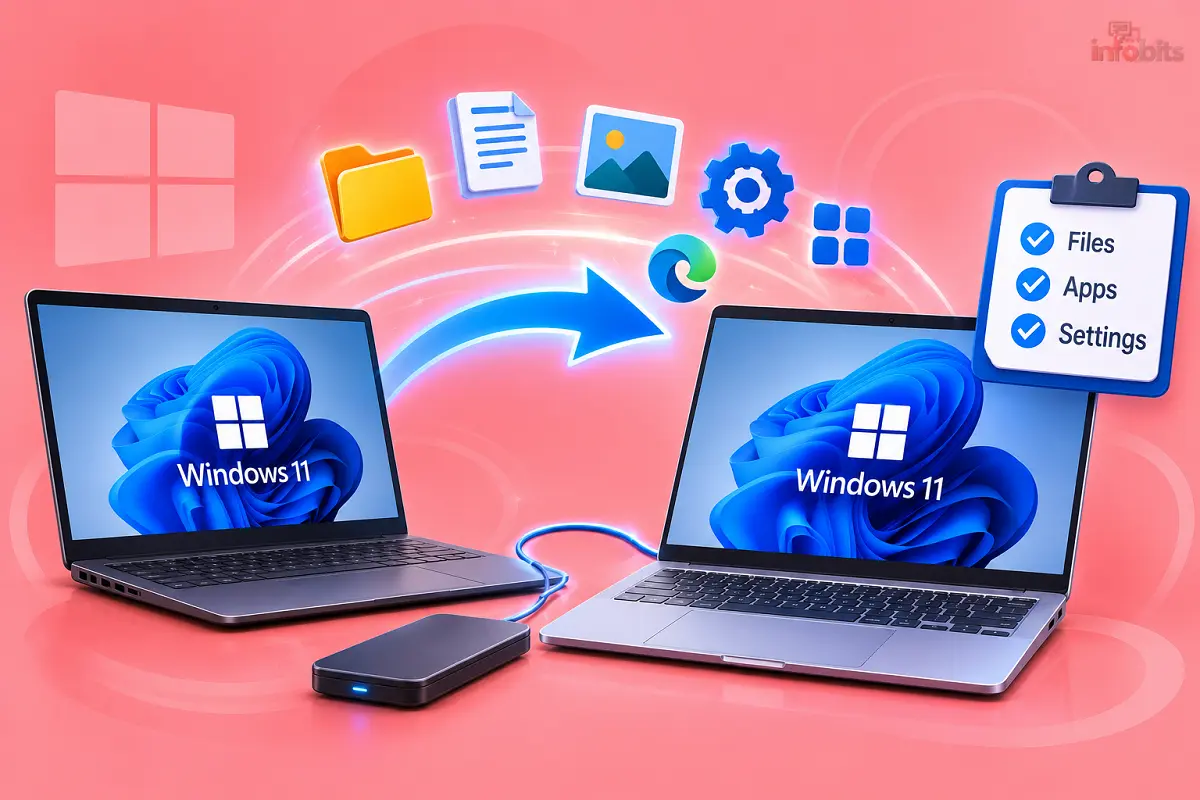
Use a mix of three tools. Windows Backup restores your settings and app shortcuts. OneDrive or an external SSD moves your files. A winget list or a paid migration tool handles the rest of your apps.
No single built-in tool moves everything. Microsoft’s old PC-to-PC transfer feature has been discontinued. Plan for a combined approach.
What Can Actually Be Migrated?
Here is the honest picture:
| Item | Moves automatically? | Best method |
|---|---|---|
| Documents, photos, videos | Yes (with setup) | OneDrive backup or external SSD |
| Wallpaper, theme, language | Yes | Windows Backup |
| Wi-Fi passwords | Yes | Windows Backup |
| Microsoft Store apps | Mostly | Windows Backup restore |
| Desktop apps (Chrome, VLC, etc.) | No, only reinstall prompts | winget or reinstall |
| App data and logins | Rarely | App’s own sync or export |
| Browser bookmarks and passwords | Yes | Browser sync |
| Licences and activation | No | Manual, per app |
| Drivers | No | Don’t move them |
Notice the last row. Never copy old drivers to a new PC. The new machine has its own hardware, and old drivers cause more trouble than they solve.
Before You Start: The 10-Minute Prep Checklist
Do this on the old PC first. It saves a lot of pain later.
- Update Windows fully and restart once.
- Charge the laptop or keep it plugged in.
- Note which apps you really use. Skip the ones you haven’t opened in a year.
- Sign in to your Microsoft account and confirm you know the password.
- Save your BitLocker recovery key if the drive is encrypted.
- Sign out of software with limited installs, like Adobe apps or Office retail licences.
- Move authenticator apps to your phone first.
Tip: Clear junk before you copy anything. Moving 40 GB of old downloads and installers wastes time on both machines.
Method 1: Use Windows Backup (Best for Settings and Basic Apps)
Windows Backup is built into Windows 10 and 11. It saves your preferences to your Microsoft account. On the new PC, it offers to restore them during setup.
Here is how to set it up:
- On the old PC, search for Windows Backup in the Start menu.
- Sign in with your personal Microsoft account.
- Choose which folders to back up. Desktop, Documents, Pictures, Videos, and Music are the options.
- Turn on Remember my apps and Remember my preferences.
- Click Back up and wait for it to finish.
On the new PC: Sign in with the same Microsoft account during first-time setup. Windows detects your backup and asks if you want to restore it. Say yes.
What gets restored? Your theme, wallpaper, language settings, Wi-Fi networks, and app pins on the Start menu. Store apps reinstall with a click. Other apps appear as shortcuts that send you to the web to download the installer.
What are the limits?
- It needs a personal Microsoft account. Work or school accounts won’t work.
- The free plan gives only 5 GB of OneDrive space. Photos alone can fill that.
- It does not move app data, saved game progress, or licences.
If your files exceed the free 5 GB, a Microsoft 365 Personal subscription adds 1 TB of OneDrive storage, and you can usually pick up the licence key on Amazon India during sales.
Method 2: Move Files with an External SSD (Fastest and Most Reliable)
This is the method I recommend for most people. It is quick, needs no internet, and gives you a backup as a bonus.
Steps:
- Plug a portable SSD into the old PC.
- Copy your user folders: Desktop, Documents, Downloads, Pictures, Videos, and Music.
- Don’t forget hidden places. Check Desktop, Downloads, and any second drive (D: or E:).
- Eject the drive safely.
- Plug it into the new PC and copy the folders to the matching locations.
A portable SSD like the SANDISK Portable SSD (available on Amazon) moves a 100 GB folder in a few minutes, which a normal pen drive can’t match.
Common mistake: Copying instead of verifying. Open a few files on the new PC before you wipe or sell the old one.
Power user option: Use Robocopy for large folders. It resumes if interrupted and keeps file dates intact. Open Command Prompt and run:
robocopy D:\Data E:\Data /E /COPY:DAT /R:1 /W:1 /LOG:C:\transfer-log.txt
Change the drive letters to match yours. The log file shows anything that failed.
Method 3: Transfer Over Your Home Network
No SSD handy? Both PCs on the same Wi-Fi or router can share files directly.
- On the old PC, right-click a folder, choose Properties, then Sharing.
- Share it with your user account.
- On the new PC, open File Explorer and type the old PC’s name in the address bar, like
\\OLD-PC. - Copy the files across.
Use a wired LAN cable if you can. Wi-Fi is fine for documents but slow for hundreds of gigabytes.
A Cat6 LAN cable costs very little on Amazon and can double your transfer speed compared to a weak Wi-Fi signal, so it is worth keeping one in your drawer.
Method 4: Use OneDrive or Another Cloud Service
Cloud storage works well for documents and photos. It also keeps working after the move, so your files stay in sync.
On the old PC, turn on folder backup in OneDrive. Wait for the sync to finish. On the new PC, sign in to OneDrive and your folders will appear.
The catch is time and data. A big library can take days on a slow connection and eat your monthly data limit. If you have a few hundred GB, use the SSD method instead.
For an India-friendly alternative, see our guide to Digiboxx.
Method 5: Migrate Apps Using winget
Winget is Microsoft’s built-in package manager. It can export a list of your installed apps and reinstall them in bulk. It is the cleanest free way to rebuild your software setup.
On the old PC, open Terminal and run:
winget export -o apps.json
Copy apps.json to the new PC, then run:
winget import -i apps.json
Winget installs everything it can find. Apps it doesn’t recognise will be listed as skipped. Install those by hand.
Warning: Winget reinstalls the apps. It does not bring over your settings or logins inside them. Sign in again after installing.
Method 6: Use Paid Migration Software (When You Need Everything)
Tools like Laplink PCmover, EaseUS Todo PCTrans, and Zinstall WinWin can move apps, files, and settings together. They are useful when you have many specialised programs.
When this makes sense:
- You use old software that has no installer anymore.
- You run lots of professional apps with custom setups.
- You have limited time and many PCs to migrate.
Be careful:
- Free versions often limit what you can move.
- Apps may not work if the new PC’s hardware or Windows version differs.
- Always check reviews and download only from the official site.
Think of these tools as a shortcut, not a guarantee. Test your key apps right after the transfer.
Which Method Should You Choose?
| Your situation | Best choice |
|---|---|
| Just photos and documents | OneDrive or external SSD |
| Want settings and layout restored | Windows Backup |
| Many apps to reinstall | winget export/import |
| Old software with no installer | Paid migration tool |
| Lots of data, no fast internet | External SSD or LAN cable |
| Not very technical | Windows Backup plus SSD |
India-Specific Things in Windows 11 Migration
This is where Indian users often get stuck. Check each item before you wipe the old PC.
Tally data. Tally stores data in its own folder, not in Documents. Copy the whole Tally data folder, then reinstall Tally and point it to that folder. Your Tally licence is tied to your serial number and may need reactivation.
DSC tokens. Digital signature tokens (the USB type) need their drivers installed again. Download the driver from the issuer’s site, then plug the token in. Test it on a GST or MCA portal before relying on it.
Income tax and GST utilities. Offline utilities often depend on Java. Install the right Java version first, then reinstall the utility.
Banking apps and trading software. Many need re-registration of your device. Keep your phone nearby for OTPs.
WhatsApp Desktop. It re-links by QR code, so you don’t need to transfer anything. Your chats live on your phone.
Aadhaar and DigiLocker documents. These live online. Just sign in again on the new PC.
Don’t Forget These Often-Missed Items
- Browser data. Turn on sync in Chrome or Edge, and bookmarks and passwords will follow you.
- Passkeys and password managers. Learn how passkeys work in our Google Passkey guide.
- Outlook mail. Export your PST file if you use desktop Outlook with local mail.
- Game libraries. Steam lets you copy a game’s folder instead of redownloading it.
- Fonts and templates. Designers should copy custom fonts and app templates.
- Printer and scanner drivers. Download the latest versions for Windows 11.
- Email signatures and saved passwords in desktop apps.
Common Mistakes That Cost You Data
- Wiping the old PC too early. Keep it for at least two weeks.
- Skipping the second drive. Many people forget D: drive data.
- Trusting the progress bar. Spot-check files instead.
- Forgetting licence keys. Search your email for “licence key” or “serial number” before you start.
- Copying system folders. Don’t copy Windows, Program Files, or AppData by hand. It breaks things.
Myth vs Fact
Myth: Windows 11 has a one-click tool that moves everything.
Fact: Windows Backup restores settings and app shortcuts, not full app installs or app data.
Myth: You can copy the Program Files folder to move apps.
Fact: Apps register themselves with Windows. A copied folder usually won’t run.
Myth: Your Windows licence always moves with you.
Fact: Licences bought with a pre-installed PC are usually tied to that machine.
Myth: Migration tools are risk-free.
Fact: They can break apps or bring over old problems. Test after transfer.
Warning Signs During Migration
Stop and check if you notice any of these:
- A transfer that freezes for more than 15 minutes.
- Files that show 0 KB on the new PC.
- Apps that crash right after restore.
- Windows asking to activate again after migration.
- Unusual pop-ups, which could mean you copied an infected file.
If you suspect malware on the old PC, scan it before you copy anything. See our guide to computer viruses and their types.
Troubleshooting Common Problems
Windows Backup doesn’t offer a restore during setup.
You may have signed in with a different Microsoft account, or the old PC never finished backing up. Check Settings > Accounts > Windows backup on the old PC.
OneDrive says you’re out of space.
Free up space, buy more storage, or switch to the SSD method.
An app won’t open after the move.
Reinstall it fresh from the official site instead of copying files.
Files copied but are missing.
Check the hidden folders and the second drive. Also look in the Recycle Bin on the old PC.
You deleted something by mistake.
Stop using the drive and try our file recovery guide.
After the Migration: What to Do Next
- Open your top 10 files and apps and confirm they work.
- Install Windows updates and your drivers.
- Set up security basics like Windows Hello and Dynamic Lock.
- Run through our post-install checklist.
- Wait two weeks, then wipe the old PC properly before selling or giving it away.
Don’t throw the old machine away. You can turn it into a media centre.
Final Thoughts
Migrating to a new Windows 11 PC is easy if you plan it. Use Windows Backup for settings, an SSD for files, and winget for apps. Add a paid tool only if you truly need it.
Take your time, test as you go, and keep the old PC for a while. A calm, slow migration beats a rushed one every time.
Frequently Asked Questions
Use Windows Backup for settings and app shortcuts, and an external SSD for files. Then reinstall apps with winget or by hand. No single built-in tool moves everything.
No. Microsoft has discontinued its direct PC-to-PC transfer feature. It now recommends Windows Backup and Restore instead.
It restores your theme, wallpaper, language settings, Wi-Fi networks, and app pins. Store apps can be reinstalled with a click. Other apps send you to a download page.
No. You need a personal Microsoft account. Work or school accounts are not supported.
A free Microsoft account includes 5 GB of OneDrive storage. If your folders are larger, you’ll need to buy more space or use another method.
Not by copying files. You can reinstall them using winget, the Microsoft Store, or the vendor’s installer. Paid tools like PCmover can move many programs for you.
Run winget export -o apps.json on the old PC. Then run winget import -i apps.json on the new one.
Usually not. A licence that came pre-installed on a laptop is tied to that machine. Retail licences can often be moved, so check the terms.
No. Install fresh drivers from the new PC’s manufacturer or Windows Update. Old drivers can cause crashes.
Small jobs take under an hour. A full move with 200 GB of data and many apps can take a few hours. Using an SSD or LAN cable is much faster than Wi-Fi.
Sign in to Chrome or Edge and turn on sync. Your bookmarks, history, and saved passwords appear on the new PC.
Copy the full Tally data folder to the new PC. Install Tally, then point it to that folder. You may need to reactivate your licence.
Yes. Download the driver from your DSC provider, install it, then plug in the token. Test it on a portal before relying on it.
Only with a special data-transfer cable. A normal USB cable between two PCs can damage ports. An external SSD or LAN cable is safer.
It is generally safe if you download from the official site. Still, apps may misbehave on new hardware, so test them after the move.
Wait at least two weeks. Make sure every important file and app works on the new PC first. Then do a proper factory reset.
Yes. Windows Backup works on both. You can also use an SSD, OneDrive, or winget on your Windows 10 PC.
Check hidden folders and secondary drives on the old PC. If you used Robocopy, read the log file to see what failed.
We hope you are interested in our articles and consider following our Facebook, Instagram, and Twitter pages for regular updates.
Also, share this article with your friends and relatives. Bookmark this page for future reference.
Subscribe to our free newsletter to get similar articles and regular updates directly in your Email Inbox.
Subscribe to be the first to learn about new information
Disclosure: If you follow our links to a retailer’s website and make a purchase, we will get an affiliate commission on some, but not all, of the items or services we promote. This will cause no price change for you.