Google Passkeys in 2026: How to Sign In Without a Password (Full Guide)
Quick answer: Go to g.co/passkeys, tap “Create a passkey,” and confirm with your fingerprint, face, or screen lock. That’s it. You’re signed in without typing a password. Your old password still works as a backup, so nothing gets deleted or locked out.
Passwords have quietly stopped being the main way most Google users sign in. Google says more than 800 million accounts now use passkeys, and worldwide, people have used them for over 2.5 billion sign-ins.
If you’ve been putting off setting one up because it sounded like a niche security feature, it’s worth a second look. Especially with India’s banking rules changing this year in ways that make passwordless sign-in more than just a Google convenience.
Here’s what passkeys actually are, how to set one up on your Google account today, and where this is genuinely heading versus where the hype gets ahead of reality.
What Is a Passkey, Exactly?
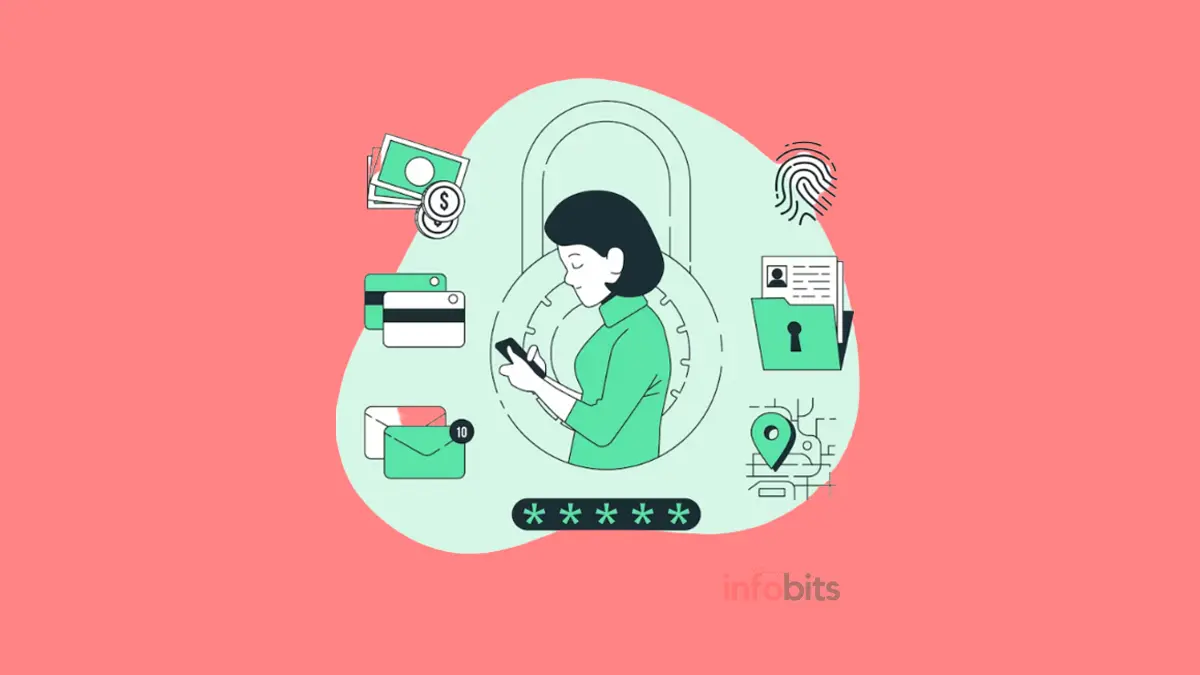
A passkey replaces your password with something you already use dozens of times a day: your fingerprint, your face, or your phone’s screen lock PIN.
When you set one up, your device generates a pair of cryptographic keys, one stays locked on your device and never leaves it, and the other is shared with Google (or whichever site you’re signing into).
To log in, your device proves it holds the private key by using your fingerprint or face scan to unlock it locally. Nothing gets typed, transmitted, or stored on a server the way a password is.
That distinction is what makes passkeys fundamentally different from a password, not just a faster version of one.
- Nothing to steal in a data breach. If a company’s servers get hacked, attackers only find public keys, which are useless without the matching private key locked on your device.
- Nothing to phish. A passkey is bound to the exact website domain it was created for. A fake “google-login-secure.com” page simply won’t be able to request your Google passkey, no matter how convincing it looks.
- Nothing to reuse. Each passkey works for exactly one account on one service. There’s no version of “I use the same passkey everywhere,” because that’s not how the cryptography works.
- Your biometric data never leaves your device. Your fingerprint or face scan is used locally to unlock the private key; Google never receives or stores that biometric data.
Related: How to Activate WhatsApp Fingerprint Lock on Android?
Passkeys vs. Passwords vs. 2FA: What’s Actually Different
| Password | Password + SMS OTP | Passkey | |
|---|---|---|---|
| Can be phished | Yes | Partially (OTP can be relayed) | No |
| Can be reused across sites | Yes (major risk) | Yes | No, unique per site |
| Vulnerable to SIM swap | No | Yes | No |
| Needs to be remembered | Yes | Yes | No |
| Exposed in server breaches | Yes | Partially | No, only a public key is stored |
| Works offline on-device | N/A | No | Yes |
Related: How to Lock SIM Card | Why Do You Need to Activate SIM PIN on Your Phone?
How to Set Up a Passkey for Your Google Account
The process takes under a minute on most modern phones or laptops.
- Go to g.co/passkeys or open your Google Account > Security settings.
- Under “How you sign in to Google,” select Passkeys and security keys.
- Select Create a passkey, then confirm.
- Your device will prompt you to unlock using whatever method you already use: fingerprint, Face ID, Windows Hello, or your screen lock PIN/pattern.
- That’s it. Your passkey is created and tied to that device (or synced across your devices if you’re using Google Password Manager or iCloud Keychain).
By default, once you create a passkey, Google opts you into a passkey-first sign-in experience. It will be offered before your password, though your password still exists and works as a fallback unless you remove it.
If you’d rather always be prompted for your password first, you can turn this off under Security & sign-in > Skip password when possible.
Where Your Passkeys Are Stored
This is the part that trips people up, because “where” depends entirely on your device ecosystem:
- Android + Chrome: Passkeys save to Google Password Manager and sync automatically across any Android device or Chrome browser signed into the same Google account.
- iPhone, iPad, Mac: Passkeys typically sync through iCloud Keychain, which needs to be turned on for cross-device sync to work.
- Windows: Passkeys can be created and used via Windows Hello, though whether they sync across your Windows devices depends on whether you’re using a synced password manager.
- Third-party password managers: Android 14+ and most desktop platforms let you choose a compatible third-party manager (1Password, Bitwarden, NordPass) instead of the platform default, which is useful if you want one passkey vault across both Android and iOS.
One convenient feature worth knowing about: even if a passkey isn’t synced to the device in front of you, you can still use it.
If your phone has the passkey and is nearby with Bluetooth on, your computer can prompt a QR code. Scan it with your phone, approve with your fingerprint or face, and you’re signed in on the computer without that passkey ever needing to live there.
What This Means for Google Workspace and Work Accounts
If your Google account is a personal Gmail account, passkeys have been available and even the encouraged sign-in method since Google made them the default in late 2023.
If you’re signing in with a work or school Google Workspace account, it’s a different story.
Your organisation’s administrator needs to explicitly enable passkey sign-in before you’ll see the option, and depending on their settings, it may become mandatory rather than optional once enabled.
Why This Matters More in India Right Now
If you’ve noticed your bank or UPI app pushing you toward fingerprint or face-based approval instead of SMS OTPs lately, that’s not a random redesign; it’s regulation.
The Reserve Bank of India’s Authentication Mechanisms for Digital Payment Transactions Directions, 2025, take effect on April 1, 2026, requiring every digital payment to use two distinct authentication factors, with at least one being dynamic.
SMS OTPs aren’t banned outright, but the RBI is explicitly pushing banks toward device-bound, cryptographic alternatives, the same FIDO-based approach passkeys are built on. Because SMS OTPs remain vulnerable to SIM-swap fraud and phishing.
In practical terms, this means the authentication model you’re already learning on your Google account, unlock your device, approve with a fingerprint or face scan, done, is about to become familiar territory for banking and UPI too.
Getting comfortable with passkeys now on lower-stakes accounts is a reasonable way to get ahead of that shift.
Related: How to Protect Your Bank Account From Hackers?
Common Mistakes and Misconceptions
“Creating a passkey deletes my password.” It doesn’t. Your password still exists as a fallback unless you specifically choose to remove it. Passkeys are additive by default, not a replacement you’re forced into.
“If I lose my phone, I lose access to everything.” This is a real risk worth planning for, not a myth to dismiss, but it’s manageable. Keep at least one alternative recovery method active (a second device, recovery codes, or a backup passkey on another device) before you rely on passkeys as your primary sign-in method.
“Passkeys work on every website now.” Not yet. Around half of the world’s top 100 websites support passkeys as of 2026, and adoption drops off sharply outside major platforms. You’ll likely be juggling passkeys for some accounts and passwords for others for a while yet.
“A passkey is the same thing as a security key.” Related, but not identical. A physical FIDO2 security key is one place a passkey (or a similar credential) can live; most people’s passkeys today live on their phone or in a password manager instead, with no separate hardware required.
“Biometric login means Google has my fingerprint.” No, your fingerprint or face data is processed and stored entirely on your device by its operating system. Google only ever sees confirmation that your device unlocked successfully, never the biometric data itself.
Quick Answer: Should You Switch to a Passkey?
- If you want the fastest, most phishing-resistant way to sign in: Set up a passkey at g.co/passkeys. It takes under a minute, and your password stays as a backup.
- If you’re worried about losing your phone: Make sure at least one backup recovery method (a second device, recovery codes, or a synced password manager) is in place before you rely on passkeys as your main sign-in.
- If you use a work or school Google Workspace account: Check with your admin first; passkeys may not be enabled, or may become mandatory depending on their settings.
- If you’re in India and use banking or UPI apps: Get comfortable with passkeys now. RBI’s new authentication rules, taking effect April 1, 2026, push banks toward the same fingerprint/face-based, device-bound model.
Conclusion
Passkeys aren’t a future concept anymore. Google’s own numbers show they’re already how most people sign in, and that shift is only going to accelerate as more banks, apps, and services in India move away from SMS OTPs toward the same device-bound approach.
Setting one up on your Google account takes under a minute, doesn’t remove your password as a fallback, and closes off an entire category of phishing and breach risk that passwords simply can’t.
The only real homework on your end is making sure you have a backup recovery method in place before you lean on it as your primary sign-in; after that, it’s mostly just a faster, safer version of something you already do every day.
Frequently Asked Questions
It’s a way to sign in using your device’s fingerprint, face scan, or screen lock instead of typing a password, backed by cryptography that makes it far harder to phish or steal than a traditional password.
Yes. Passkeys can’t be reused across sites, can’t be phished through fake login pages, and aren’t exposed in server-side data breaches the way password databases are.
No. Any phone with a fingerprint sensor or face unlock, or any modern laptop with Windows Hello or Touch ID, works. Physical security keys are optional, not required.
No, your password remains as a fallback option unless you explicitly remove it or your organisation enforces passkey-only sign-in.
If your passkeys are synced through Google Password Manager or iCloud Keychain, you can recover access on a new device signed into the same account. This is why it’s worth having at least one backup recovery method set up in advance.
If it’s synced through Google Password Manager (Android/Chrome) or iCloud Keychain (Apple devices), yes. Otherwise, you can still use a phone-based passkey to approve sign-in on a nearby computer via Bluetooth and a QR code, without transferring the passkey itself.
Apple, Microsoft, Amazon, PayPal, eBay, GitHub, Adobe, Uber, and WhatsApp are among the major services supporting passkeys, alongside a growing number of banks and fintech platforms, particularly since 2025.
No, not for personal accounts. Passkeys are offered as the default preferred method, but your password remains available unless you remove it. Google Workspace administrators can choose to make passkeys mandatory for their organisation’s accounts.
Only if they can also unlock your phone itself (via fingerprint, face, or PIN), since the passkey never works without that step. This is why keeping your device’s screen lock enabled is essential once you’re relying on passkeys.
Not quite. A passkey combines “something you have” (your device) and “something you are” (your biometric or PIN unlock) into a single step, which is why it can bypass the separate second-step prompt in 2-Step Verification. It already proves device possession on its own.
The RBI’s new authentication rules, effective April 1, 2026, push banks and payment apps away from SMS OTPs toward device-bound, dynamic authentication, the same underlying approach passkeys use. It’s a regulatory push separate from Google’s own rollout, but the two are converging on similar technology.
The unlock step itself (fingerprint, face, PIN) happens entirely on your device and doesn’t need the internet. However, actually completing sign-in to an online account still requires connectivity to reach that service.
You’ll continue signing in with your existing password or other supported method for that specific site. Passkey adoption varies widely site to site, so expect a mixed setup for the next few years.
Yes. You can create a passkey on each device you regularly use, phone, laptop, tablet, and manage or remove any of them individually from your account’s security settings.
Given that major platforms already default to offering them, phishing resistance is a real and immediate benefit, and support keeps expanding; there’s little downside to setting one up now on accounts that support it. Your password stays available as a fallback in the meantime.
We hope you are interested in our articles and consider following our Facebook, Instagram, and Twitter pages for regular updates.
Subscribe to our free newsletter to get similar articles and regular updates directly in your Email Inbox.
Also, share this article with your friends and relatives. Bookmark this page for future reference.
Disclosure: We will receive an affiliate commission on some, but not all, of the products or services we recommend if you follow our links to a retailer’s website and make a purchase.