How to Secure Your WhatsApp Account and Chats: 2026 Guide
Quick answer: WhatsApp messages are end-to-end encrypted by default, but your account’s real-world security depends on settings you have to turn on yourself: two-step verification, Chat Lock with a Secret Code, end-to-end encrypted cloud backups, and Advanced Chat Privacy. Most WhatsApp users have never touched these settings. Enabling them takes about five minutes and closes the gaps encryption alone doesn’t cover.
WhatsApp likes to remind you, at the top of every chat, that your messages are “secured with end-to-end encryption.” That’s true, and it’s also only part of the picture. Encryption protects your messages in transit, between your phone and the recipient’s.
It does nothing to protect a chat that’s sitting open on your screen when someone glances over your shoulder, an unencrypted cloud backup sitting in your Google account, or an account taken over because someone got your SIM reissued.
This guide covers both halves: what encryption actually does, and the settings you need to turn on yourself to close the rest of the gaps.
What End-to-End Encryption Actually Protects (and What It Doesn’t)
WhatsApp uses the Signal Protocol, one of the most well-regarded encryption standards in messaging, to encrypt every message, call, and piece of shared media by default. This can’t be turned off, and it applies automatically to every conversation.
Here’s what that guarantees. Nobody in between – not your ISP, not a public Wi-Fi network you’re using, and not WhatsApp itself – can read the content of your messages as they travel from your phone to the recipient’s.
Here’s what it doesn’t guarantee. Once a message arrives on a phone, encryption’s job is done. Anyone with physical access to that unlocked phone can read the chat exactly as you can.
And until recently, a message backed up to Google Drive or iCloud sat there unencrypted by WhatsApp.The message is protected only by whatever security Google or Apple provided for that storage account, not by WhatsApp’s own encryption.
Everything below this point in the guide is about closing those remaining gaps.
How to Verify a Chat Is Encrypted
Every one-on-one chat shows a padlock icon and a message confirming end-to-end encryption is active. This is automatic, not something you turn on.
If you want to actively verify that nobody is intercepting a specific conversation (useful mainly in high-sensitivity situations, like verifying a business contact), you can check the security code:
- Open the chat and tap the contact’s name at the top.
- Tap Encryption to see the QR code and numeric security code.
- If you’re together in person, one of you scans the other’s QR code using Scan Code.
- If you’re not together, read out the full numeric code over a call and confirm both sides match.
For nearly all everyday use, this step is optional. Encryption is on by default regardless. It’s most useful if you have a specific reason to suspect a conversation has been compromised.
1. Turn On Two-Step Verification
Two-step verification adds a PIN requirement on top of the SMS code WhatsApp normally uses to register your number on a new device.
Without it, anyone who manages to get your SIM card reissued (a real and fairly common attack, known as SIM-swapping) can register your number on their own phone and take over your account.
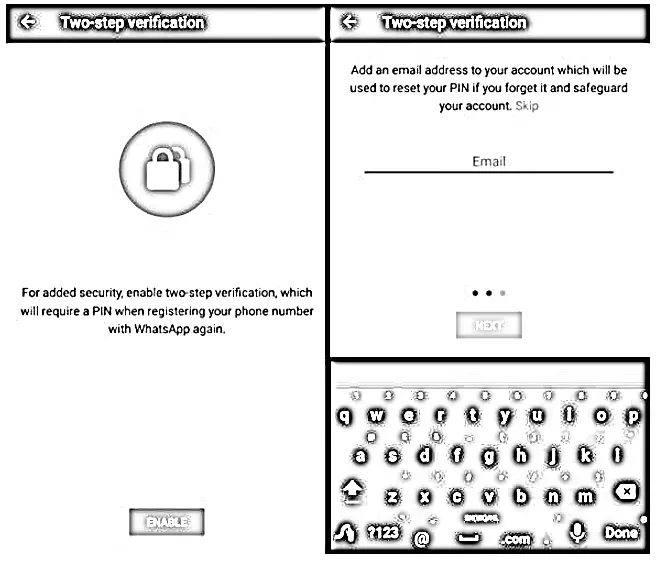
- Open Settings > Account > Two-step verification.
- Tap Enable and set a 6-digit PIN.
- Add a recovery email address. This is important, since it’s the only way to reset your PIN if you forget it.
This is one of the highest-impact, lowest-effort steps in this entire guide. If you only do one thing after reading this article, do this.
2. Set Up Passkey Login
WhatsApp now supports passkey login as a faster, more secure alternative to remembering a PIN, using your phone’s fingerprint, face scan, or screen lock to verify it’s really you, instead of typing a code that could potentially be phished or guessed.
To set it up: Settings > Account > Passkey, then follow the prompts to register your device’s biometric or screen-lock credential. Passkeys work alongside two-step verification rather than replacing it, and they significantly reduce the risk of someone gaining access through a stolen or guessed PIN.
Related: How to Activate WhatsApp Fingerprint Lock on Android?
3. Enable Chat Lock and Secret Code
Chat Lock moves specific conversations into a separate, hidden Locked Chats folder that requires your fingerprint, Face ID, or device passcode to open. This means that even if you hand your unlocked phone to someone, they won’t stumble across a locked chat by accident.
- Open the chat you want to protect, tap the contact/group name, and select Lock chat (or press and hold the chat from your chat list and select Lock).
- For an extra layer, set up a Secret Code: go to Settings > Chats > Chat Lock > Secret Code. This lets you set a password entirely separate from your phone’s own lock screen PIN ( including letters, numbers, symbols, and emojis ) and hides the Locked Chats folder from your main chat list entirely. You’ll only see it by typing your secret code into the search bar.
- With a secret code set up, locked chats also sync across your linked devices, so a chat locked on your phone stays locked on WhatsApp Web too.
This is the single most useful feature for the most common real-world threat: someone else physically picking up your unlocked phone.
4. Turn On End-to-End Encrypted Backups
This is the biggest update since WhatsApp’s early security guidance, and it changes the advice that used to circulate about backups.
Previously, the safest recommendation was to turn cloud backup off entirely, since backups stored on Google Drive or iCloud weren’t protected by WhatsApp’s own encryption; only by Google’s or Apple’s general account security.
WhatsApp has since closed that gap. You can now encrypt your backup itself, end-to-end, so that neither WhatsApp nor Google nor Apple can read it, even if your cloud account is compromised.
To enable it:
- Go to Settings > Chats > Chat backup > End-to-end encrypted backup.
- Tap Turn on, then choose to protect it with either a password you set, a 64-digit encryption key, or a passkey (fingerprint/Face ID/screen lock).
- Tap Create and let WhatsApp encrypt and upload your backup.
Important thing to understand: if you lose your password or encryption key, WhatsApp genuinely cannot help you recover the backup. That’s the point of true end-to-end encryption; nobody but you holds the key. Store your password or key somewhere secure and memorable, such as a password manager, before you rely on this.
For iPhone users specifically: if you have iCloud Backup enabled for your whole device, turning on WhatsApp’s E2EE backup will automatically exclude WhatsApp chats from that general iCloud backup. This is intentional, to prevent your encryption key from ending up stored unencrypted elsewhere.
If you’d still rather not back up to the cloud at all, you can turn backup off completely under the same Chat backup menu by setting the backup frequency to Off. But for most people, encrypted backup is now a better option than no backup at all, since it gives you both chat recovery and full privacy.
5. Use Advanced Chat Privacy
Advanced Chat Privacy is a per-chat setting that restricts what others can do with content you send, useful for sensitive one-on-one conversations or group chats where you don’t fully trust every member.
Open a chat, tap the contact or group name, and enable Advanced chat privacy to:
- Block others from exporting the chat history.
- Block automatic media downloads within that chat, reducing malware risk from unfamiliar contacts.
- Disable link previews, so shared links don’t reveal metadata about content you’re viewing.
This works alongside Chat Lock rather than replacing it. Chat Lock hides a chat from view; Advanced Chat Privacy restricts what happens to its content even when the chat is open.
6. Review Your Privacy Settings
Most people set up WhatsApp once and never revisit these settings, even as new options get added. It’s worth a five-minute check under Settings > Privacy:
- Last seen and online: control who sees when you were last active or whether you’re currently online.
- Profile photo, About, and Status: limit visibility to contacts only, or specific contacts, rather than “Everyone.”
- Read receipts: turning this off hides the blue double-tick from others (note: this also hides others’ read receipts from you).
- Groups: control who can add you to groups without your approval, a common vector for spam and scam links.
- Live location: confirm you’re not still sharing your location in an old chat you’ve forgotten about.
WhatsApp’s Privacy Checkup tool (under Settings > Privacy > Privacy Checkup) walks through these settings in one guided flow if you’d rather not hunt through menus individually.
7. Check Your Linked Devices
WhatsApp lets you use your account on WhatsApp Web, Desktop, and additional phones simultaneously through linked devices.
Old, forgotten sessions ( a work laptop you no longer use, a friend’s computer you logged into once) remain active until manually removed, and each one is a potential access point to your account.
Go to Settings > Linked Devices and review the list. Log out of anything you don’t recognise or no longer use by tapping the device and selecting Log out.
8. Silence Unknown Callers and Protect Your IP in Calls
Two newer features address risks specific to WhatsApp calls rather than chats:
- Silence unknown callers, under Settings > Privacy > Calls, automatically silences (rather than fully blocking) calls from numbers not in your contacts. This is useful against the steady stream of spam and scam calls many WhatsApp users now receive, without missing calls from delivery drivers or genuine new contacts.
- Protect IP address in calls, under the same Calls settings, routes your calls through WhatsApp’s relay servers rather than connecting directly, masking your approximate location from the person you’re calling. This is worth enabling if you regularly take calls from unfamiliar numbers.
9. Use a Username Instead of Sharing Your Number
WhatsApp now lets you set a username that others can use to find and message you, instead of requiring your phone number directly.
This is particularly useful for public-facing use ( posting a contact method online, joining large groups, or professional networking ) without exposing your actual number.
Set this up under Settings > Account > Username if you’d rather not hand out your phone number in situations where a username will do the job.
10. Control App Permissions and Storage Access
WhatsApp, like most apps, requests permissions it doesn’t strictly need for core messaging, such as broad storage access, contacts, camera, and microphone are common examples.
Review these under your phone’s system Settings > Apps > WhatsApp > Permissions (the exact path varies slightly by Android version or iOS).
Grant only what WhatsApp genuinely needs for the features you use: camera and microphone for calls and voice messages, contacts if you want to find people you know, and limited (rather than “all files”) storage access for media sharing, if your phone offers that distinction.
11. Clear Sensitive Chat History When Needed
If you’re concerned about someone else accessing your phone and reading old messages, you can clear a chat’s history without deleting the contact or chat itself:
- iPhone: Tap the contact/group name at the top of the chat, scroll down, tap Clear Chat, then confirm with Delete all messages.
- Android: Tap the three-dot menu in the chat, select More > Clear Chat, then confirm. You can also choose to keep or remove starred messages in this step.
For chats you want to keep but don’t want visible by default, Chat Lock (step 3 above) is usually the better option. It preserves the conversation while hiding it, rather than deleting it outright.
Related: How to Recover Deleted WhatsApp Images?
12. Keep WhatsApp and Your OS Updated
Security patches for both WhatsApp itself and your phone’s operating system regularly close vulnerabilities that could otherwise be exploited to intercept messages or compromise your device.
Enable automatic updates for WhatsApp through your app store, and install OS updates promptly rather than deferring them for weeks.
13. Only Use the Official WhatsApp Web or Desktop App
To use WhatsApp on a computer, always link through the official WhatsApp Web site or the official Desktop app. Never use a third-party tool claiming to offer “extra features” for WhatsApp Web.
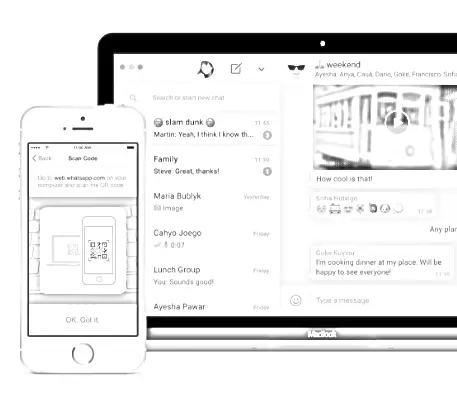
These unofficial clients typically require you to hand over your session credentials to a service outside WhatsApp’s control, which defeats the purpose of everything else in this guide.
14. Recognise Common WhatsApp Scams
A few scam patterns recur consistently on WhatsApp and are worth being able to spot immediately:
- “Pay to keep WhatsApp free” messages. WhatsApp is, and always has been, free. Any message claiming otherwise is a scam.
- Fake OTP requests. A message pretending to be a friend “accidentally” sending you a verification code and asking you to forward it is actually an attempt to hijack your own account. Never forward an OTP to anyone.
- Job offer and lottery scams. Unsolicited messages promising high-paying part-time jobs or lottery winnings, often via unfamiliar international numbers, are a well-documented and increasingly common fraud pattern in India specifically.
- Fake customer support numbers. Scammers impersonate banks or delivery services on WhatsApp; legitimate companies rarely initiate account-related conversations over WhatsApp first.
If in doubt, don’t click, don’t forward codes, and verify independently through the official app or website of whoever the message claims to be from.
Related: Fake Video Call Using AI: How to Spot a Deepfake Call
Setup Priority: What to Enable First
If you only have five minutes right now, this order gives you the most protection per minute spent:
| Priority | Feature | Time to Set Up |
|---|---|---|
| 1 | Two-step verification | 2 minutes |
| 2 | Chat Lock + Secret Code (on your most sensitive chats) | 2 minutes |
| 3 | End-to-end encrypted backup | 3 minutes |
| 4 | Review Linked Devices, log out unused sessions | 1 minute |
| 5 | Passkey login | 2 minutes |
| 6 | Privacy settings review | 3–5 minutes |
Common Mistakes That Undermine WhatsApp Security
- Assuming encryption alone is enough. Encryption protects messages in transit. It does nothing for a chat left open on an unlocked phone or an unencrypted backup, which is why the rest of this guide exists.
- Forgetting your backup password or key. Because encrypted backups genuinely can’t be recovered by WhatsApp, forgetting your password means losing your chat history permanently if you ever need to restore it. Store it in a password manager, not a sticky note.
- Never reviewing Linked Devices. Old sessions on shared or borrowed computers are a common, overlooked access point. Check this list periodically, not just once.
- Forwarding OTPs “as a favour.” This is one of the most common account-takeover methods precisely because it’s disguised as helping a friend rather than an obvious scam.
- Leaving Chat Lock unused entirely. It’s one of the most effective, lowest-effort protections available, but adoption remains low simply because most users have never opened the settings menu to find it.
Related: Best Free Antivirus for Android
Conclusion
End-to-end encryption gives WhatsApp a strong foundation. But it was never designed to protect everything. A chat visible on an unlocked phone, a backup sitting in the cloud, or an account taken over through a SIM swap all sit outside what encryption alone covers.
The good news is that WhatsApp has closed most of these gaps with features you can turn on yourself: two-step verification, Chat Lock, encrypted backups, and passkey login together take under fifteen minutes to set up and meaningfully change your real-world exposure.
Start with two-step verification and Chat Lock if you do nothing else. They cover the two most common real-world risks (account takeover and someone else picking up your phone) with the least effort. Everything else in this guide is worth doing when you have a few extra minutes, but those two matter most.
Frequently Asked Questions
Yes. WhatsApp uses the Signal Protocol to encrypt every message, call, and shared file by default, and this cannot be turned off. Neither WhatsApp nor any third party can read the content of your messages while they’re in transit.
Only if you specifically enable it. By default, WhatsApp backups on Google Drive or iCloud are protected by that cloud provider’s own security, not WhatsApp’s encryption. Turning on End-to-end encrypted backup (Settings > Chats > Chat backup) closes this gap.
You lose access to that backup permanently. WhatsApp does not store your password or key and has no way to recover it on your behalf. This is a deliberate trade-off for true end-to-end encryption, not a bug.
Chat Lock hides specific conversations in a separate folder that requires a fingerprint, Face ID, or passcode to open, separate from your phone’s general lock screen. This means someone using your already-unlocked phone still can’t see locked chats without that additional authentication.
A Secret Code is an additional, custom password for your Locked Chats folder, separate from your phone’s screen lock. Setting one up also hides the Locked Chats folder from your main chat list entirely and syncs locked chats across your linked devices.
Not anymore, for most users. End-to-end encrypted backup now offers strong privacy without giving up the ability to recover your chats if you lose your phone. Turning off backup completely still makes sense only if you specifically don’t want any cloud copy of your chats to exist at all.
It’s worth enabling for essentially everyone. It directly prevents the most common real-world account takeover method ( SIM swapping ), where someone gets your number reissued to their own device and tries to register WhatsApp with it.
Generally yes. Passkeys rely on your device’s biometric authentication (fingerprint or face) or screen lock rather than a code you type, which removes the risk of the code being guessed, phished, or intercepted.
No, not through WhatsApp itself, as long as your phone has a lock screen enabled. The main risks are an unlocked phone left unattended, or old sessions left active on WhatsApp Web on a shared or public computer.
No. Unofficial WhatsApp Web tools typically require access to your account session outside WhatsApp’s own infrastructure, which undermines the security this entire guide is built around. Always use web.whatsapp.com or the official Desktop app.
Do not share it with anyone, even if the person claims to be a friend who “sent it by accident.” This is one of the most common WhatsApp account takeover techniques. A genuine WhatsApp OTP should never need to be forwarded to another person.
No. It blocks chat exports, automatic media downloads, and link previews within that chat, but it does not prevent someone from taking a screenshot of a conversation that’s open in front of them.
A quick check every few months is reasonable, especially after major WhatsApp updates, since new privacy features are added periodically and aren’t always turned on by default.
We hope you are interested in this article about how to secure WhatsApp chat and consider following Infobits on Facebook and Twitter for more security guides like this.
Subscribe to our free newsletter so that you will get regular updates directly in your Email.
Also, share this article with your friends and relatives.
Subscribe to be the first to learn about new information
Disclosure: If you follow our links to a retailer’s website and make a purchase, we will get an affiliate commission on some, but not all, of the items or services we promote. This will cause no price change for you.