External SSD vs External HDD: Which Should You Buy in India?
Your laptop storage is full again. Your phone says the same. So you open Amazon, and one question stops you: SSD or HDD?
The right answer depends on how you plan to use the drive. Speed, price and the safety of your data all pull in different directions. This guide helps you choose without wasting money.
Quick Answer: External SSD or HDD?
- Buy an external SSD if you carry the drive around, edit photos or videos from it, play games, or hate waiting for file transfers.
- Buy an external HDD if you want lots of storage for less money, mainly for backups and archives.
- Best for most people: one SSD for daily work and one HDD for backup. More on this has been explained in this article.
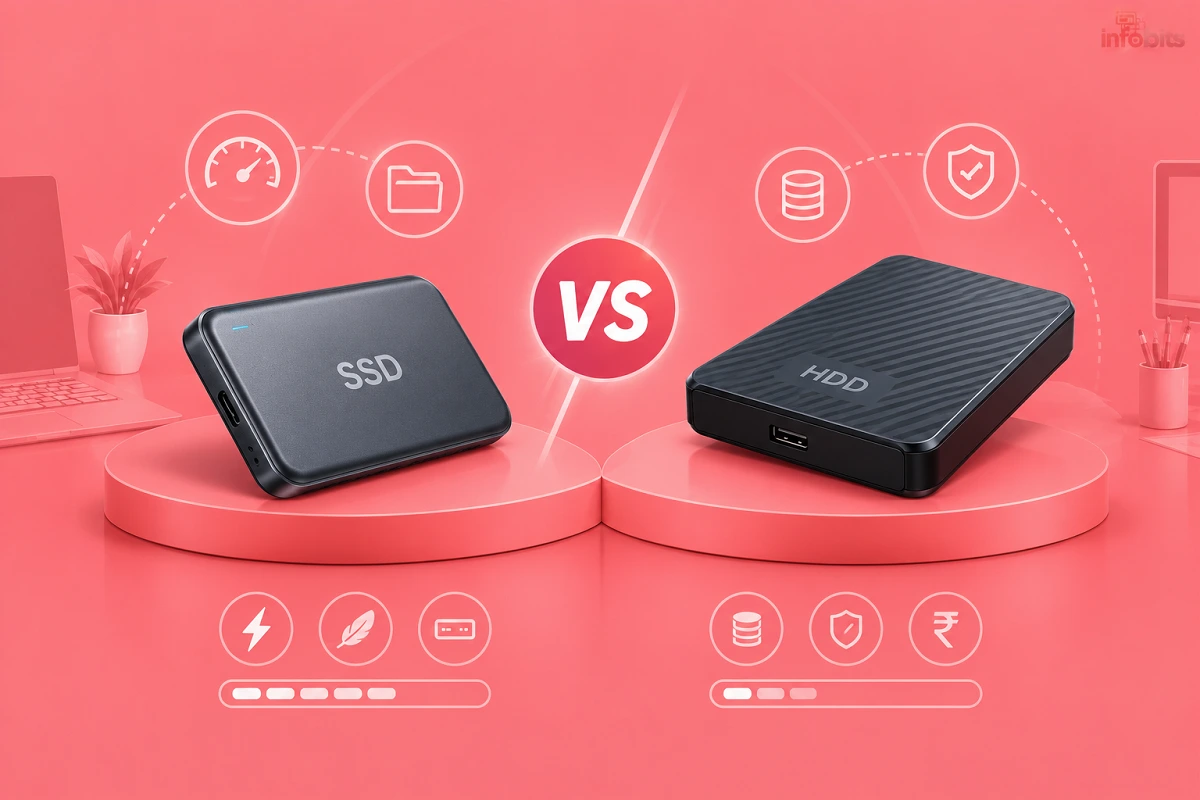
External SSD vs External HDD at a Glance
| Factor | External SSD | External HDD |
|---|---|---|
| How it stores data | Flash memory chips, no moving parts | Spinning magnetic discs with a moving arm |
| Real-world speed | About 400 to 1,000+ MB/s (premium drives go higher) | About 80 to 160 MB/s |
| Cost per TB | Higher | Roughly 2 to 4 times cheaper |
| Common capacities | 256 GB to 4 TB | 1 TB to 8 TB and beyond |
| Drops and bumps | Handles them well | Risky, especially while running |
| Noise | Silent | Faint hum, occasional clicks |
| Weight | About 30 to 150 g | About 150 to 250 g (portable); over 1 kg (desktop) |
| Warning before failure | Often none | Often gives signs like clicking or slowdowns |
| Best for | Work, travel, editing, gaming | Backup, archive, media library |
What Is an External HDD?
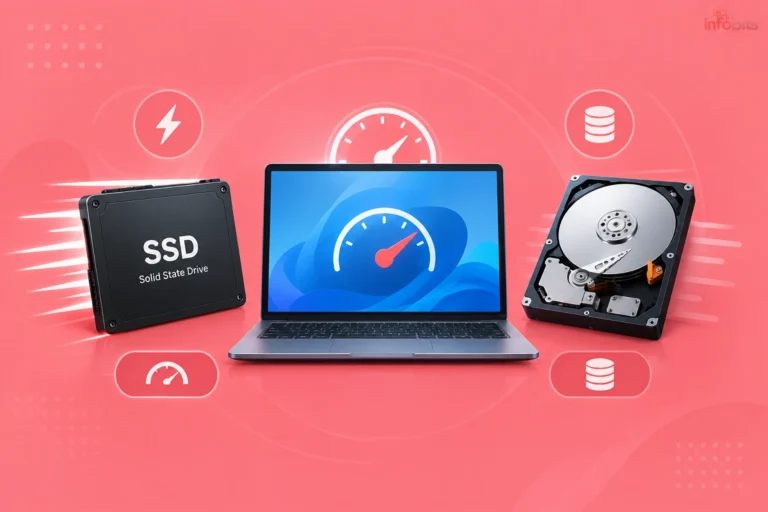
An external hard disk drive (HDD) stores data on spinning magnetic discs. A tiny arm moves across them to read and write files. Think of a record player, but far more precise.
HDDs are old technology, and that is not a bad thing. They are cheap, they hold a lot, and they work well for files you save once and open rarely. The main issue is moving parts. Those parts make HDDs slower and more sensitive to knocks.
Portable HDD vs Desktop HDD
Portable HDDs are 2.5-inch drives. They run on power from your USB port and fit in a bag. Desktop HDDs are 3.5-inch drives with their own power adapter. They offer far more space, but they are meant to stay on a desk.
Don’t buy a desktop HDD expecting to carry it around. And don’t expect a portable one to match a desktop drive’s capacity.
One more thing. Some portable HDDs use a recording method called SMR. It can slow down long, continuous writes. For everyday backups, you will rarely notice it.
What Is an External SSD?
An external solid-state drive (SSD) stores data on flash memory chips. There are no spinning parts. That is why it is fast, quiet and tough.
Not all external SSDs perform the same. A budget SATA-based drive tops out around 500 MB/s. A USB 3.2 Gen 2 drive reaches roughly 1,000 MB/s. Premium USB 3.2 Gen 2×2 drives can go close to 2,000 MB/s, if your laptop port supports it.
Your port and cable decide the real speed. A fast SSD plugged into a slow port is wasted money. Check your laptop’s specs first.
If you are choosing a laptop at the same time, our laptop buying guide explains which ports and storage options matter.
Speed: How Big Is the Real-World Gap?
Big. Let’s use a simple example. You want to copy a 100 GB folder of video files.
- On an external HDD at about 120 MB/s, it takes roughly 14 minutes.
- On an external SSD at about 1,000 MB/s, it takes under two minutes.
For small files, like thousands of photos or documents, the gap feels even bigger. The SSD finds and opens each file almost instantly. The HDD keeps hunting.
But speed only matters if you notice it. If you back up your family photos once a month overnight, an HDD is perfectly fine. If you work from the drive daily, an SSD saves real time.
Expert tip: SSDs can slow down when they run hot or get nearly full. Leave about 10 to 15 per cent free space for steady speeds.
Price in India: What You Will Actually Pay in 2026
This is where 2026 is different. Storage is getting more expensive, and it affects both types of drives.
AI data centres are soaking up huge amounts of memory and disk supply. One analysis found hard drive prices climbed roughly 46% between September 2025 and January 2026.
Industry reports also say TrendForce expects NAND flash contract prices to rise a further 15 to 20 per cent in Q4 2026. In plain words, both SSDs and HDDs cost more than they did a year ago.
Street prices vary a lot by brand, seller and sale season. Here is a rough guide as of October 2026. Always check the live price before you buy.
| Drive | Approximate price range (₹) |
|---|---|
| 1 TB portable HDD | 6,000 to 11,000 |
| 2 TB portable HDD | 10,000 to 14,500 |
| 4 TB desktop HDD | 15,000 to 16,500 |
| 1 TB portable SSD (mainstream) | 12,500 to 19,000 |
| 1 TB portable SSD (premium, high-speed) | 25,000+ |
For a sense of the gap, retailer listings show a Crucial X9 1TB SSD near ₹12,600, a SanDisk E30 1TB near ₹15,650, and a WD Elements 1TB HDD near ₹5,800. The more storage you need, the wider the gap grows. A 4 TB HDD costs a fraction of a 4 TB SSD.
My advice is that you don’t wait for prices to fall if you urgently need an SSD. Forecasts point the other way for now. Buy what you need, at a fair price, from an authorised seller.
If you want a dependable all-rounder at a sensible price, the SANDISK Extreme 1TB Portable External SSD is a good place to start, and it is available on Amazon.
Durability and Reliability in Indian Conditions
Most guides skip this part. Indian homes have their own hazards. Let’s go through them.
Drops and Travel
An SSD has no moving parts, so a bump in your bag rarely hurts it. An HDD is different. A knock while it is spinning can damage the discs or the read arm.
If you carry your drive daily, choose an SSD. It’s the simplest way to protect your data.
If your drive travels with you in the monsoon, a rugged model like the Samsung T7 Shield (view on Amazon) gives you water and dust resistance along with its shock protection.
Heat, Dust and Humidity
Summers in India are rough on electronics. Never leave a drive in a parked car or in direct sun. Heat shortens the life of both HDDs and SSDs.
In humid months, keep the drive dry and store it in a case. A small hard-shell case like AirCase Hard Disk Cover Case costs very little on Amazon and adds real protection.
Power Cuts and Voltage Spikes
This one matters most for desktop HDDs. A sudden power cut while the drive is writing can corrupt files. Sometimes it damages the drive itself.
Always use “Safely Remove Hardware” before unplugging. And plug desktop drives into a surge-protected strip, not a bare socket. Our guide to surge protectors explains what to look for. A decent surge-protected power strip like the Honeywell Surge Protector available on Amazon is cheap insurance for a drive that holds years of photos.
Lifespan and Data Retention
Many HDDs last three to five years or more. Many SSDs last longer under normal home use. But any drive can fail at any time, and SSD failures are often sudden.
Also, don’t treat any drive as a forever archive. An SSD left powered off for years, especially in heat, can lose data. An HDD left unused for years can develop mechanical problems. Plug in your archive drives a couple of times a year and check the files.
Important: A Drive Is Not a Backup
One copy of your data on one drive is not a backup. It’s a single point of failure. Keep reading for the simple strategy that fixes this.
Compatibility: Laptops, Phones, TVs and Consoles
Laptops and PCs
Most modern drives work on Windows and Mac. Check the connector. Newer laptops often have only USB-C ports. If your laptop has older USB-A ports, make sure the drive comes with the right cable.
A good USB-C to USB-A cable or adapter saves you from a frustrating “why is it so slow” moment.
Android Phones and iPhones
Most Android phones with USB-C can read an external drive through OTG. iPhones with USB-C can do the same through the Files app. Portable SSDs work best here because they draw little power.
Many portable HDDs need more power than a phone can give. They may not spin up at all. If you plan to connect to a phone, pick an SSD.
Smart TVs and Media Players
Many smart TVs play videos from a USB drive. Some limit the supported drive size, and some cannot power a portable HDD. A desktop HDD with its own power adapter is the safer choice for a TV media library. Check your TV’s manual for the maximum supported capacity.
If you like the idea of a home media library, see how to turn your old PC into a media centre.
PlayStation and Xbox
Console rules trip up many buyers. On PS5, you can store PS5 games on an external USB drive but cannot play them from it, while PS4 games can be played straight from the drive. On Xbox, Series X|S games can sit on an external drive but must be moved to internal storage before you play.
So an external drive is mainly a cheap game library for older titles. If your main goal is PS4 games on a PS5, an HDD works fine. For a plug-and-play option, the Seagate Game Drive for PlayStation (see on Amazon) is a licensed choice.
File Format: exFAT vs NTFS
Want one drive for both Windows and Mac? Format it as exFAT. NTFS works on Windows but is read-only on a Mac by default. If you need to reformat, our guide to the best disk format tools walks you through it.
Which Should You Buy? Pick by Your Situation
| Your situation | Best pick | Why |
|---|---|---|
| Backing up family photos and documents | HDD | Cheap and roomy. Speed doesn’t matter. |
| Editing photos or videos | SSD | Fast scrubbing and quick exports |
| Students and office users | SSD (500 GB to 1 TB) | Light, tough, easy to carry |
| PC or laptop gaming | SSD | Shorter load times |
| PS4 games on a PS5 | HDD or SSD | Both work. HDD is cheaper. |
| Travel and field work | SSD | Survives bumps and bag life |
| Large movie or media library | Desktop HDD | Best price per TB |
| Using with a phone | SSD | Low power draw |
| Archive you rarely open | HDD (plus a second copy) | Cheapest way to hold a lot |
Still unsure? Ask yourself three questions:
- Will it travel with me? If yes, buy an SSD.
- Will I work directly from it? If yes, buy an SSD.
- Do I need more than 2 TB on a tight budget? If yes, buy an HDD.
The Best Strategy: Use Both
Here is my rule: SSD for what you use, HDD for what you keep.
Use a portable SSD for your active projects. Keep an HDD at home for backups and archives. That gives you speed when you need it and safe, cheap storage for everything else.
For anything truly important, follow the 3-2-1 rule:
- 3 copies of your data
- 2 different types of storage (for example, SSD and HDD)
- 1 copy stored elsewhere (cloud or a relative’s home)
Windows can automate part of this. See how to configure backup and restore in Windows. For the off-site copy, an Indian cloud option like DigiBoxx is worth a look.
For simple home backups, a portable HDD like the WD Elements or Seagate Expansion ( find options on Amazon) does the job without fuss.
For a big family archive, a 4 TB or larger desktop drive such as the Seagate Expansion Desktop (get from Amazon) gives far better value per TB.
How Much Storage Do You Need?
Use these rough numbers:
- 1,000 phone photos take about 4 to 8 GB.
- One hour of 4K phone video takes roughly 20 to 30 GB.
- A modern PC game can take 50 to 150 GB.
Want to know why 4K files are so big? Our explainer on HD Ready vs Full HD vs Ultra HD covers it.
A simple rule we suggest is to buy double what you have today. Data grows faster than you expect. For most people, 1 TB is the minimum worth buying. Heavy video users should start at 2 TB.
If your needs are small and only for a camera or phone, check our guide to the best memory cards first. A card may be enough.
Buying Checklist
Before you click “Buy,” check these:
- Does the drive match your port (USB-C or USB-A)?
- Is the right cable in the box?
- What speed does it really deliver, not just “up to”?
- Is it bus-powered, or does it need an adapter?
- How long is the warranty? Many portable SSDs offer 3 to 5 years.
- Is the seller authorised? Fake and relabelled drives exist on marketplaces.
- Does the drive have drop or water protection, if you need it?
Tip: After buying, test the drive. Free tools like H2testw (Windows) or F3 (Mac and Linux) check whether the drive really offers the capacity it claims. Do this in the first week, while you can still return it.
Common Mistakes to Avoid
- Buying on capacity alone. A huge, slow drive frustrates you every day.
- Ignoring the port. A premium SSD on a slow port wastes money.
- Carrying a desktop HDD around. It is not built for that.
- Pulling the cable without safe eject. This causes corrupted files.
- Treating one drive as a backup. Keep a second copy.
- Filling the drive to the brim. Full drives slow down and fail sooner.
- Buying from unknown sellers. Stick to authorised sellers and known brands.
Warning Signs Your Drive Is Failing
Don’t ignore these:
- Clicking, grinding or beeping sounds (HDD)
- The drive keeps disconnecting
- Copying becomes very slow
- Files go missing or open as corrupt
- Your computer says “You need to format the disk”
- Health tools report warnings
If you see these signs, stop using the drive. Copy your important files to another drive right away. Don’t keep running repair tools again and again, because that can make things worse. If files are gone, see our guide to recovering deleted files for general recovery basics.
Myth vs Fact
| Myth | Fact |
|---|---|
| SSDs never fail. | They can fail suddenly, so keep a backup. |
| HDDs are outdated. | They are still the best value for bulk storage. |
| A faster drive is always better. | Only if your port and workload can use the speed. |
| Any drive works with any device. | Phones, TVs and consoles have power and format limits. |
| A drive in a drawer is safe forever. | No drive keeps data safe forever. Check it a few times a year. |
| External drives protect against ransomware. | A plugged-in drive can be encrypted too. Keep one copy disconnected. |
Speaking of ransomware, our guide on types of computer viruses explains the threats worth knowing about.
Troubleshooting Common Problems
Drive not showing up?
Try another cable and another port first. Then check Disk Management on Windows. The drive may need a drive letter.
Slow transfer speeds?
You may be using a USB 2.0 port or a weak cable. Switch to a USB 3.x port. Also check whether the drive is nearly full.
Drive keeps disconnecting?
This usually means a bad cable or low power. Avoid unpowered USB hubs. For HDDs, try a rear port on a desktop PC.
“You need to format the disk” message?
Don’t click format yet. Your data may still be recoverable. Try the drive on another computer first.
Drive works on Windows but not on Mac?
It is probably formatted as NTFS. Copy your data off, then reformat as exFAT.
Final Verdict
There is no single winner. There’s only the right drive for your use.
Choose an external SSD for speed, travel and daily work. Choose an external HDD for cheap, roomy backups. And if your data matters, use both.
If I had to pick one for a typical Indian buyer in 2026, I’d go for a 1 TB portable SSD for daily use. Then I’d add a larger HDD when the budget allows. That combination keeps your work fast and your memories safe.
Frequently Asked Questions
An external SSD is faster, tougher and lighter. An external HDD is cheaper and offers more storage. “Better” depends on whether you value speed and portability or low cost per TB.
An HDD is usually better for backups because it costs less per TB. Backups run in the background, so speed matters little. Keep a second copy elsewhere, whichever drive you choose.
Yes, if you carry your drive, edit video or work directly from it. The speed and durability save time and reduce risk. If you only store old files, an HDD is better value.
Many last three to five years or more, but any drive can fail without warning. Heat, drops, and power cuts shorten life. Always keep a second copy of important files.
Under normal home use, an external SSD can last many years. Wear is rarely the problem. Sudden failures happen, so back up anyway.
Yes, over long periods, especially in heat. Don’t use a powered-off SSD as a forever archive. Plug it in a few times a year and check your files.
Yes, by a wide margin. A typical portable HDD manages about 80 to 160 MB/s. A good external SSD can reach roughly 1,000 MB/s on a fast port.
Yes, most Android phones and USB-C iPhones support external drives. SSDs work best because they draw little power. Many portable HDDs need more power than a phone can supply.
Often yes, but check your TV’s manual for supported sizes. Some TVs can’t power a portable HDD. A desktop HDD with its own adapter is safer.
On a PC, yes, and an SSD loads games much faster. On PS5, you can play PS4 games from an external drive but not PS5 games. On Xbox Series X|S, newer games must be moved to internal storage first.
An external SSD. It handles large files and quick scrubbing far better. Use an HDD to archive finished projects.
An SSD for editing and travel, and an HDD for long-term archives. Many photographers use both. Keep at least two copies of every shoot.
Buy about double what you have now. 1 TB suits most people. Choose 2 TB or more for video, large photo libraries or games.
Demand from AI data centres has tightened supply of both memory chips and hard drives. Industry forecasts expect NAND prices to keep rising into late 2026. Waiting may not make drives cheaper.
It’s fine for a desktop HDD on a surge-protected supply, but it exposes the drive to power cuts and ransomware. For backups, connect the drive only when needed. Safely eject it every time.
Use exFAT if you switch between Windows and Mac. Use NTFS if you only use Windows. Back up your data before you reformat.
No. One drive is one point of failure. Follow the 3-2-1 rule: three copies, two storage types, one off-site.
A portable HDD is small, USB-powered and good for carrying. A desktop HDD is larger, needs a power adapter and holds far more. Desktop drives are best kept at home.
Yes, a faster SSD can be held back by a slower port or cable. A 10 Gbps port lets a good SSD reach about 1,000 MB/s. Check your port before paying for a premium drive.
Buy from an authorised seller and check the warranty. Then run a capacity test with H2testw (Windows) or F3 (Mac and Linux). Return the drive if the numbers don’t match.
We hope you are interested in our articles and consider following our Facebook, Instagram, and Twitter pages for regular updates.
Also, share this article with your friends and relatives. Bookmark this page for future reference.
Subscribe to our free newsletter to get similar articles and regular updates directly in your Email Inbox.
Subscribe to be the first to learn about new information
Disclosure: If you follow our links to a retailer’s website and make a purchase, we will get an affiliate commission on some, but not all, of the items or services we promote. This will cause no price change for you.