SIM Not Provisioned Error: How to Fix It on Jio, Airtel, Vi & BSNL
You put a new SIM in, or your phone restarts on its own, and suddenly there’s a message on your screen: “SIM not provisioned”, with only an emergency call option staring back at you. No calls, no texts, no data.
Quick answer: In most cases, this isn’t a broken SIM. It means your phone hasn’t received the network settings your carrier needs to send it. Restarting your phone, toggling Aeroplane Mode, and reseating the SIM card fixes it in the majority of cases within a few minutes. If none of that works, the problem is usually on your carrier’s side, not your phone.
I’ve dealt with this error dozens of times across Jio, Airtel, Vi, and BSNL SIMs (and a few iPhones and Pixels along the way), and below is every fix I’ve actually used, in the order I’d try them myself.
What Does “SIM Not Provisioned” Actually Mean?
Your SIM card’s job is to prove to the network that you’re a legitimate, paying subscriber. It does this using two pieces of information: the IMSI (a unique subscriber identity number stored on the SIM) and the ICCID (the SIM’s own serial number).
When your phone shows “SIM not provisioned,” it means the network hasn’t approved that IMSI to use its services yet. The SIM itself is usually fine; physically, it’s just a chip. The problem is that your carrier’s database and your phone haven’t exchanged the right handshake to switch calls, texts, and data on.
Think of it like a new employee ID card that opens the office door but hasn’t been added to the building’s access list yet. The card isn’t broken. It just hasn’t been “provisioned” into the system.
Related: BSNL Duplicate SIM Card: Complete SIM Replacement Guide
Provisioning vs. Activation: What’s the Difference?
These two words get used interchangeably, but they mean different things, and knowing the difference tells you where to actually look for the fix.
- Activation is an account-level status. It means your KYC is verified, your first recharge or plan is active, and your number exists in the carrier’s billing system.
- Provisioning is a device-level process. It’s the network pushing the correct configuration like APN settings, voice/data permissions, security keys, down to your specific phone so it can actually use the services your account is entitled to.
You can be fully “activated” (your bill is paid, your KYC is clear) and still see “not provisioned,” because the network hasn’t finished configuring your handset. That’s why restarting your phone often fixes it instantly. It forces your device to request provisioning again.
Why Does This Error Happen?
Based on the most common real-world cases, here’s what usually triggers it:
- You just inserted a new SIM. Fresh SIMs can take anywhere from a few minutes to 24 hours to fully provision, depending on the carrier and city.
- You ported your number (MNP). Number portability between operators temporarily suspends provisioning until the switch completes.
- Your SIM was inactive for a long time. TRAI rules currently allow SIMs to stay dormant for 90 days (180 for BSNL) before deactivation, but provisioning can lapse before that if there’s no recharge.
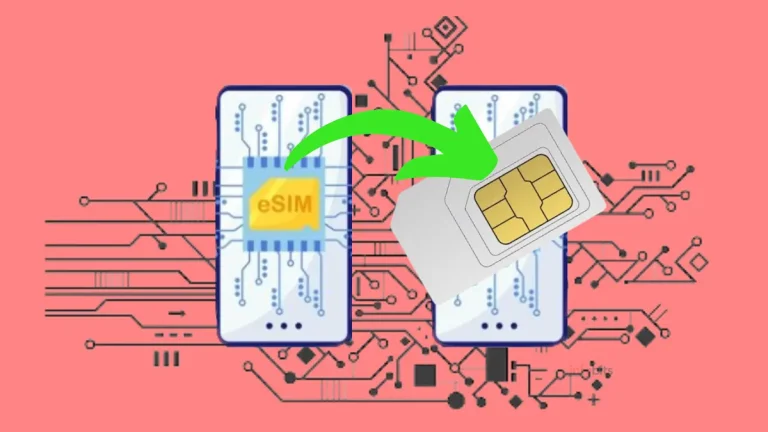
- You recently converted to or from an eSIM. eSIM profiles need to be re-provisioned separately from a physical SIM swap.
- The SIM isn’t seated properly, or the chip contacts are dirty or scratched.
- Your carrier’s server is temporarily down; this is more common than people assume, especially during network upgrades.
- The Carrier Services app (Android) is outdated or has a bug, breaking communication between your phone and the tower.
- KYC re-verification is pending; a growing reason in India after DoT’s periodic re-verification drives.
- SIM lock or region lock on the device is blocking the network handshake.
- On a dual-SIM phone, only one SIM is affected; you’ll see “SIM 1 not provisioned” or “SIM 2 not provisioned” specifically.
Related: How to Convert an eSIM to a Physical SIM in India (Jio, Airtel, Vi, BSNL)
Quick Fix Checklist
If you just want the fast version before diving into details, try these in order:
- [1] Restart your phone
- [2] Toggle Aeroplane Mode on, wait 30 seconds, turn it off
- [3] Remove and reseat the SIM card
- [4] Clean the SIM’s gold contacts gently
- [5] Check if the SIM is activated (call your carrier)
- [6] Update the Carrier Services app (Android) or carrier settings (iPhone)
- [7] Reset network settings
- [8] Test the SIM in another phone
- [9] Ask your carrier about server-side issues
- [10] Request a SIM replacement if nothing else works
How to Fix “SIM Not Provisioned”: Step by Step
1. Restart Your Phone
This fixes the issue more often than anything else on this list, because a restart forces your phone to send a fresh registration request to the network.
Power off completely (not just lock the screen), wait 10–15 seconds, then turn it back on. Give it a full minute after boot-up before checking your signal bars.
2. Toggle Aeroplane Mode
If a restart doesn’t help, Aeroplane Mode does something similar but faster.
Swipe down for Quick Settings, tap Aeroplane Mode, wait 30 seconds, then tap it again to turn it off. This drops and re-establishes your connection to the tower without a full reboot.
3. Remove and Reseat the SIM Card
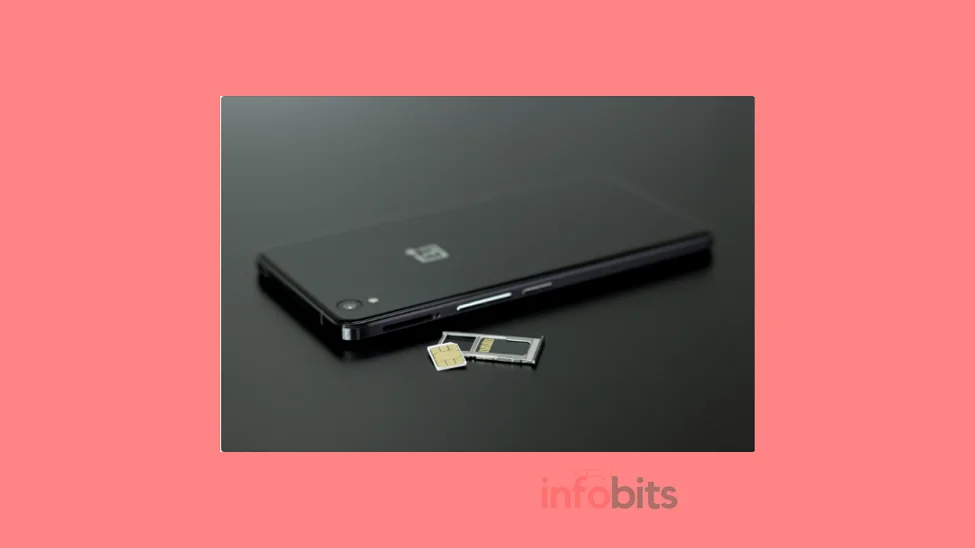
Power off your phone first. Never eject the tray while it’s on. Use the SIM ejector tool (or a straightened paperclip) to pop out the tray.
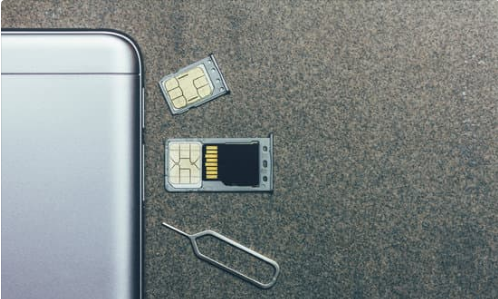
If you’ve misplaced your SIM ejector pin, a low-cost universal SIM eject tool (available on Amazon) is worth keeping in your drawer. You’ll need it again the next time you switch SIMs or phones.
Check the SIM is sitting flat and facing the correct direction (there’s usually a notch or diagram on the tray). Reinsert it firmly until it clicks or sits flush, then power on.
4. Clean the SIM’s Contacts
Dust, moisture, or a light scratch on the gold contact plate can interrupt the connection. Gently wipe the SIM’s metal contacts with a dry, lint-free cloth. Avoid anything wet, and never use anything abrasive. Reinsert and restart.
5. Confirm the SIM Is Actually Activated
This is the step people skip and shouldn’t. Call your carrier’s customer care (or check their app) and confirm the SIM shows as active on their end. New SIMs can legitimately take a few hours to activate. No amount of restarting fixes that from your side.
6. Update the Carrier Services App (Android)
The Carrier Services app is what negotiates settings between your phone and the network. If it’s outdated, this handshake can fail silently.
- Open the Play Store
- Tap your profile icon → Manage apps and device
- Search for Carrier Services
- Tap Update if available
- Restart your phone
7. Reset Network Settings
This clears out corrupted Wi-Fi, Bluetooth, and mobile network configurations that might be conflicting with provisioning.
On Android: Settings → System → Reset options → Reset Wi-Fi, mobile & Bluetooth
On iPhone: Settings → General → Transfer or Reset iPhone → Reset → Reset Network Settings
Note: this removes saved Wi-Fi passwords, so have those handy.
8. Test the SIM in Another Phone
This single step tells you whether the problem is your phone or your SIM. Insert your SIM into a different handset and try making a call.
- Call goes through → your original phone has a hardware or software issue, not the SIM.
- Same error appears → the problem is with the SIM or the carrier’s provisioning, not your device.
9. Rule Out a Server-Side Outage
Sometimes it’s genuinely not you. Carrier servers occasionally go down during maintenance or upgrades. Check your carrier’s official social media handles or app for outage alerts, or simply ask customer care directly: “Is there a known provisioning issue in my circle right now?”
10. Check for a SIM or Carrier Lock
If your phone was bought under a specific carrier plan (common with postpaid bundled devices), it may be locked to that network. A different carrier’s SIM will show “not provisioned” indefinitely until it’s unlocked. Contact the original carrier or device seller to request an unlock.
Related: Why Does a Mobile Blast and How Can You Prevent It?
Fixing It on Jio, Airtel, Vi, and BSNL
Provisioning delays are common in India, especially around number porting, KYC re-verification, and new-SIM activation. Here’s what to do for each operator:
| Carrier | Customer Care | What to Ask For |
|---|---|---|
| Jio | 199 (from Jio number) / 1800-889-9999 | Confirm SIM activation status and IMSI provisioning |
| Airtel | 121 (from Airtel number) / 198 | Ask them to “refresh HLR provisioning” for your number |
| Vi (Vodafone Idea) | 199 or 12199 | Request SIM re-registration on the network |
| BSNL | 1503 / 1800-180-1503 | Check activation status, especially for new SIMs in rural circles |
A few India-specific things worth knowing:
- Ported your number recently (MNP)? Provisioning can take up to 24–48 hours after the porting date, even if the app shows the switch as “complete.”
- KYC re-verification pending? DoT has run periodic re-verification drives; an incomplete KYC can silently pause provisioning even on an active, paid account. Your carrier’s app usually flags this under “account status.”
- New SIM from a retail outlet? Physical SIMs sold by local retailers sometimes take longer to reflect in the carrier’s system compared to SIMs activated via the operator’s own app or store. Give it a few hours before assuming it’s broken.
- Be cautious of “SIM swap” scam calls. Fraudsters sometimes pose as network support and ask for OTPs under the pretext of “fixing your provisioning issue.” No genuine carrier support agent needs your OTP to fix this error; never share it.
Related: Mobile Buying Guide: How to Select a Mobile Phone?
iPhone-Specific Fixes
iPhones handle carrier settings a little differently from Android. If Steps 1–5 above didn’t work, try these:
- Update Carrier Settings: Settings → General → About. If an update is available, you’ll get a pop-up automatically. Accept it and restart.
- Update iOS: Settings → General → Software Update. Outdated iOS occasionally causes provisioning mismatches on new networks.
- Toggle Cellular Data off and on: Settings → Cellular → toggle off, wait 10 seconds, toggle back on.
- Re-insert the SIM tray using the official eject tool that came with your iPhone (or the one from the box) rather than a random pin, since the tray on newer iPhones is more precisely fitted.
- If you’re on eSIM: Settings → Cellular → tap your eSIM plan → check it shows “Active.” If it doesn’t, you may need to delete and re-download the eSIM profile from your carrier’s app or QR code.
What “SIM Not Provisioned for Voice” Really Means
This is a more specific version of the error, and it’s worth knowing the difference: it means data and texts might still work, but voice calling specifically has been disabled on your line.
The most common cause is that voice services on your account have been suspended. It may often be due to non-payment on a postpaid line, an incomplete VoLTE configuration, or a carrier-side restriction. It shows up more frequently on Google Pixel phones due to how they handle IMS (IP Multimedia Subsystem) registration for VoLTE calling.
Fix: Toggle VoLTE off and on under Settings → Network & internet → SIM → VoLTE calling. If that doesn’t help, this one almost always needs your carrier to manually re-enable voice provisioning on their end. Restarting your phone won’t fix an account-level voice suspension.
Related: BSNL USSD Codes and SMS Formats: Complete List
What Is “SIM Not Provisioned MM#2”?
If you’re on a dual-SIM phone, you might see “SIM not provisioned MM#2” instead of the generic message. MM#2 simply refers to the second SIM slot in your phone’s modem. It’s telling you which of your two SIMs has the issue, not a different kind of error. Every fix above applies the same way; just make sure you’re troubleshooting the correct physical SIM (Slot 1 vs Slot 2).
Common Mistakes That Make It Worse
- Repeatedly removing and reinserting the SIM without cleaning it. This increases the risk of scratching the contact plate.
- Assuming it’s a broken SIM immediately and requesting a replacement before trying a restart or checking activation status. Most cases don’t need a new SIM at all.
- Resetting network settings without saving Wi-Fi passwords first.
- Sharing OTPs with anyone claiming to “fix” provisioning over the phone. No legitimate fix requires this.
- Ignoring a pending KYC notification in your carrier’s app, which is often the real root cause in India.
Myth vs. Fact
| Myth | Fact |
|---|---|
| “SIM not provisioned” means my SIM is dead | It usually means a configuration handshake failed. The SIM chip itself is almost always fine |
| I need to buy a new SIM immediately | Try a restart, Aeroplane Mode toggle, and reseating first. Most cases resolve without a new SIM |
| This only happens with new SIMs | It also happens after porting, long inactivity, software updates, and carrier server issues |
| Resetting network settings will fix account-level suspensions | It won’t. If your carrier suspended voice/data on their end, only they can re-provision it |
When You Actually Need a New SIM
If you’ve tried restarting, reseating, cleaning the contacts, testing in another phone, and confirming activation with your carrier, and the error still won’t budge, it’s genuinely a SIM-level problem.
This is common after:
- Physical damage (cracks, bent chip, deep scratches on the contact plate)
- A SIM that’s several years old and has simply worn out
- Water exposure
At this point, contact your carrier for a duplicate SIM (same number, new physical card). It typically takes anywhere from a few hours to a couple of days depending on the operator and city, and your number stays the same.
If your phone is stuck on “SIM not provisioned,” a quick restart and an Aeroplane Mode toggle solve it more often than not. When they don’t, the fault is almost always with the network’s provisioning process, not your SIM card itself. So a call to customer care (or a short wait after porting or buying a new SIM) usually clears it up.
Frequently Asked Questions
It means your network hasn’t finished configuring your SIM to use calls, texts, or data. Usually it is a temporary handshake issue rather than a damaged SIM.
Restart your phone first. If that doesn’t work, toggle Aeroplane Mode on and off, then remove and reseat the SIM card.
New SIMs can take a few minutes to 24 hours to fully activate on the network, depending on your carrier and location.
No. “No SIM” means your phone can’t detect a SIM at all. It may usually be a hardware or seating issue. “Not provisioned” means the phone detects the SIM, but the network hasn’t approved it for services yet.
Often, yes. A restart, Aeroplane Mode toggle, or reseating the SIM resolves most cases without needing to contact your carrier.
Not usually. It’s more often a network-side configuration issue. Physical damage is only the cause if all the software-side fixes fail.
It varies by carrier; usually a few hours, but it can take up to 24 hours in some circles, especially for SIMs bought from local retail outlets rather than official stores.
This just means only the second SIM slot is affected. Try the same fixes ( restart, reseat, activation check ) specifically for that SIM.
It means calling has been disabled on your line specifically, even if data or texts still work. This is usually an account-level issue your carrier needs to fix.
It’s the same error, just specifying that it’s affecting the second SIM slot (MM#2) on a dual-SIM phone.
Sometimes, yes. Especially if the issue is a corrupted local configuration. It won’t help if your carrier has suspended your account or voice services.
Insert the SIM into a different phone. If it works there, the issue is with your original device, not the SIM.
Yes. Provisioning can take 24–48 hours after a port completes, even though the transfer itself shows as done in the app.
Yes, an eSIM can show a similar error if its profile hasn’t fully activated. Try re-downloading the eSIM profile from your carrier’s app if toggling cellular data doesn’t help.
It can be. If your KYC re-verification is pending with the carrier, provisioning may pause even on an active, paid connection.
Yes, particularly on Android. An outdated Carrier Services app is a known cause. On iPhone, a pending Carrier Settings or iOS update can also help.
No. Never share your OTP with anyone over a call, even if they claim to represent your carrier. This is a common SIM-swap fraud tactic.
This points to a deeper account-level or hardware issue. Contact your carrier to check if provisioning is repeatedly failing on their end, or get the SIM tested in another device.
No. This error is purely about network-SIM communication and has nothing to do with cases or accessories.
Request a duplicate SIM from your carrier. It keeps your existing number and usually takes a few hours to a couple of days to activate.
Hope this article is helpful to you. Please share the same with your friends and relatives.
Also, consider following our Facebook, Instagram, and Twitter pages for regular updates.
Subscribe to our free newsletter so that you will get regular updates directly in your Email.
Subscribe to be the first to learn about new information
Disclosure: If you follow our links to a retailer’s website and make a purchase, we will get an affiliate commission on some, but not all, of the items or services we promote. This will cause no price change for you.