
How to Make Your Android Phone Faster: 15 Easy Steps
Every Android phone slows down eventually, even the flagship you bought last year. It’s rarely a hardware problem. It’s usually a buildup of cache, background apps, and clutter that Android quietly accumulates every day you use it.
The good news is that you can fix most of this yourself, in minutes, without rooting your phone or spending a rupee.
This guide walks through 15 practical fixes, starting with the quickest wins and ending with the nuclear option, plus a hidden developer settings trick that genuinely makes your phone feel twice as responsive.
Quick Answer: The 3 Fixes That Matter Most
If you only have five minutes, do these three things first: restart your phone, clear cache on your 3-4 most-used apps, and turn on the 0.5x animation speed trick in Developer Options. Together, these address the most common causes of everyday lag without touching your data or settings.
How Do You Know Your Phone Is Running Slow?
Before you start troubleshooting, it helps to confirm you’re actually dealing with a performance issue and not, say, a slow internet connection. Watch out for these signs:
- Apps take noticeably longer to open than they used to
- The phone doesn’t respond immediately when you tap or swipe
- Switching between apps feels jerky or freezes briefly
- The camera app lags after taking a photo
- Typing on the keyboard has a visible delay
If you’re seeing two or more of these regularly, the steps below should help; often within the first few fixes.
15 Steps to Make Your Android Phone Faster
Work through these roughly in order. The first few take seconds and fix the majority of everyday lag; the later ones are for phones that need a deeper clean-up.

1. Restart the Phone
A simple restart clears your RAM and kills stuck background processes, and it’s genuinely the single most effective quick fix.
Independent testing on recent Android phones has shown restarts alone can produce a noticeable speed improvement, especially for apps that have been running for days without a reboot.
Press and hold the power button, then tap Restart. Make this a weekly habit, or every other day if your phone has 4GB of RAM or less.
2. Clear the Cache on Your Heaviest Apps
Apps store small bits of temporary data (cache) to load faster next time, but this builds up and eats into the RAM your phone needs for everything else. Clearing it doesn’t delete your data or log you out. It just clears the clutter.
Go to Settings > Storage > Other Apps, pick a heavy app (Chrome, Instagram, YouTube, and WhatsApp are usually the biggest offenders), and tap Clear Cache.
On Samsung phones, this is under Settings > Apps > [App Name] > Storage > Clear Cache.
3. Remove Bloatware and Unused Apps
Every unused app on your phone is still capable of running background services, storing cache, and using up storage even if you never open it. A clean sweep of anything you haven’t touched in months is one of the fastest ways to free up real resources.
Long-press the app icon and tap Uninstall, or drag it to the uninstall option at the top of the screen. If a pre-installed app can’t be removed, disable it instead through Settings > Apps.
If you’d rather automate this clean-up, a reputable cleaner app like CCleaner for Android can scan for junk files and rarely-used apps in one pass. Just avoid “booster” apps that claim to free RAM by force-closing everything, since Android already manages memory more efficiently on its own.
4. Free Up at Least 15–20% of Your Storage
This is one of the most overlooked fixes. Android performance drops sharply once your storage crosses roughly 85-90% full, because the system has no breathing room for cache, temp files, and routine background tasks. Aim to always keep at least 15-20% of your total storage free.
Back up photos and videos to Google Photos or another cloud service, then delete the local copies. Files by Google (free on the Play Store) is a solid, safe way to find and clear large or duplicate files in bulk.
5. Avoid Live Wallpapers
Live wallpapers look striking, but they run continuously in the background and quietly consume CPU cycles and battery every second your screen is on. Switching to a static wallpaper frees up those resources permanently, with zero downside beyond aesthetics.
6. Disable System Animations
Every animation, such as opening an app, switching screens, or pulling down a menu, takes a small but real fraction of a second, and those fractions add up throughout the day. Reducing or disabling them makes your phone feel dramatically snappier, even though the actual processing power hasn’t changed.
Go to Settings > About Phone, tap Build Number seven times to unlock Developer Options, then head to Settings > System > Developer Options and set Window Animation Scale, Transition Animation Scale, and Animator Duration Scale to 0.5x (or Off for maximum speed).
7. Turn On Data Saver Mode in Chrome
Chrome’s Data Saver (Lite) mode compresses web pages by roughly 30% and video by up to 50% before they load on your phone, which means faster page loads and lower data usage at the same time. It’s a rare fix that improves both speed and your mobile data bill.
Open Chrome, go to Settings > Data Saver, and toggle it on.
8. Cut Down on Home Screen Widgets
Every widget on your home screen refreshes its data in the background ( weather, news, calendars ) even when you’re not looking at it, and that constant refresh cycle quietly drains RAM and CPU.
Keep only the one or two you actually check daily and remove the rest.
9. Limit Background Processes (Android 8+)
Android lets multiple apps run simultaneously, which is convenient but taxes lower-RAM phones significantly. You can cap how many background processes run at once through the same Developer Options menu you unlocked in step 6.
Go to Developer Options > Background Process Limit and choose a number.
Selecting “No background processes” gives maximum speed for the app you’re actively using but limits multitasking, so 2-3 processes is a reasonable middle ground for most people.
10. Switch to Lite Versions of Heavy Apps
If your phone is older or has limited RAM, Lite (or “Go”) versions of popular apps do the same job with a fraction of the resource usage.
Google Go, Camera Go, Assistant Go, and Maps Go are official examples, and third-party apps like Facebook Lite and Spotify Lite are available too.
11. Try a Lighter Launcher
The manufacturer’s default launcher (especially on budget and mid-range phones) is often the heaviest part of the entire interface, loaded with animations and features you may never use.
Switching to a lightweight third-party launcher like Nova Launcher or Lean Launcher can noticeably speed up your home screen and app drawer, particularly on older devices.
12. Review App Permissions and Background Data
Some apps quietly continue syncing data, checking location, or running background refreshes long after you’ve closed them, and this drains both battery and performance.
Go to Settings > Apps > [App Name] > Mobile Data & Wi-Fi and restrict background data for apps you don’t need running constantly.
Most recent Android versions also include Adaptive Battery, which uses on-device AI to learn your usage patterns and automatically limit background activity for apps you rarely open.
It’s worth confirming this is switched on under Settings > Battery.
13. Update the OS and Your Apps
Every Android and app update typically includes performance optimisations and bug fixes alongside new features, so staying current is one of the simplest ongoing habits you can build. Manufacturers actively tune their software for smoothness with nearly every release cycle.
Check Settings > System > Software Update for OS updates, and open the Play Store > Manage Apps & Device to update everything at once.
Turning on auto-updates over Wi-Fi keeps this effortless going forward.
14. Use a Trusted Security App
A phone bogged down by malware or adware can show many of the same symptoms as ordinary slowdown ( lag, overheating, and battery drain), so it’s worth ruling this out.
Google Play Protect runs automatically in the background, but a periodic scan with a well-reviewed security app adds an extra layer of confidence.
For a shortlist of options that won’t themselves become bloatware, see our guide to the best free antivirus apps for Android.
15. Factory Reset as a Last Resort
If you’ve worked through everything above and the phone is still sluggish, a factory reset wipes accumulated system clutter and restores it to out-of-box performance.
It’s effective, but it deletes all data, so back up everything important first.
Go to Settings > System > Reset Options > Erase All Data (Factory Reset).
Once it’s done, reinstall only the apps you actually use. Resist the urge to restore everything from a backup, since that often reintroduces the same clutter.
The Hidden Developer Options Trick, Explained
The single most effective free tweak on this entire list is the animation speed change from Step 6, and it’s worth calling out on its own because so few users know it exists. Here’s the full walkthrough one more time, in order:
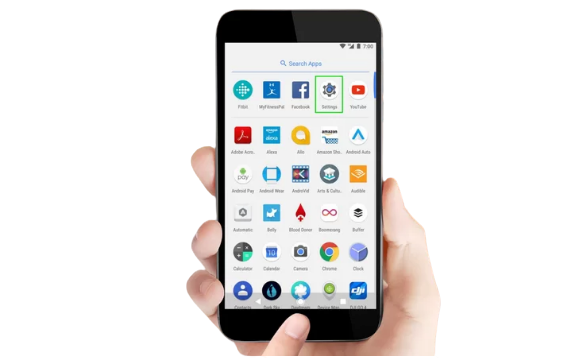
- Open Settings > About Phone
- Tap Build Number seven times until you see “You are now a developer!”
- Go back to Settings > System > Developer Options
- Find Window Animation Scale, Transition Animation Scale, and Animator Duration Scale
- Set all three to .5x (double-check it’s point-5x, not 5x, since the latter will make your phone feel slower)
Every app open, close, and switch will now take roughly half the time it did before. Since most people spend a large chunk of their screen time doing exactly that, the cumulative effect is one of the most noticeable free upgrades available on any Android phone.
Common Mistakes to Avoid
A few habits people pick up while trying to “optimise” their phone actually make things worse. Watch out for these:
- Using aggressive RAM “booster” apps: Android already manages memory efficiently; force-closing apps repeatedly often causes more lag as they restart from scratch.
- Clearing app data instead of cache: Clear Data wipes your logins and saved settings for that app, not just temporary files. Always choose Clear Cache unless you specifically want a full reset.
- Restoring a full backup after a factory reset: This often reinstalls the exact clutter you just removed. Reinstall apps manually, one at a time.
- Ignoring storage until it’s nearly full: Waiting until you’re at 95%+ storage means you’re troubleshooting a much bigger problem than if you’d acted at 80%.
Myth vs Fact
Myth: Closing all your apps from the recent apps screen speeds up your phone. Fact: Android is designed to manage backgrounded apps efficiently; manually force-closing everything can actually slow things down since apps have to fully reload from scratch.
Myth: More RAM always means a faster-feeling phone. Fact: Software optimisation, animation settings, and storage headroom often matter more for day-to-day snappiness than raw RAM specs.
Myth: A factory reset should be your first troubleshooting step. Fact: It’s the most disruptive fix on this list and should be the last resort after cache clearing, storage cleanup, and the animation trick.
Myth: Live wallpapers and widgets don’t really affect performance. Fact: Both run continuously in the background and measurably contribute to CPU and RAM load, especially on budget and mid-range phones.
Expert Tips for Keeping Your Phone Fast Long-Term
- Restart weekly, and clear cache on your 3-4 heaviest apps roughly every two weeks.
- Keep storage under 80-85% full as an ongoing habit, not just when things slow down.
- Review installed apps every couple of months and remove anything you haven’t opened.
- Leave Adaptive Battery switched on so Android can auto-manage background activity for you.
- If your phone is more than 4-5 years old and still struggles after all these steps, the hardware itself may be the real bottleneck. At that point, upgrading is often more practical than continuing to optimise
If you’re at that stage and shopping on a budget, our picks for the best smartphones under ₹10,000 and best smartphones under ₹8,000 are a good place to start.
Conclusion
Most Android slowdowns come down to the same handful of causes such as accumulated cache, low storage, too many background processes, and animations that make everything feel slower than it is.
Work through the steps in order, starting with a restart and cache clear, and most phones will feel noticeably faster within ten minutes.
The Developer Options animation trick in particular is worth doing on every Android phone you own, new or old, since the improvement is immediate and there’s no real downside.
Save the factory reset for when everything else has genuinely been tried. It works, but it’s the most disruptive option on this list for a reason.
Frequently Asked Questions
Once a week is a good baseline, and every other day if your phone has 4GB of RAM or less and tends to slow down faster.
No, clearing cache only removes temporary files apps use to load faster; your photos, logins, and saved data stay intact.
Clear Cache removes temporary files only, while Clear Data wipes the app back to a fresh install, including your logins and saved settings.
Yes, it’s a standard Android setting with no risk to your phone or data. You’re simply changing how fast UI transitions play.
Aim to keep at least 15-20% of your total storage free, since performance tends to drop noticeably once you cross roughly 85-90% full.
Most aggressive “booster” apps do more harm than good, since Android already manages background memory efficiently on its own.
Usually yes, since it wipes all the accumulated clutter, but it should be a last resort since it also deletes all your data.
Yes, each widget refreshes its data in the background continuously, which adds up to a real, ongoing drain on RAM and CPU.
Yes, Lite or Go versions of popular apps use significantly fewer resources and are a smart choice for phones with limited RAM or storage.
Often yes, since most updates include performance optimisations and bug fixes alongside new features and security patches.
Yes, disabling (rather than trying to force-uninstall) pre-installed apps stops them running in the background without affecting your phone’s core function.
Unexplained overheating, rapid battery drain, unfamiliar apps, and excessive data usage alongside general lag are common signs worth checking with a security scan.
Yes, especially on budget or mid-range phones where the manufacturer’s default launcher is often the heaviest part of the whole interface.
Adaptive Battery uses on-device AI to limit background activity for apps you rarely use, and keeping it on generally improves both speed and battery life.
Yes, low storage affects system-wide performance since Android needs free space for cache, temporary files, and routine background operations.
Several of these steps, especially the restart and animation scale trick, produce an immediately noticeable difference, often within minutes.
No, every step in this guide works on a completely stock, unrooted Android phone.
Delete apps you can fully uninstall; for pre-installed system apps that can’t be removed, disabling is the next best option.
Yes, though exact menu names vary slightly by manufacturer; Samsung, for instance, nests some settings differently than stock Android.
If your phone is over 4-5 years old and still lags noticeably after working through all 15 steps, the hardware itself is likely the bottleneck, and upgrading becomes the more practical option.
We hope you are interested in this article and consider following our Facebook and Twitter pages for regular updates.
Also, don’t forget to share this article with your friends and relatives.
Subscribe to our free newsletter so that you will get regular updates directly in your Email.
Subscribe to be the first to learn about new information
Disclosure: If you follow our links to a retailer’s website and make a purchase, we will get an affiliate commission on some, but not all, of the items or services we promote. This will cause no price change for you.