How to Connect a Soundbar to a TV Without HDMI ARC (7 Easy Ways)
Your TV has no HDMI ARC port. Your new soundbar is sitting in the box. Now what?
Good news. You don’t need ARC to get TV sound through a soundbar. You just need a different audio path.
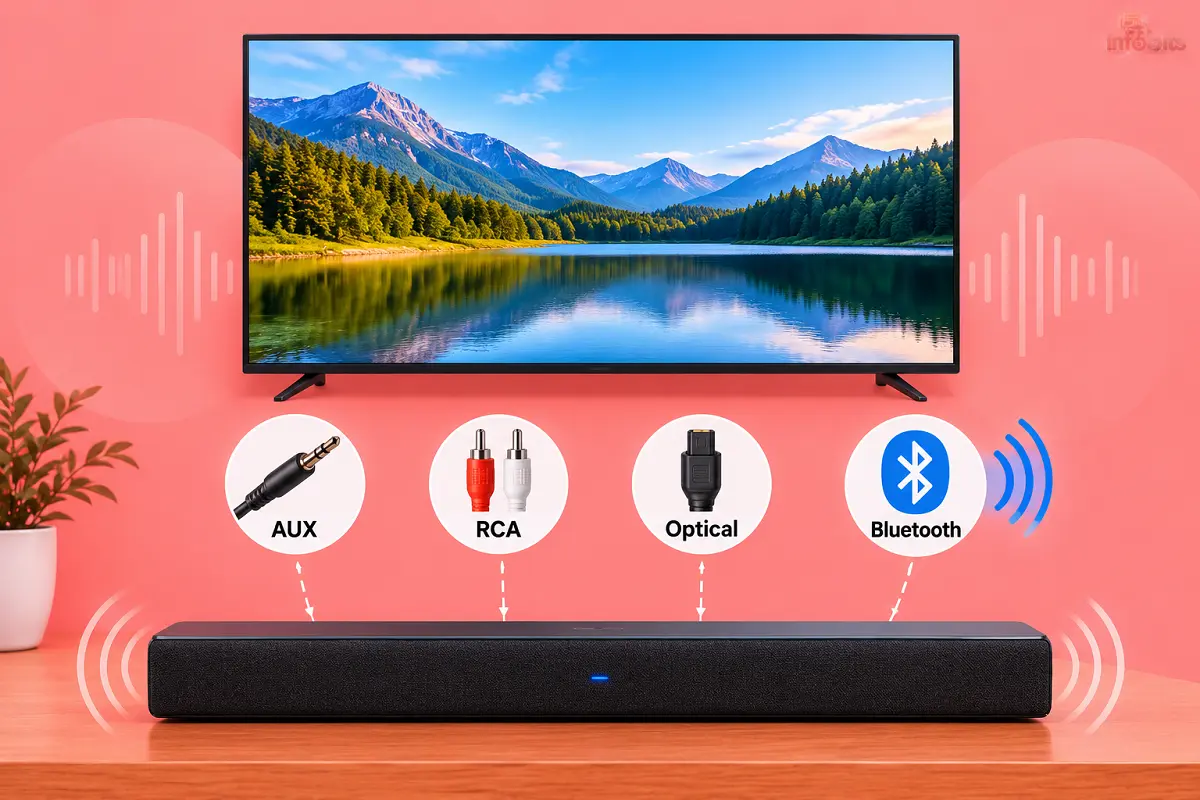
In most Indian homes, that path is an optical cable, a 3.5 mm AUX cable, red-and-white RCA cables or Bluetooth. This guide shows seven working methods, step by step. It also covers the TV settings that cause “no sound” and what you give up when you skip ARC.
Quick answer: To connect a soundbar to a TV without HDMI ARC, use the TV’s optical (Digital Audio Out) port and a TOSLINK cable. If there is no optical port, use a 3.5 mm AUX cable or red-white RCA cables, or pair over Bluetooth. Then select that input on the soundbar and set the TV’s audio output to external speakers.
Best Methods at a Glance
Not sure which method fits your setup? Start here. Prices are rough estimates for the extra cable or gadget only, so check current prices before you buy.
| Category | Method | Best when | Rough extra cost |
|---|---|---|---|
| Best Overall | Optical (TOSLINK) cable | TV and soundbar both have optical | ₹150–₹600 |
| Best Budget Pick | 3.5 mm AUX cable | TV has a headphone or audio-out jack | Under ₹300 |
| Best Wireless Pick | Bluetooth pairing | TV can send audio over Bluetooth | ₹0 |
| Best for Older TVs and DTH Boxes | Red-white RCA cables | TV or set-top box has RCA audio out | ₹100–₹400 |
| Best When Ports Don’t Match | Optical-to-analog converter | TV has optical out, soundbar has only AUX or RCA | ₹500–₹1,500 |
| Best for Streaming Sticks and Consoles | Soundbar HDMI In pass-through | Soundbar has HDMI In and HDMI Out | ₹0–₹400 |
| Best Last-Resort Fix | HDMI audio extractor | Soundbar takes only HDMI ARC input | ₹800–₹2,500 |
Key Takeaways
- ARC is not the only way to reach a soundbar. Optical, AUX, RCA and Bluetooth all work on many TVs.
- Match an output on the TV with an input on the soundbar. This is the step most people get wrong.
- A normal HDMI port does not send TV sound back to the soundbar. Only a port marked ARC or eARC does that.
- If you get no sound over optical, set the TV’s digital audio format to PCM first.
- Without ARC, you usually lose TV-remote volume control and Dolby Atmos. Everyday TV, OTT and cricket sound great without them.
First, Check Your Ports
Look at the back and sides of your TV. Then look at your soundbar. You are matching an output on one to an input on the other.
On the TV, look for these labels:
- Optical, Digital Audio Out, SPDIF or TOSLINK (a small square port, often with a flap)
- Headphone or Audio Out (a round 3.5 mm socket)
- Red and white jacks marked Audio Out (not Audio In or AV In)
On the soundbar, look for Optical In, AUX, Line In, RCA, Bluetooth or HDMI In.
Many budget TVs skip the optical port to save cost. Check your TV’s spec sheet or manual before you buy any cable.
| TV output | Soundbar input | What to use |
|---|---|---|
| Optical / Digital Audio Out | Optical In | TOSLINK optical cable |
| Bluetooth audio out | Bluetooth | Wireless pairing |
| Headphone / Audio Out (3.5 mm) | AUX / Line In | 3.5 mm stereo cable |
| Red-white RCA audio out | RCA In | Red-white RCA cable |
| Optical Out | AUX or RCA only | Optical-to-analog converter |
| No audio output at all | HDMI ARC only | Pass-through or extractor (Methods 6 and 7) |
One warning. Sony’s support page lists TVs with no ARC and no optical output among those that cannot be connected, or are not recommended for connection. That advice is written for Sony’s own soundbars. Analog and Bluetooth can still work on many setups, as the methods below show.
Why does a normal HDMI port fail? ARC lets audio travel from the TV back to the soundbar over HDMI. A normal HDMI port only receives video and sound. It does not return the TV’s own audio.
Method 1: Optical (TOSLINK) Cable – Best Overall
Optical should be your first try. It sends digital audio from the TV to the soundbar through a light-based cable. It needs no ARC and no HDMI.
Your TV needs a port marked Optical or Digital Audio Out. Your soundbar needs an Optical In. If both are there, you can finish in five minutes.
Steps
- Switch off the TV and the soundbar.
- Pull the small plastic caps off both ends of the optical cable.
- Plug one end into the TV’s optical out. Plug the other into the soundbar’s optical in. The plug fits only one way, so don’t force it.
- Turn both on. Press Source or Input on the soundbar and select Optical (it may say OPT or D.IN).
- On the TV, open Sound settings and choose Optical or External Speaker as the audio output.
No sound? Set the TV’s digital audio format to PCM (some TVs call it Stereo). This is the most common fix for a silent optical connection.
Pros: Clean digital signal. Works with stereo and, on many setups, compressed 5.1 such as Dolby Digital. No ARC needed.
Cons: Cannot carry Dolby Atmos. TV-remote volume control often won’t work.
Who should use it: Anyone whose TV and soundbar both have optical ports.
Who should avoid it: Anyone whose soundbar has no optical input, or who wants Atmos.
What to buy: A 1.5 m to 3 m TOSLINK cable from a known brand like BlueRigger (View on Amazon). Leave a little slack and avoid sharp bends, because a kinked cable can cut the signal.
Method 2: Bluetooth – Best Wireless Pick
Bluetooth removes the cable. It suits a TV that sits far from the soundbar or a room where you want a tidy look.
There is one catch. Your TV must support Bluetooth audio output. A TV that only pairs with a Bluetooth remote or keyboard can’t send sound to a speaker. Check the TV’s Sound menu for a Bluetooth speaker option.
Steps
- Put the soundbar in Bluetooth pairing mode. Press the BT or Pair button until the light blinks.
- On the TV, open Sound settings, then Audio Output or the Bluetooth speaker list.
- Select your soundbar and confirm pairing.
- Play a show and check if speech matches the lip movement.
If the TV keeps sending sound to its own speakers, unplug any other audio cable while you pair.
Pros: No cable. Quick setup. No extra cost.
Cons: Lip-sync delay is common. It can drop out or reconnect to a nearby phone. It is a poor choice for movies with surround sound.
Who should use it: Casual viewers and anyone whose TV has no optical, AUX or RCA output.
Who should avoid it: Cricket fans and movie lovers who notice audio delay.
A note on Bluetooth transmitters. If your TV can’t send Bluetooth audio, a small transmitter plugs into its optical or AUX port.
For a soundbar, this rarely helps. Low-latency transmitters need the soundbar to support the same low-latency codec, and many soundbars only support the basic SBC codec.
You can try our UGREEN Bluetooth 5.3 Transmitter from Amazon can be an option in this scenario. Transmitters work better with wireless headphones.
Method 3: 3.5 mm AUX Cable – Best Budget Pick
AUX is the simplest wired option. It uses the same kind of cable as old phone speakers. Almost every soundbar has an AUX or Line In socket.
Your TV needs a headphone or Audio Out socket. This is common even on budget TVs that lack an optical port.
Steps
- Plug a 3.5 mm stereo cable into the TV’s headphone or Audio Out socket.
- Plug the other end into the soundbar’s AUX or Line In.
- Select AUX on the soundbar.
- On the TV, choose Headphones, Audio Out or External Speaker if the menu asks.
- Start at low volume. Raise it slowly. If the sound distorts, turn the TV’s output down and use the soundbar’s volume instead.
On some TVs, the headphone socket mutes the TV’s own speakers. That is fine here. It is actually what you want.
Pros: Cheapest option. Works on older and newer TVs. No settings to fight with.
Cons: Stereo only, so no surround. Quality is a step below optical. Plugging in may change the TV’s volume behaviour.
Who should use it: Anyone on a tight budget, or whose TV has no optical port.
Who should avoid it: Anyone who wants 5.1 surround from a 5.1 soundbar.
What to buy: A good 3.5 mm to 3.5 mm stereo cable, 1.5 m or longer. You may consider a good-quality UGREEN 3.5mm Nylon Braided Audio Cable (see on Amazon) for this purpose. A cheap thin cable can hum or pick up noise.
Method 4: Red-White RCA Cables – Best for Older TVs and DTH Boxes
RCA is the red and white pair you may remember from old TVs and DVD players. It carries analogue stereo sound. Some soundbars still have RCA inputs.
This method is handy in India for another reason. Many DTH set-top boxes have red-white audio-out jacks. You can run those straight into the soundbar for channel viewing.
Check one thing first. The TV’s jacks must be marked Audio Out. Jacks marked Audio In, AV In or Component In only receive sound. They can’t send it.
Steps
- Connect red to red and white to white from the TV’s Audio Out to the soundbar’s RCA In.
- If the TV has only a 3.5 mm out and the soundbar has RCA in, use a 3.5 mm to dual-RCA cable.
- Select the RCA or Analogue input on the soundbar.
- Set the TV’s audio output to external speakers if needed.
Pros: Works on very old TVs. Good for DTH boxes. No digital settings to adjust.
Cons: Stereo only. Many new TVs have dropped RCA outputs. Cables add clutter.
Who should use it: Owners of older TVs, or anyone who watches mostly DTH channels.
Who should avoid it: Owners of slim modern TVs. Check the back panel first, because RCA out is often missing.
What to buy: A shielded RCA cable of the right length. Pick one with decent connectors. UGREEN 2RCA to 2RCA Aux Cable is a good choice if you are looking for a good quality RCA cable, and it is available on Amazon.
Method 5: Optical-to-Analog Converter – Best When Ports Don’t Match
Here is a common trap. Your TV has an optical out. Your soundbar has only AUX or RCA in. The ports don’t match, so a plain cable won’t work.
A small converter (a DAC) fixes this. It takes the digital optical signal and turns it into analogue left and right audio. The chain looks like this:
TV Optical Out → optical cable → converter → AUX or RCA cable → soundbar
Steps
- Connect the TV’s optical out to the converter’s optical input.
- Power the converter, usually through a USB cable. Many TVs have a USB port you can borrow for this.
- Connect the converter’s RCA or 3.5 mm output to the soundbar’s AUX or RCA input.
- Set the TV’s digital audio output to PCM.
- Select AUX or RCA on the soundbar.
Check the direction before you buy. You need an optical-to-analogue converter. An analogue-to-optical converter does the reverse and will not work here. Many listings look alike, so read the product title twice.
Pros: Rescues a mismatched setup for a small cost. Pulls clean audio from the TV’s digital output.
Cons: Three cables and a powered box add clutter. Output is stereo only. It won’t add TV remote control or Atmos.
Who should use it: Owners of a TV with optical out and a soundbar with only analogue inputs.
Who should avoid it: Anyone who can use a direct AUX cable from the TV’s headphone jack. That is simpler.
What to buy: An optical (TOSLINK) or coaxial-to-analogue RCA and 3.5 mm converter (view on Amazon) with 192 kHz support. Listings in India often include a short optical cable.
Method 6: Soundbar HDMI In Pass-Through – Best for Streaming Sticks and Consoles
Some soundbars have both HDMI In and HDMI Out (ARC). You can use the soundbar as a switch, so it needs no audio return from the TV at all.
Here is the idea. You plug your streaming stick, game console or set-top box into the soundbar first. The soundbar then passes the picture on to the TV. The sound stays with the soundbar.
Steps
- Connect the source device (Fire TV, Google TV stick, console, DTH box) to the soundbar’s HDMI In.
- Connect the soundbar’s HDMI Out to any HDMI input on the TV.
- Select that HDMI input on the TV.
- Set the soundbar to its HDMI input.
The limit is important. This only carries sound from devices plugged into the soundbar. It doesn’t cover the TV’s built-in apps, antenna channels, or anything plugged directly into the TV. If you use built-in Netflix or YouTube on a smart TV, pair this method with optical or AUX.
If you own a 4K TV, make sure the soundbar supports 4K and HDR video. Some budget soundbars can’t.
Pros: Often the only route when the TV offers no audio output. Keeps picture and sound together.
Cons: Doesn’t cover built-in TV apps. Needs a soundbar with HDMI In. May limit 4K or HDR on weaker models.
Who should use it: People who watch mostly through a streaming stick, console or DTH box.
Who should avoid it: People who rely on the TV’s own apps or antenna.
What to buy: A good high-speed HDMI cable (available on Amazon) for the extra connection. If you are choosing a streaming stick, see our top streaming devices.
Method 7: HDMI Audio Extractor – Best Last-Resort Fix
What if the soundbar accepts only HDMI ARC, and your TV has no ARC, no optical and no AUX? This is the hard case. An HDMI audio extractor can help, with limits.
An extractor sits between a source device and your TV. It splits the audio off and sends it out through an optical or analogue port. You then run that port to your soundbar. The video continues to the TV.
Steps
- Connect the source device’s HDMI output to the extractor’s HDMI In.
- Connect the extractor’s HDMI Out to the TV’s HDMI input.
- Connect the extractor’s optical or AUX out to the soundbar (this only works if the soundbar has one of those inputs).
- Select the matching input on the soundbar.
Here is the catch. If the soundbar has only an HDMI ARC input, the extractor’s optical or AUX out has nowhere to plug in. The trick works only when the soundbar has some other input. Check the soundbar’s back panel first.
Also check what the extractor supports. Look at the resolution, HDR, HDCP and audio formats you use. A basic extractor handles only sources plugged into it, not the TV’s own apps. It does not give you ARC or HDMI-CEC control.
Pros: Can work around a missing audio output.
Cons: Only covers sources plugged into the extractor. Fussy about 4K and HDR. Adds another box and another power adapter.
Who should use it: People stuck with a mismatched TV and soundbar who want to avoid replacing either.
Who should avoid it: Anyone who can simply buy a soundbar that has optical input. That is often cheaper and neater.
What to buy: An extractor like the UGREEN HDMI Audio Extractor Converter available on Amazon, that lists your video resolution and audio format in its specifications.
Which Method Should You Choose?
| Method | Sound type | Surround possible? | TV-remote volume | Lip-sync risk | Difficulty |
|---|---|---|---|---|---|
| Optical | Digital | Compressed 5.1 on many setups | Often no | Low | Easy |
| Bluetooth | Wireless, compressed | Rarely | Varies | Medium to high | Easy |
| 3.5 mm AUX | Analog stereo | No | No | Low | Easy |
| RCA | Analog stereo | No | No | Low | Easy |
| Optical-to-analog converter | Analog stereo | No | No | Low | Medium |
| HDMI pass-through | Depends on source and soundbar | Yes, if both support it | Depends on soundbar | Low | Easy |
| HDMI audio extractor | Depends on extractor | Depends | No | Low | Medium |
A simple rule works for most people. Try optical first. If a port is missing, move down the list to AUX, RCA or Bluetooth. Reach for a converter or extractor only when nothing else fits.
How to Control Volume Without ARC
ARC lets one remote run everything. Without it, you may need to juggle two remotes. These tricks help.
- Use the soundbar remote. Set the TV volume to a fixed level and control loudness from the soundbar.
- Teach the soundbar your TV remote. Many soundbars have a learning mode for the TV remote’s volume keys. Check the manual.
- Use a universal remote. One remote can send commands to both devices.
- Pick a fixed or line-out setting. If the TV offers a fixed audio output, use it so the soundbar controls the volume.
Troubleshooting: No Sound or Bad Sound
| Symptom | Likely cause | Fix |
|---|---|---|
| No sound over optical | Wrong TV output, PCM not set, or loose cable | Choose Optical or External Speaker on the TV. Set digital audio to PCM. Reseat the cable and remove the plastic caps. |
| Soundbar is on but silent | Wrong input selected | Press Source on the soundbar and pick Optical, AUX or RCA to match your cable. |
| TV speakers still play | TV is set to internal speakers | Change the TV’s audio output to external speakers, Optical or Audio Out. |
| Sound is too quiet or distorted over AUX | TV headphone volume is too low or too high | Set the TV volume to about 50–70 per cent and adjust the soundbar. |
| Sound out of sync (Bluetooth) | Bluetooth delay | Switch to optical or AUX. Try the TV’s audio delay or lip-sync setting if it has one. |
| TV remote won’t change soundbar volume | Normal without ARC | Use the soundbar remote or its learning mode. |
| No sound from a streaming stick | Source plugged into the TV, not the soundbar | Move it to the soundbar’s HDMI In. See Method 6. |
| Converter doesn’t work | Wrong direction, no power or format mismatch | Confirm it is optical-to-analogue. Power it. Set the TV to PCM. |
| DTH channels have no sound | Set-top box audio output set to a format the soundbar can’t read | If the box has the option, set its audio output to stereo or PCM. |
What You Give Up Without ARC
These connections get TV sound to your soundbar. But they skip a few extras that ARC offers.
- One-remote control. HDMI-CEC lets the TV remote change soundbar volume and power. Optical, AUX and RCA don’t offer this.
- Dolby Atmos. Optical can’t carry Atmos. That needs ARC or eARC.
- Automatic switching. The soundbar may not wake when the TV turns on. You may switch inputs yourself.
For daily TV, OTT and cricket, you will hardly notice. If Atmos matters to you, our guide on optical vs HDMI ARC for soundbars explains the trade-off.
Common Mistakes to Avoid
- Plugging into an input instead of an output. An optical or RCA port marked In can’t send sound. Check the label before you buy.
- Leaving the plastic caps on. Optical cables ship with small caps. Remove them.
- Forgetting the TV’s audio settings. Cables alone won’t mute the TV speakers or select the output.
- Buying a converter in the wrong direction. Optical-to-analogue and analogue-to-optical are different products.
- Expecting Bluetooth to sync perfectly. Some delay is normal on soundbars.
- Spending on a soundbar before checking your TV’s ports. Our soundbar buying guide has a compatibility checklist.
Expert Tips
- Check the TV model’s spec sheet for “Digital Audio Out (Optical)” before you buy cables.
- Use optical over AUX when you can. Digital audio stays cleaner than a headphone jack.
- Keep optical cables loose and unkinked.
- For DTH viewing, test RCA from the set-top box if the TV has no optical out.
- If you are buying a soundbar now, pick one with HDMI ARC and optical in. It will work with almost any TV, today and later. See our best soundbars in India.
How This Guide Was Put Together
The steps follow manufacturer guidance, including Sony’s support documentation on TVs without ARC or optical output. We also compared how leading guides handle each method and filled the gaps for Indian setups, such as DTH boxes and budget TVs.
Menu names differ by brand and model year. Samsung, LG, Sony and Android or Google TV models like Mi and Redmi all word them slightly differently. Look for Sound, Audio Output and Digital Audio Format, and use your TV’s manual if a name doesn’t match.
Conclusion
No ARC does not mean no soundbar. Start with optical. If your TV or soundbar lacks it, AUX, RCA or Bluetooth will get the job done.
Match an output to an input, set the TV’s audio output, and pick the right input on the soundbar. That solves most “no sound” problems.
If you are still choosing a soundbar, check the best soundbars under ₹10,000 and make sure it has both optical and AUX inputs.
Frequently Asked Questions
Yes. Use optical, a 3.5 mm AUX cable, red-and-white RCA cables or Bluetooth. Pick the one your TV and soundbar both support, then select that input on the soundbar.
Optical is the best option for most people. It gives clean digital sound and needs only a TOSLINK cable. Use AUX or RCA if there is no optical port.
The most common cause is the TV’s digital audio setting. Set it to PCM. Also check that the soundbar is on the Optical input, the TV output is set to Optical, and the cable’s caps are removed.
No. A normal HDMI port receives video and audio but doesn’t send the TV’s own sound back. Only a port marked ARC or eARC does that.
Yes, if the TV supports Bluetooth audio output and the soundbar supports Bluetooth input. Expect some lip-sync delay. Optical is better for movies.
No. Optical carries stereo and compressed formats such as Dolby Digital. Atmos needs HDMI ARC or eARC.
Optical, AUX and RCA don’t carry HDMI-CEC control signals. Use the soundbar remote, its learning mode or a universal remote.
Try Bluetooth if the TV supports audio output. Otherwise, route streaming sticks and boxes through the soundbar’s HDMI In. As a last resort, consider a soundbar with the inputs your TV does offer.
Yes, in most cases. Optical needs a TOSLINK cable. AUX needs a 3.5 mm stereo cable. RCA needs a red-and-white RCA cable. Check which port both devices share first.
Generally yes. Optical sends a digital signal and can carry compressed 5.1 on many setups. AUX is analogue stereo and can pick up noise on cheap cables.
Yes. Connect a 3.5 mm cable from the headphone jack to the soundbar’s AUX in. Set the TV’s audio output to headphones or external speaker if it asks.
It can. Use the TV’s red-and-white RCA audio out or its 3.5 mm headphone jack. If the TV has neither, you may need a different solution or a newer TV.
We hope you are interested in our articles and consider following our Facebook, Instagram, and Twitter pages for regular updates.
Also, share this article with your friends and relatives. Bookmark this page for future reference.
Subscribe to our free newsletter to get similar articles and regular updates directly in your Email Inbox.
Subscribe to be the first to learn about new information
Disclosure: If you follow our links to a retailer’s website and make a purchase, we will get an affiliate commission on some, but not all, of the items or services we promote. This will cause no price change for you.
You May Be Interested to Read:
- Budget Home Theatre Setup Guide for India: TV, Soundbar & Projector Picks
- Wi-Fi vs Bluetooth Speakers: Which One Should You Buy
- Google TV vs Android TV: What’s the Real Difference?
- Dolby Atmos vs DTS:X in India: Which Surround Format Actually Matters for You
- Soundbar vs Home Theatre: Which Is Best for Your Home?