How to Install Linux Mint or Zorin OS From a USB Drive: Step-by-Step Guide
I had a few old laptops at home that I hardly used anymore. Windows had become so slow on them that even simple tasks felt frustrating. Instead of letting these laptops gather dust, I decided to install Linux.
The installation took only about 15 minutes on some of them. To my surprise, they became much more useful again. I could use them for everyday tasks without spending money on new hardware.
If you are staring at an old PC, a laptop that cannot run Windows 11, or a new laptop that shipped with FreeDOS, this guide is for you.
Windows 10 reached end of support in October 2025, so many Indian users are looking for a safe, free alternative right now. Linux Mint and Zorin OS are two of the easiest ways to make the switch.
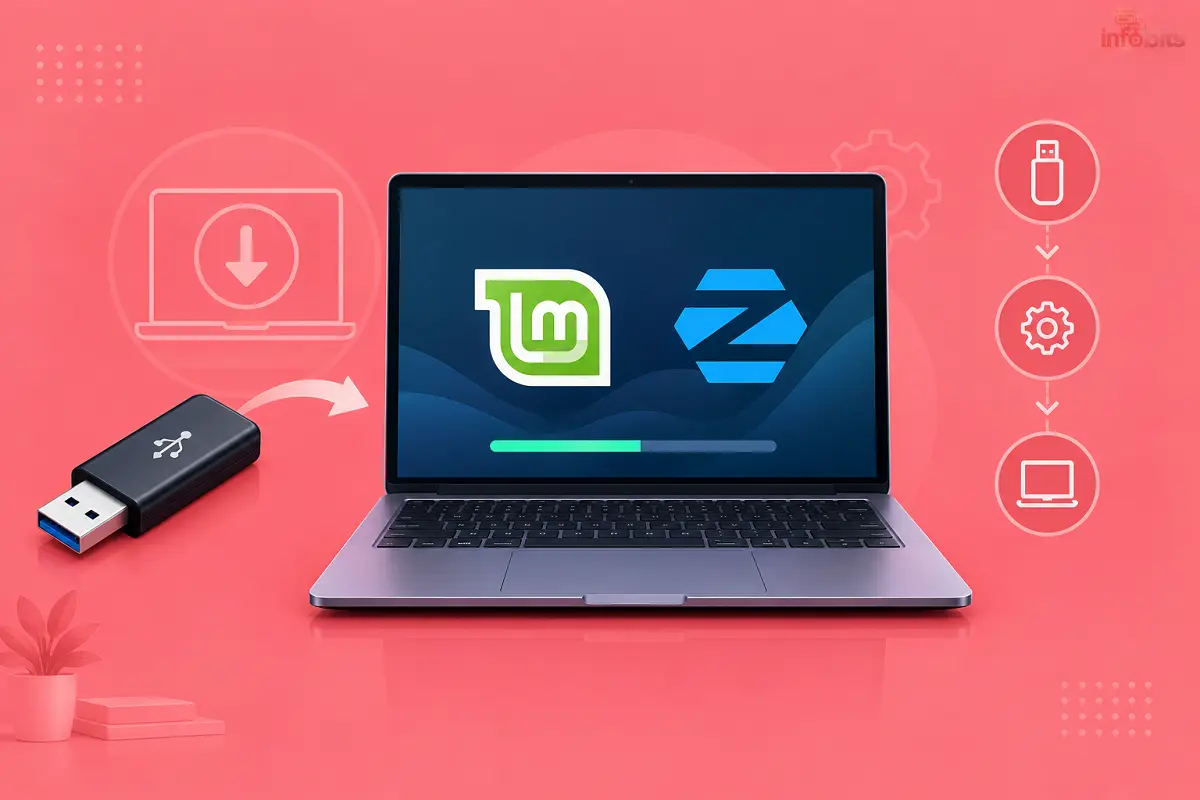
Quick Answer: How to Install Linux Mint or Zorin OS From USB
- Back up your files.
- Download the ISO from the official website.
- Verify the download (optional but smart).
- Write the ISO to a pen drive using Etcher or Rufus.
- Restart the PC and open the boot menu (F12, Esc, or F9, depending on the brand).
- Boot from the pen drive and try the live desktop.
- Click “Install”, choose your disk option, and follow the prompts.
- Remove the pen drive when asked and restart.
The whole job takes about 30 to 45 minutes, plus download time.
Linux Mint or Zorin OS: Which Should You Install?
Both are free, beginner-friendly, and based on Ubuntu 24.04. The difference is in the feel.
| Linux Mint 22.3 | Zorin OS 18 | |
|---|---|---|
| Looks like | Classic Windows 7/10 style | Modern, close to Windows 11 or macOS |
| Free edition | Yes, fully free | Yes (Core). Pro is paid |
| Editions | Cinnamon, MATE, Xfce | Core, Pro, Education |
| Best for | Older PCs, stability, daily use | Newcomers who want a polished look |
| Minimum RAM | 2 GB (4 GB recommended) | 2 GB |
| Minimum storage | 20 GB (more is better) | 15 GB for Core |
| Support until | April 2029 | June 2029 |
Simple decision guide:
- Pick Linux Mint (Xfce) if your PC has 4 GB RAM or less, or is more than eight years old.
- Pick Linux Mint (Cinnamon) if you want a familiar desktop that works.
- Pick Zorin OS Core if you want a modern look and your PC has 4 GB RAM or more.
- Not sure? Try both from a pen drive without installing. Both have a live mode.
Zorin has also been phasing out its Lite edition. Check the official download page before you plan around it.
What You Need Before You Start
- A PC or laptop with a 64-bit processor. Both systems are 64-bit only.
- An 8 GB or larger USB drive. Zorin recommends 16 GB for Pro or Education.
- A working internet connection to download the ISO (about 3 to 3.5 GB).
- Another computer to create the bootable pen drive, if your target PC doesn’t have Windows.
- A phone with USB tethering, as a backup for Wi-Fi drivers.
Pen drives vary a lot in write speed, and a slow one makes the install drag. A decent USB 3.0 drive, like the SanDisk Ultra Dual Drive or Cruzer Blade range on Amazon India, finishes the flashing step in a few minutes.
Before You Touch Anything: Backup and Safety Checklist
Installing an operating system can erase your disk. Do not skip this part.
- [1] Copy your documents, photos, and browser bookmarks to an external drive or cloud.
- [2] Note down software licence keys you may need later.
- [3] If you use Windows 11 with BitLocker or “device encryption”, save your recovery key from your Microsoft account.
- [4] Plug your laptop into the charger.
- [5] Decide: replace Windows completely, or keep both (dual boot)?
If you have more than a few gigabytes to protect, an external hard drive is the safest backup. A portable 1 TB drive from WD or Seagate (view options on Amazon) is enough for most people.
Want a refresher on Windows backups first? See our guide on configuring backup and restore in Windows.
Step 1: Download the ISO File
An ISO is a single file that contains the full operating system. Always download it from the official site.
- Linux Mint: linuxmint.com → Download → choose Cinnamon, MATE, or Xfce.
- Zorin OS: zorin.com/os/download → choose Core (free) or Pro.
Avoid random “download” sites and torrent mirrors you don’t recognise. A tampered ISO is a real risk.
Which Mint edition? Cinnamon is the default and the most polished. Xfce uses the least RAM. MATE sits in the middle.
Verify the ISO (Takes 2 Minutes)
A quick checksum check confirms your download is complete and untouched. On Windows, open Command Prompt in your Downloads folder and run:
certutil -hashfile linuxmint-22.3-cinnamon-64bit.iso SHA256
Compare the result with the SHA256 value on the official download or mirror page. If the two don’t match, download the file again.
Step 2: Create the Bootable USB Drive
Copying the ISO onto a pen drive does not work. You must “flash” it with a tool.
Option A: balenaEtcher (recommended by Mint’s own guide)
- Install and open Etcher.
- Click Flash from file and select your ISO.
- Click Select target and choose your pen drive.
- Click Flash!
Option B: Rufus (Windows only)
- Open Rufus and pick your pen drive under Device.
- Click SELECT and choose the ISO.
- Keep GPT and UEFI for any PC made after about 2012.
- Click START and accept the prompts.
Warning: Flashing erases everything on the pen drive. Also, keep the ISO on your hard disk, not on the pen drive you are about to wipe.
On a Windows machine, you may find our guide on formatting disks with a disk format tool useful if the pen drive acts up.
Step 3: Boot Your PC From the USB Drive
Plug in the pen drive, restart, and tap the boot menu key repeatedly as the logo appears.
| Brand | Boot menu key | BIOS key |
|---|---|---|
| Dell | F12 | F2 |
| HP | Esc, then F9 | Esc, then F10 |
| Lenovo | F12 (or Novo button) | F2 |
| ASUS | Esc or F8 | F2 |
| Acer | F12 (enable it in BIOS if missing) | F2 |
| MSI | F11 | Del |
Windows shortcut: Go to Settings → System → Recovery → Advanced startup → Restart now → Use a device. This works on most Windows 10 and 11 laptops.
Select your pen drive. If you see two entries for it, pick the one that says “UEFI”.
Secure Boot: Both Linux Mint and Zorin OS boot with Secure Boot enabled on most PCs. You usually don’t need to turn it off.
Step 4: Try the Live Session First
You will see a menu. Choose “Start Linux Mint” or “Try or Install Zorin OS”. The desktop loads straight from the pen drive without touching your disk.
Spend five minutes testing:
- Does Wi-Fi connect?
- Do the speakers, webcam, and touchpad work?
- Is the screen resolution correct?
- Does the brightness key respond?
This is the best part of the whole process. If something fails, you have lost nothing.
Step 5: Install Linux Mint
Double-click Install Linux Mint on the desktop and follow these steps.
- Language: Pick English or your preferred language.
- Keyboard layout: Choose English (US) or English (India). Test it in the box.
- Multimedia codecs: Tick “Install multimedia codecs”. Without them, some videos and MP3s may not play.
- Installation type: Choose from the options below.
- Time zone: Pick Kolkata.
- User account: Create your name, computer name, and password.
- Install: Wait 10 to 20 minutes. Remove the pen drive when prompted and press Enter.
Which Installation Type Should You Choose?
| Option | What it does | Choose it if |
|---|---|---|
| Erase disk and install Linux Mint | Wipes everything, uses the full disk | The PC is old, FreeDOS, or you don’t need Windows |
| Install alongside Windows Boot Manager | Shrinks Windows, adds Linux next to it | You want both systems |
| Something else | Manual partitions | You know what you’re doing |
If you can’t decide between a second OS and a virtual machine, read dual boot vs virtual machine comparison first.
The same advice holds for Windows first-timers: take your time at this screen. Choosing “Erase disk” on the wrong drive is the most common regret.
Step 5B: Install Zorin OS (What Changes)
The steps are nearly identical. Boot from the pen drive, choose Try or Install Zorin OS, and then click Install Zorin OS on the desktop. The wording may differ slightly between releases.
You will pick a language, keyboard layout, and installation type. There is also a tick box to install third-party software and updates during setup. Enable it unless your internet is very slow.
Choose Erase disk and install Zorin OS for a clean install, or install alongside Windows. Create your account, wait for the copy to finish, then restart and remove the pen drive.
Step 6: First Boot and First-Hour Setup
After the first login, do these in order.
- Update everything. On Mint, open Update Manager. On Zorin, open Software Updater.
- Install drivers. Mint has Driver Manager. Zorin has Additional Drivers. This matters most for NVIDIA graphics and some Wi-Fi cards.
- Set up Timeshift on Mint. It takes automatic restore points, so a bad update can be undone.
- Add your language. Open Language settings if you type Hindi, Malayalam, or Tamil. Install the matching input method.
- Install your apps. Firefox is already there. Add Chrome, VLC, LibreOffice updates, and Telegram from the Software Manager.
- Test printing and your Wi-Fi hotspot.
If you just finished a Windows setup before this, things to do after installing Windows 11 shows a similar checklist for comparison.
Troubleshooting: Common Problems and Fixes
| Problem | Likely cause | Fix |
|---|---|---|
| Pen drive missing from boot menu | Bad flash or wrong USB port | Re-flash, try a USB 2.0 port, and use the UEFI entry |
| Black screen after the menu | Graphics driver conflict | Choose “Compatibility mode” on the Mint boot menu and retry |
| Installer can’t see my SSD | Intel RST/VMD or RAID mode in BIOS | Check the storage mode in BIOS. Change it carefully, and back up first |
| Wi-Fi not showing | Missing driver (Broadcom, some Realtek) | Connect using phone USB tethering, then open Driver Manager |
| Laptop boots Windows again | Boot order unchanged | Open the boot menu and select Linux Mint or Zorin OS |
| Blue screen asking for MOK enrollment | Secure Boot with proprietary drivers | Choose “Enroll MOK”, enter the password you set, and continue |
| Windows asks for a BitLocker key | Disk layout changed | Enter the recovery key from your Microsoft account |
| Installer freezes | Corrupted ISO or weak pen drive | Re-check the SHA256, re-flash, or try another pen drive |
Common Mistakes to Avoid
- Installing without a backup. Mistakes happen, and Linux does not forgive a wiped drive.
- Using a 4 GB pen drive for Zorin Pro. It may not fit. Use 16 GB.
- Leaving the ISO on the pen drive that you flash.
- Skipping the live session. You find hardware problems after installing instead of before.
- Picking “Erase disk” when a second drive holds your data. Check the disk name and size twice.
- Ignoring BitLocker on Windows 11 laptops.
Myth vs Fact
| Myth | Fact |
|---|---|
| Linux is only for programmers. | Mint and Zorin are built for everyday users. |
| Free means it is unsafe. | Both are widely used and get regular security updates. |
| You must delete Windows. | You can dual-boot or just test from the pen drive. |
| Linux cannot run on old PCs. | Mint Xfce runs well on 2 GB RAM machines. |
| Installing Linux voids my warranty. | Installing an OS is not hardware tampering, but check your brand’s policy if worried. |
Expert Tips From Real Installs
- Slow old laptop? Upgrade the drive first. Replacing a hard disk with an SSD makes more difference than any OS. A 256 GB SATA SSD from Crucial or Kingston (available on Amazon) is a worthwhile upgrade.
- Check your RAM. If you have only 2 GB, choose Mint Xfce. Our guide to DDR2, DDR3, DDR4 and DDR5 RAM helps you buy the right module.
- Test hardware compatibility before installing. Our review of DistroTest shows how to try distros in your browser.
- Keep the pen drive. It doubles as a rescue disk if something breaks later.
- Use a wired mouse if your touchpad misbehaves in the live session. An inexpensive USB mouse from Logitech available on Amazon does the job.
Will My Everyday Apps Work in India?
Mostly yes. Banking, UPI, DigiLocker, IRCTC, and Aadhaar sites run in the browser. Microsoft Office files open in LibreOffice, and Microsoft 365 works in the browser.
Some Windows-only software is the catch. Tally and certain CAD or design tools may not run natively. Check alternatives first, or run them in a virtual machine. Our article on virtualisation skills explains how.
Conclusion
Installing Linux Mint or Zorin OS from a pen drive is easier than most people expect. Back up, download, flash, boot, and install. That is the whole story.
Start with a live session, and only install once you are happy. If your Windows 10 PC is running out of road, this is a free, safe next step. If it goes well, come back and tell me which one you picked.
Frequently Asked Questions
Yes. Download the ISO, write it to a pen drive with Etcher or Rufus, boot from it, and click Install.
8 GB is a safe choice. The ISO is about 3 GB, but extra space avoids tool errors.
Both are beginner-friendly. Mint is more classic and lighter, while Zorin looks more modern.
Yes. Zorin OS Core is free. Zorin OS Pro is a paid edition with extra layouts and apps.
Only if you choose “Erase disk”. Pick “Install alongside” to keep Windows.
Etcher works on Windows, macOS, and Linux and is simple. Rufus is Windows-only and offers more options.
Tap F12 on Dell, Lenovo, and Acer. Use Esc, then F9 on HP, and Esc or F8 on ASUS.
Usually not. Mint and Zorin boot with Secure Boot on most PCs.
Usually 15 to 30 minutes, plus the download and flashing time.
Yes. Boot from the pen drive and choose the live session. Nothing is changed on your disk.
Mint needs a 64-bit PC with 2 GB RAM (4 GB recommended) and about 20 GB of disk space.
Yes. Mint Xfce or Cinnamon runs fine on 4 GB for everyday browsing and office work.
Back up, save your BitLocker key, then choose “Install alongside Windows Boot Manager” in the installer.
The flash may have failed, or the USB port is the problem. Re-flash, try another port, and look for the UEFI entry.
Your BIOS may use Intel RST/VMD mode. Check the storage setting carefully and back up first.
Usually yes. If not, tether your phone over USB and install the driver from Driver Manager.
Many apps run through alternatives or compatibility layers. Some, like Tally, may need a virtual machine.
Wait until the installer says “Installation complete”, click Restart, and remove the drive when prompted.
We hope you are interested in our articles and consider following our Facebook, Instagram, and Twitter pages for regular updates.
Also, share this article with your friends and relatives. Bookmark this page for future reference.
Subscribe to our free newsletter to get similar articles and regular updates directly in your Email Inbox.
Subscribe to be the first to learn about new information
Disclosure: If you follow our links to a retailer’s website and make a purchase, we will get an affiliate commission on some, but not all, of the items or services we promote. This will cause no price change for you.
You May Be Interested in Reading:
- ChromeOS Flex vs Lightweight Linux: Which Should You Choose?
- SIM Swap Fraud in India: Warning Signs and How to Protect Your Bank Account
- SSD vs HDD: Which Actually Matters More for PC Speed?
- Double NAT Explained: How to Check and Fix It on Indian Broadband
- WebOS vs Fire TV: Which Smart TV Platform Is Right for You?