How to Lock Your SIM Card With a PIN (Android & iPhone)
Quick Answer: Go to Settings → Security (Android) or Settings → Cellular → SIM PIN (iPhone), enable SIM lock, and enter your carrier’s default PIN ( usually 0000 or 1234), then set a new one of your own. Once enabled, your phone will ask for this PIN every time it restarts or the SIM is moved to another device, which stops anyone from using a stolen or misplaced SIM to make calls, receive OTPs, or rack up charges on your number.
Your phone’s screen lock ( face unlock, PIN, pattern) protects the device and everything stored on it. It does nothing to protect your SIM card.
Anyone who pops your SIM out and drops it into another phone gets full access to your number: calls, SMS, and every OTP tied to your bank accounts and apps. SIM lock closes that specific gap, and it takes about two minutes to set up.
This guide covers the current menu paths on Android and iPhone, the default PINs for India’s major carriers, what happens if you get locked out, and how to actually retrieve a PUK code today, including the self-service options most guides still don’t mention.
Why SIM Locking Matters
Your mobile number is the backbone of your digital identity in India. It’s linked to your bank accounts, Aadhaar, UPI apps, and every OTP that verifies a transaction.
If your SIM is lost, stolen, or removed by someone else, they can slot it into any other phone and start receiving your calls, texts, and verification codes immediately, with no device passcode standing in their way.
Enabling SIM lock is the only way to protect the SIM itself, not just the phone it’s currently in. Once active, the SIM demands its own PIN on every restart or device swap, making a stolen SIM effectively useless to anyone who doesn’t know that code.
Related: How to Find a Lost Mobile Phone Using IMEI Tracking
SIM PIN vs Screen Lock: What’s the Difference?
It’s worth being clear on this distinction, since the two are often confused:
| Screen Lock (Face ID, PIN, Pattern) | SIM PIN | |
|---|---|---|
| Protects | The device and the apps/files on it | The SIM card and your phone line |
| Bypassed by | — | Removing the SIM and inserting it elsewhere |
| Required when | Unlocking the phone | Phone restart or SIM moved to a new device |
A screen lock alone leaves your SIM completely exposed the moment it’s physically removed. You need both layers for full protection.
Default SIM PIN by Carrier
Most SIMs ship with a factory-default PIN that few people ever change. Confirm with your operator before enabling the lock, since defaults occasionally vary by circle or SIM batch:
| Carrier | Default SIM PIN |
|---|---|
| Airtel | 1234 |
| BSNL | 0000 |
| Jio | 0000 or 1234 |
| Vi (Vodafone Idea) | 0000 |
Change this default immediately after enabling SIM lock. A default PIN offers no real protection. It’s the first thing anyone familiar with Indian telecom would try.
How to Set a SIM Lock PIN on Android
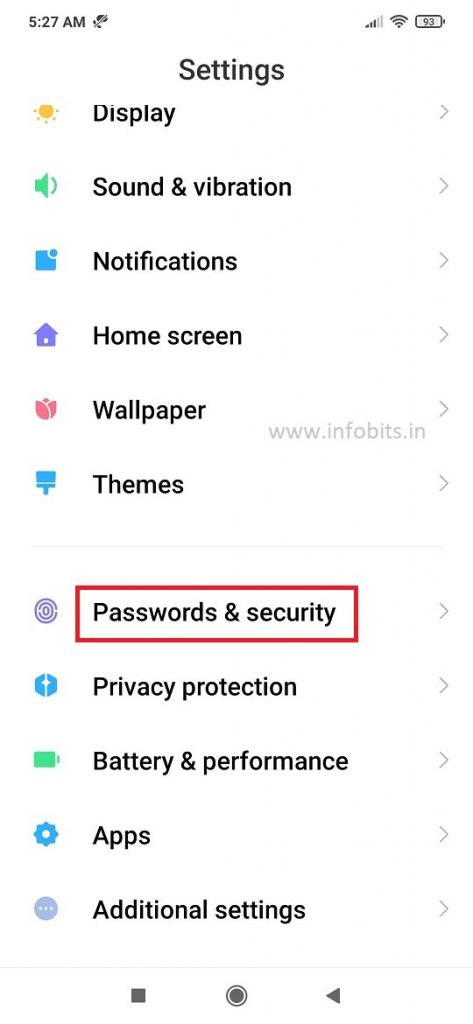
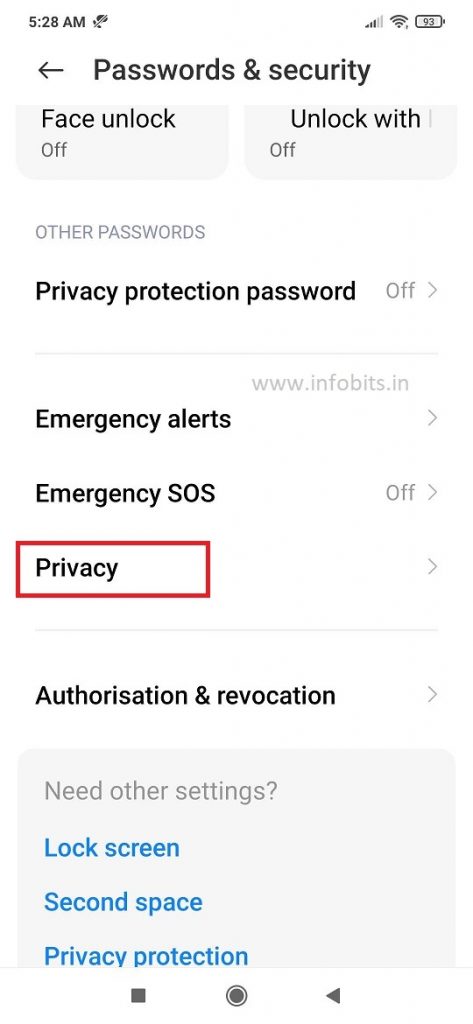
Menu names vary by phone brand and Android version, so use the path that matches your device, or search “SIM lock” directly in your Settings app if neither matches.
On Samsung phones:
- Open Settings → Lock screen and security (or Biometrics and security on newer models).
- Tap Other security settings.
- Tap Set up SIM card lock.
- Toggle Lock SIM card on.
- Enter your carrier’s default PIN to confirm.
- Tap Change SIM PIN to set your own PIN in place of the default.
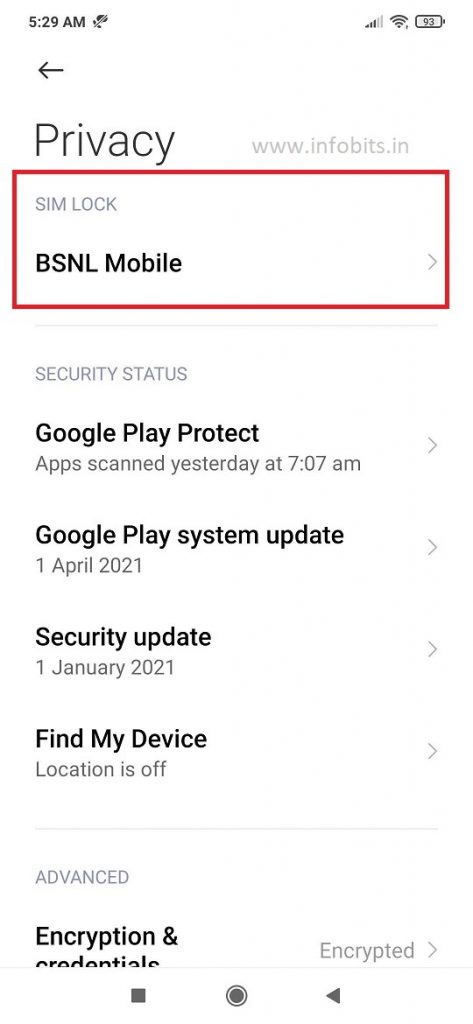
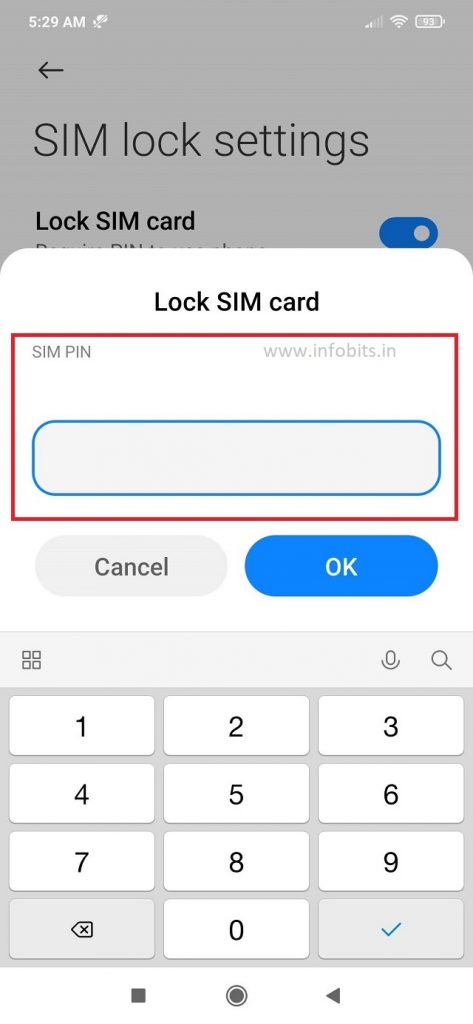
On Pixel and most stock Android phones:
- Open Settings → Security (or Security & privacy).
- Tap More security settings (or scroll to find SIM options directly).
- Tap SIM card lock.
- Select the SIM you want to lock if you have dual SIM.
- Toggle the lock on, enter the default PIN, then set your own.
If you can’t find it: open Settings, tap the search bar, and type “SIM lock”. Nearly every Android skin surfaces the option this way even if the menu structure differs.
Dual SIM users: the lock is set separately for each SIM slot. Repeat the steps for both if you want full protection.
Related: How to Protect Your Bank Account From Hackers
How to Set a SIM Lock PIN on iPhone
- Open Settings.
- Tap Cellular (this may show as Mobile Data in some regions/iOS versions).
- Tap your SIM line. It typically displays your carrier’s name.
- Tap SIM PIN.
- Toggle SIM PIN on.
- Enter your carrier’s default PIN to confirm.
- Tap Change PIN and set a new 4-to-8-digit PIN of your own.
The steps work the same way whether you’re using a physical SIM or an eSIM.
What Is a PUK Code?
PUK (Personal Unblocking Key) is an 8-digit code, unique to each SIM, that unlocks a SIM after too many incorrect PIN attempts. Entering your SIM PIN incorrectly three times in a row triggers a temporary PUK block. At that point, only the correct PUK code (not the PIN) will restore access.
The PUK is specific to that one SIM. Even two SIMs on the same carrier and plan will have different PUK codes, so one can never be reused for another.
How to Get Your PUK Code (Without Waiting on Hold)
Contrary to older advice, you’re no longer limited to calling customer care for this. Most major Indian carriers now offer self-service retrieval:
Airtel:
- Open the Airtel Thanks app → Help/Support → search “PUK code.”
- Or log in to the Airtel self-care website with your number and OTP.
- Or send an SMS in the format PUK <15-digit SIM number> to 121 from another Airtel number.
Jio:
- Dial 199 from another Jio number, or 1800-889-9999 from any other line, and follow the IVR prompts for PUK retrieval.
- Or check the Jio self-care portal, which may ask for your device’s IMEI to verify you.
Vi (Vodafone Idea):
- Dial the USSD code 1113*8# to retrieve your Vi PUK directly.
- Or call Vi customer care and verify your identity.
BSNL:
- BSNL currently requires contacting customer service directly (call or visit a Customer Service Centre) with your SIM number and ID proof, since it doesn’t yet offer the same self-service app/USSD retrieval as private operators.
In all cases, you’ll typically need to provide your 19-digit SIM card number (printed on the SIM’s original plastic backing) along with identity verification.
What Happens If You Enter the Wrong PIN or PUK
- 3 incorrect SIM PIN attempts → the SIM is temporarily blocked and asks for the PUK code instead.
- 10 incorrect PUK attempts → the SIM is permanently disabled and cannot be recovered. At this point, you’ll need to request a replacement/duplicate SIM from your carrier.
Because of that second point, never guess at a PUK code repeatedly. Retrieve the correct one through official channels first rather than trying combinations.
Does SIM Lock Work With eSIM?
Yes. Even though an eSIM can’t be physically removed and swapped like a plastic SIM, the SIM PIN lock still applies and protects against unauthorised use if someone resets your device or attempts to transfer your eSIM profile elsewhere.
If your phone supports eSIM, it’s worth enabling the same lock on it as you would a physical SIM.
Myth vs Fact
Myth: My phone’s screen lock already protects my SIM card. Fact: Screen lock only protects the device itself. A SIM removed and inserted into another phone works immediately unless SIM lock is separately enabled.
Myth: If I lose my PUK code, there’s no way to get it except calling customer care. Fact: Airtel, Jio, and Vi all now offer self-service PUK retrieval through their apps, self-care portals, or USSD codes. Calling customer care is no longer the only option for most users.
Myth: The same PUK code works for every SIM on a given carrier. Fact: PUK codes are unique to each SIM card, even across SIMs on the same account or plan.
Conclusion
Locking your SIM card with a PIN is a simple step that can add an extra layer of security to your mobile number. Your phone’s screen lock protects the device, but it does not protect the SIM if someone removes it and puts it in another phone. A SIM PIN helps close this gap by requiring the PIN after a phone restart or when the SIM is used in another device.
The setup process is also quite simple. On Android, you can find the SIM lock option under the security settings, while on an iPhone, it is available under Cellular or Mobile Data settings. The exact menu may vary slightly depending on your phone model and software version.
However, do not guess your SIM PIN or PUK code. Three wrong SIM PIN attempts can block the SIM and require a PUK code. Too many incorrect PUK attempts can permanently disable the SIM.
For Indian users, enabling SIM lock is worth considering, especially when your mobile number is linked to banking, UPI, and important accounts. It takes only a few minutes to set up and can provide useful protection if your phone or SIM is lost or stolen.
Frequently Asked Questions
A SIM PIN is a 4-to-8-digit code that locks your SIM card, requiring entry on every phone restart or when the SIM is moved to another device, to prevent unauthorised use.
Airtel uses 1234, BSNL and Vi use 0000, and Jio uses either 0000 or 1234 depending on the SIM. Confirm with customer care before enabling the lock.
Check the plastic backing your SIM came attached to, or retrieve it via your carrier’s app (Airtel Thanks), self-care portal (Jio), USSD code (Vi’s 1113*8#), or by calling customer care with your SIM number and ID proof.
Three incorrect attempts will temporarily block the SIM and require the PUK code to unlock it.
After 10 incorrect PUK attempts, the SIM is permanently disabled and cannot be recovered. You’ll need a replacement SIM from your carrier.
The SIM PIN itself works identically across both. Only the menu path to enable it differs (Settings → Security on Android; Settings → Cellular → SIM PIN on iPhone).
No. Once entered, SIM lock has zero effect on your phone’s normal operation. The PIN is only requested at restart or when the SIM changes devices.
Yes, return to the same SIM lock menu, toggle it off, and confirm with your current SIM PIN. The lock is removed immediately.
It significantly raises the difficulty, since a fraudulently reissued SIM would still need your PIN to function on restart, but it doesn’t prevent a SIM swap request itself from being approved by your carrier. That requires separate vigilance.
BSNL PUK codes must currently be obtained by contacting BSNL customer service directly with your SIM number and identity proof, as BSNL doesn’t yet offer app- or USSD-based self-retrieval.
Yes, SIM lock works the same way on eSIM, protecting against unauthorised use even though the eSIM can’t be physically removed.
SIM PINs are numeric only, typically between 4 and 8 digits, depending on your device and carrier’s requirements.
We hope this guide helped secure your SIM card. Follow Infobits on Facebook and Twitter for regular updates.
Subscribe to our free newsletter so that you will get similar articles and regular updates directly in your Email Inbox.
Subscribe to be the first to learn about new information
Disclosure: If you follow our links to a retailer’s website and make a purchase, we will get an affiliate commission on some, but not all, of the items or services we promote. This will cause no price change for you.