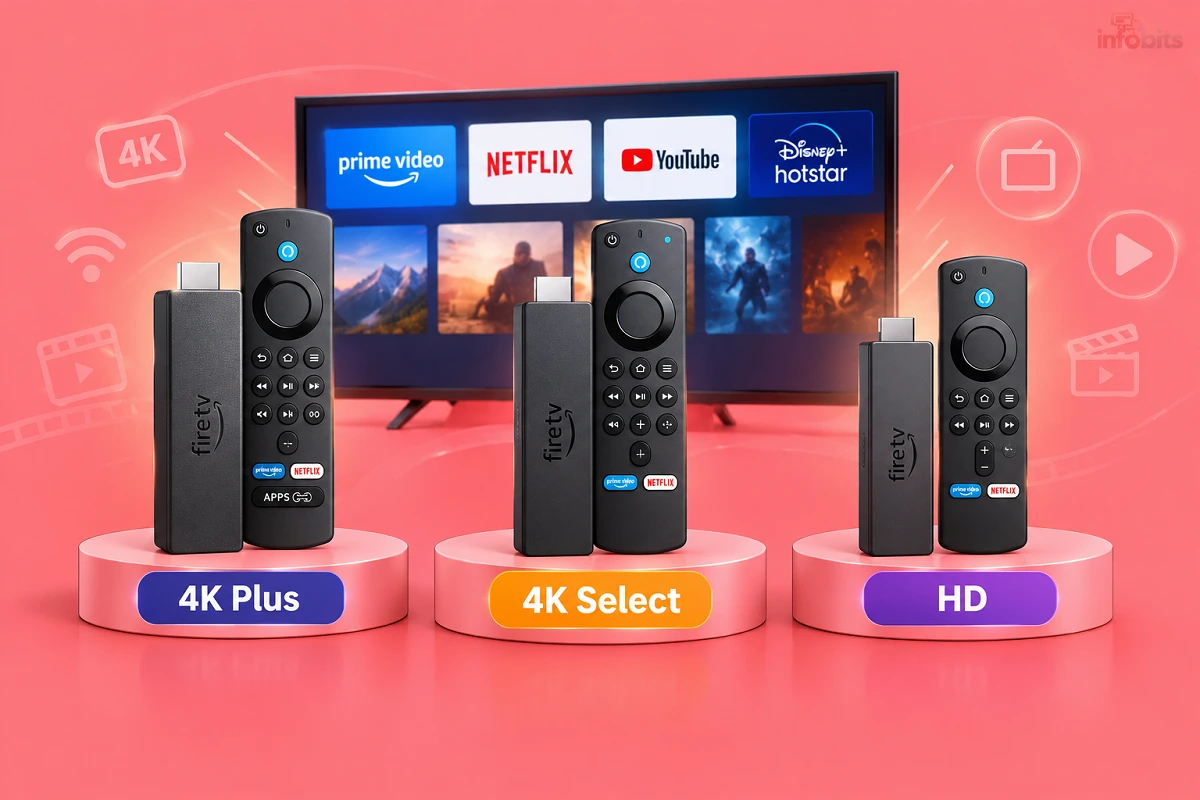
Fire TV Stick 4K Plus vs 4K Select vs HD: Which Should You Buy in India?
Quick Answer:
- Buy the Amazon Fire TV Stick 4K Plus if you have a 4K TV and want the most flexible, best-performing stick. It’s also the only one of the three that supports sideloading.
- Buy the Amazon Fire TV Stick 4K Select if you have a 4K TV and only use mainstream apps like Netflix, Prime Video and JioHotstar.
- Buy the Amazon Fire TV Stick HD only if your TV is Full HD (1080p) and you want the cheapest option.
If you can’t decide, pick the 4K Plus. The extra cost is small compared with what you spend on OTT subscriptions in a year.
Why This Choice Is Confusing
Amazon sells three sticks in India, and they look nearly identical. The big difference isn’t just 1080p versus 4K. It’s also the software inside.
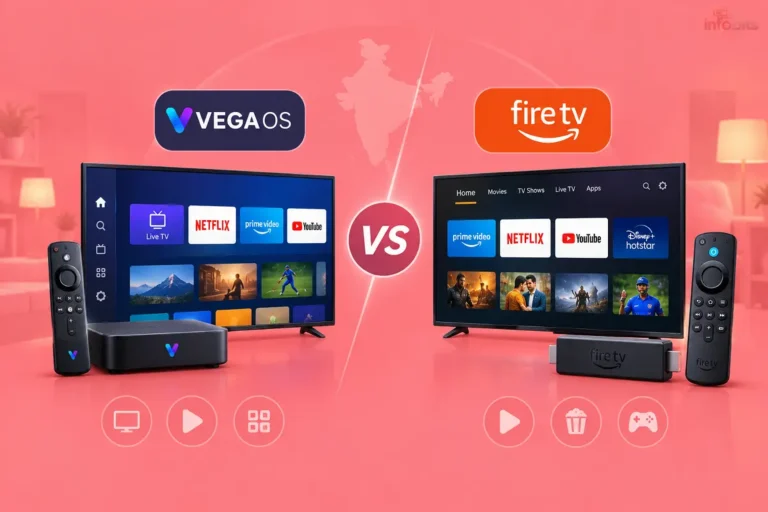
The Fire TV Stick HD and 4K Select run Amazon’s newer Vega OS, while the 4K Plus runs the older Fire OS. That one fact changes which apps you can install and what you can do with the stick.
Fire TV Stick 4K Plus vs 4K Select vs HD: Price in India
A recent India comparison lists the HD at ₹3,499, the 4K Select at ₹3,699 and the 4K Plus at ₹5,499. The 4K Plus is currently listed on Amazon India at ₹5,499, with an MRP of ₹6,999.
Street prices move a lot during festive sales. Some reviews list the Select at ₹5,499 or ₹3,999, so check the live price before you buy.
Note the ₹200 gap between the HD and the 4K Select. If you own a 4K TV, that tiny gap makes the HD a poor choice.
Related: Vega OS vs Fire OS: What Changes for Indian Users
Side-By-Side Comparison
| Feature | Fire TV Stick HD | Fire TV Stick 4K Select | Fire TV Stick 4K Plus |
|---|---|---|---|
| Latest Price | See on Amazon | See on Amazon | See on Amazon |
| Max resolution | 1080p | 4K at 60fps | 4K at 60fps |
| HDR | HDR10, HDR10+, HLG | HDR10, HDR10+, HLG | Adds Dolby Vision |
| Audio | Dolby passthrough | Dolby passthrough | Dolby Atmos |
| RAM/storage | 1GB / 8GB | 1GB / 8GB | 2GB / 8GB |
| Wi-Fi | Wi-Fi 6 | Wi-Fi 5 | Wi-Fi 6 |
| Operating system | Vega OS | Vega OS | Fire OS |
| Sideloading | No | No | Yes |
The spec table shows the HD with Wi-Fi 6 and the 4K Select with Wi-Fi 5. That means the cheapest stick has the better wireless on paper. It’s a small detail, but worth knowing.
The Real Difference: Vega OS Vs Fire OS
This section decides most purchases.
Fire OS is the Android-based system that Fire TV sticks have used for years. It supports a huge range of apps, including ones you install yourself.
Vega OS is Amazon’s newer Linux-based system. It’s lighter and less resource-hungry, but it doesn’t support sideloading, and many Android apps don’t work on it.
For most families, this doesn’t matter. The big apps are there. We have found JioHotstar, Netflix, Prime Video, YouTube, ZEE5, Apple TV+, JioCinema and Amazon MiniTV on Vega OS.
It matters if you use smaller apps. Because we could not find FanCode and SonyLIV on Vega OS. App stores change, so check the app store for the apps you need before buying.
Fire TV Stick 4K Plus: the Best All-Rounder
The 4K Plus is the stick I’d recommend to most people with a 4K TV. It has 2GB of RAM, Wi-Fi 6, Dolby Vision and Dolby Atmos, and it runs the familiar Fire OS.
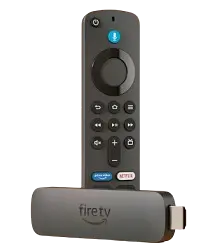
I would like to point out that Dolby Vision owners and anyone particular about colour accuracy should consider the more expensive 4K Plus. Also, you may notice that the Plus often dips under ₹5,500 in festive sales.
The Plus is also the one to buy if you want flexibility. It supports sideloading and a wider range of apps. That helps if you use VPNs, IPTV players or niche regional apps.
Choose it if: you want the smoothest experience, or you like to install extra apps.
Skip it if: your TV is 1080p, or you only watch two or three big apps and want to save money.
Fire TV Stick 4K Select: the Budget 4K Pick
The Select gives you 4K HDR10+ at a much lower price. It’s the first Fire TV Stick to run Vega OS, and it lacks Dolby Vision and Dolby audio support.
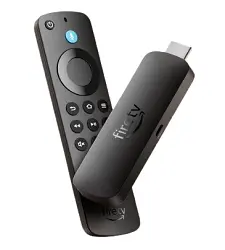
For a household that watches Netflix, Prime Video and JioHotstar on a mid-range 4K TV, that’s often enough. Many budget 4K TVs support only HDR10 anyway, so Dolby Vision wouldn’t help.
The compromises are 1GB of RAM, Wi-Fi 5, a more limited app store and no sideloading. But undoubtedly we can say that it’s an easy recommendation for non-smart TVs or smart TVs with slow, app-starved interfaces.
Choose it if: you want 4K at the lowest price and use only mainstream apps.
Skip it if: you need VPNs, IPTV apps or lesser-known OTT apps.
Fire TV Stick HD: Only for 1080p TVs
The HD plays Full HD content with HDR10 support. It launched on 29 April 2026 and runs Vega OS, so it can’t sideload apps.
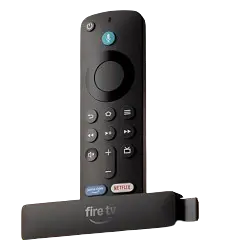
It makes sense if your TV is 1080p. Paying more for 4K on a Full HD screen gives you nothing visible.
If your TV is 4K, skip it. The Select costs only about ₹200 more and gives you a 4K picture.
Choose it if: your TV is 1080p and you want the cheapest stick.
Skip it if: you have a 4K TV or plan to buy one soon.
Which One Should You Buy? A Quick Guide by Situation
You have a 4K TV with Dolby Vision (LG, Sony, mid-to-premium Samsung or Xiaomi). Buy the 4K Plus. You’ll actually use the format.
You have a basic 4K TV with HDR10 only. The 4K Select is usually enough. You save about ₹1,800.
You have a 1080p TV. Buy the HD. You don’t need 4K.
You use a soundbar with Dolby Atmos. The 4K Plus handles Atmos best. The Select and HD pass through Dolby audio but don’t do Atmos in the same way.
You use a VPN or IPTV apps. Buy the 4K Plus. Vega OS blocks sideloading and doesn’t carry many VPN apps.
You mainly watch cricket on JioHotstar. All three will work. The Select is the value pick.
You’re buying for parents. The Select or the Plus. Either is simple, and the Plus has more headroom as apps get heavier.
5-Step Buying Checklist
- Check your TV’s resolution. Look for “4K” or “UHD” on the box or in settings.
- Check HDR support. Dolby Vision on the TV is the main reason to pay for the Plus.
- List your apps. Check that each is available on Vega OS if you’re considering the Select or HD.
- Check your Wi-Fi. A weak signal will hurt any stick, so test the speed near the TV.
- Compare the live price. The gap between Select and Plus can narrow during sales.
How to Set Up a Fire TV Stick
- Plug the stick into a free HDMI port on your TV.
- Connect the power and switch your TV to that HDMI input.
- Pair the remote and connect to your Wi-Fi.
- Sign in with your Amazon account, or create one.
- Install your OTT apps and sign in to each.
If your TV’s HDMI ports are tight or hard to reach, a short HDMI extender cable like the BlueRigger HDMI Cable Extension available on Amazon can stop the stick from overheating or hitting the wall. Look for one that fits your TV’s back panel.
Common Mistakes to Avoid
- Buying the HD for a 4K TV. The Select costs about ₹200 more and gives you 4K.
- Assuming all three run the same apps. Vega OS and Fire OS differ.
- Paying extra for Dolby Vision without a Dolby Vision TV. You won’t see any benefit.
- Ignoring your Wi-Fi. A good stick can’t fix a weak signal.
- Buying from unknown sellers. Stick to Amazon’s official listing or authorised sellers for warranty cover.
Myth vs Fact
Myth: All Fire TV sticks work the same way.
Fact: The HD and Select use Vega OS. The Plus uses Fire OS.
Myth: A 4K stick makes any TV look 4K.
Fact: Your TV must support 4K, and the content must be 4K too.
Myth: Dolby Vision always makes a big difference.
Fact: It only helps if your TV supports it and the content is encoded in it.
Myth: A Fire TV stick needs an Amazon Prime subscription.
Fact: You can use it without Prime. Prime Video is just one of many apps.
Troubleshooting Common Problems
Buffering or low quality. Test your Wi-Fi speed near the TV. Move the router closer or use an Ethernet adapter if your model supports one.
[Affiliate Opportunity] If buffering keeps happening across the house, a dual-band Wi-Fi 6 router may fix more than switching sticks. Pick one rated for your home’s size.
An app is missing. On the Select and HD, the app may not be on Vega OS yet. Check the App Store, or look at the 4K Plus if you need it.
Stick feels slow. Restart it and close unused apps. If it’s the HD or Select, the 1GB of RAM is the limit.
No picture or “no signal”. Check the HDMI input and try a different HDMI port.
Expert Tips
- Wait for festive sales. The 4K Plus often drops under ₹5,000.
- Don’t overpay for specs you can’t use. Check your TV’s format support first.
- Pair it with a good soundbar. The Plus handles Dolby Atmos best.
- Use annual plans for apps you watch all year. Our guide on OTT bundles shows where bundles save money.
If you already shop on Amazon often, a Prime membership can cover delivery and Prime Video, which pairs naturally with a Fire TV Stick.
Final Verdict
For most people with a 4K TV, the Fire TV Stick 4K Plus is the safest choice. It’s faster, has more flexible software and supports the best picture and sound formats.
If you want to save money and only use mainstream apps, the 4K Select is a solid budget pick. The HD is only for 1080p TVs.
If you’re torn between the Select and the Plus, check whether your TV supports Dolby Vision. If it doesn’t, the Select may be all you need.
Frequently Asked Questions
For most people with a 4K TV, the Fire TV Stick 4K Plus is the best. It has 2GB of RAM, Wi-Fi 6, Dolby Vision and Dolby Atmos. The 4K Select is the budget option.
It’s listed at ₹5,499 on Amazon India, with an MRP of ₹6,999. Prices often dip during festive sales.
A recent India comparison lists it at ₹3,699. Some reviews cite ₹3,999 or ₹5,499, so check the live price.
It’s listed at about ₹3,499. Check Amazon for the current price.
The Plus has 2GB RAM, Wi-Fi 6, Dolby Vision, Atmos and Fire OS. The Select has 1GB RAM, Wi-Fi 5, no Dolby Vision and runs Vega OS.
It is if your TV supports Dolby Vision or you want sideloading and more app options. If you use only mainstream apps on a basic 4K TV, the Select may be enough.
Vega OS is Amazon’s newer Linux-based system. It’s lighter than Fire OS but doesn’t support sideloading and has a smaller app library.
No. It runs Vega OS, which doesn’t support Android APK sideloading.
No. The 2026 HD model also runs Vega OS.
Yes. It runs Fire OS, which supports sideloading.
Of the three sold in India, only the 4K Plus supports Dolby Vision.
The 4K Plus supports Dolby Atmos. The Select and HD pass through Dolby audio but don’t offer the same Atmos support.
Yes. Reviews confirm these major apps are available on Vega OS. Some smaller apps may be missing, so check the App Store.
Yes. It plugs into the HDMI port and adds smart features to any TV with HDMI.
Usually no. The 4K Select costs only about ₹200 more and gives you 4K.
No. You can use it with any OTT apps. A Prime membership is optional.
The 4K Plus. Vega OS blocks sideloading and carries few VPN apps.
The HD and the 4K Plus have Wi-Fi 6 on paper. The 4K Select has Wi-Fi 5.
Festive sale periods usually bring the best prices. The 4K Plus has dropped below ₹5,000 in sales before.
It depends on your apps and TV. A Google TV streamer runs Android-based software with wide app support. The Fire TV 4K Plus is the closest match on Amazon’s side.
We hope you are interested in our articles and consider following our Facebook, Instagram, and Twitter pages for regular updates.
Also, share this article with your friends and relatives. Bookmark this page for future reference.
Subscribe to our free newsletter to get similar articles and regular updates directly in your Email Inbox.
Subscribe to be the first to learn about new information
Disclosure: If you follow our links to a retailer’s website and make a purchase, we will get an affiliate commission on some, but not all, of the items or services we promote. This will cause no price change for you.
You May Be Interested to Read:
- Best OTT Subscription Bundle in India: Plans, Prices and Which One to Pick
- Is Amazon Prime Worth It in India? Plans, Price and Real Savings
- Tata Play Smart Live TV App Review: Is Dish-Free TV Worth It?
- BSNL Bharat Air Fibre: Plans, Prices & How It Differs from Bharat Fibre
- Vzy OTT and Live TV Platform Review: Plans, Channels, Pros and Cons